

FAQs
Switching Between Campaign Accounts
If you assist with multiple campaigns or organizations in Vottiv, you can easily switch between accounts without needing to log out and back in.
You can switch accounts both on the Vottiv dashboard (web browser) and inside the Vottiv canvassing app.
Switching Accounts on the Vottiv Dashboard (Web)
Log in to your Vottiv dashboard.
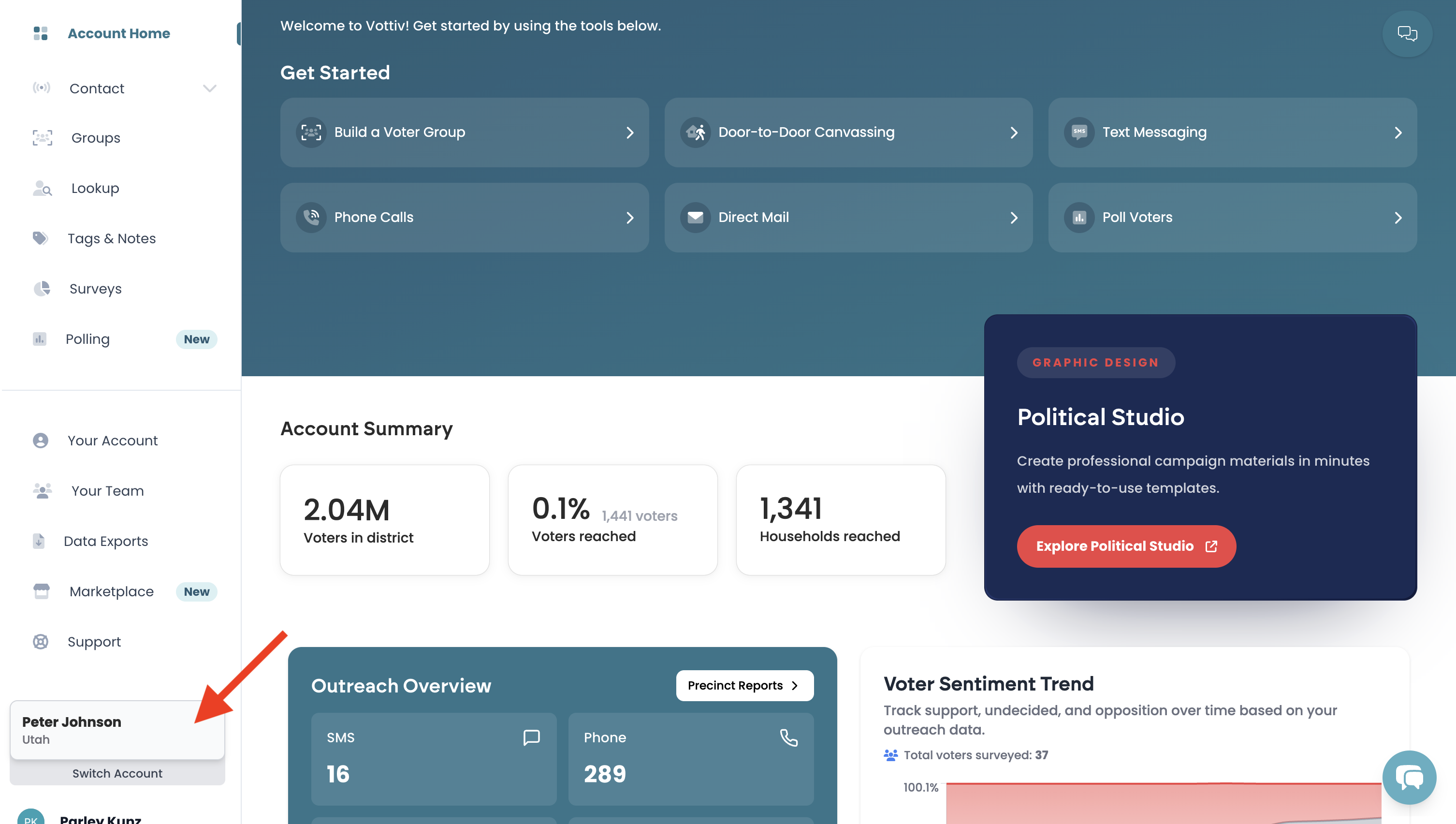
Look at the bottom-left corner of the screen.
Hover your mouse over the name of the account you are currently using.
Click Switch Account.
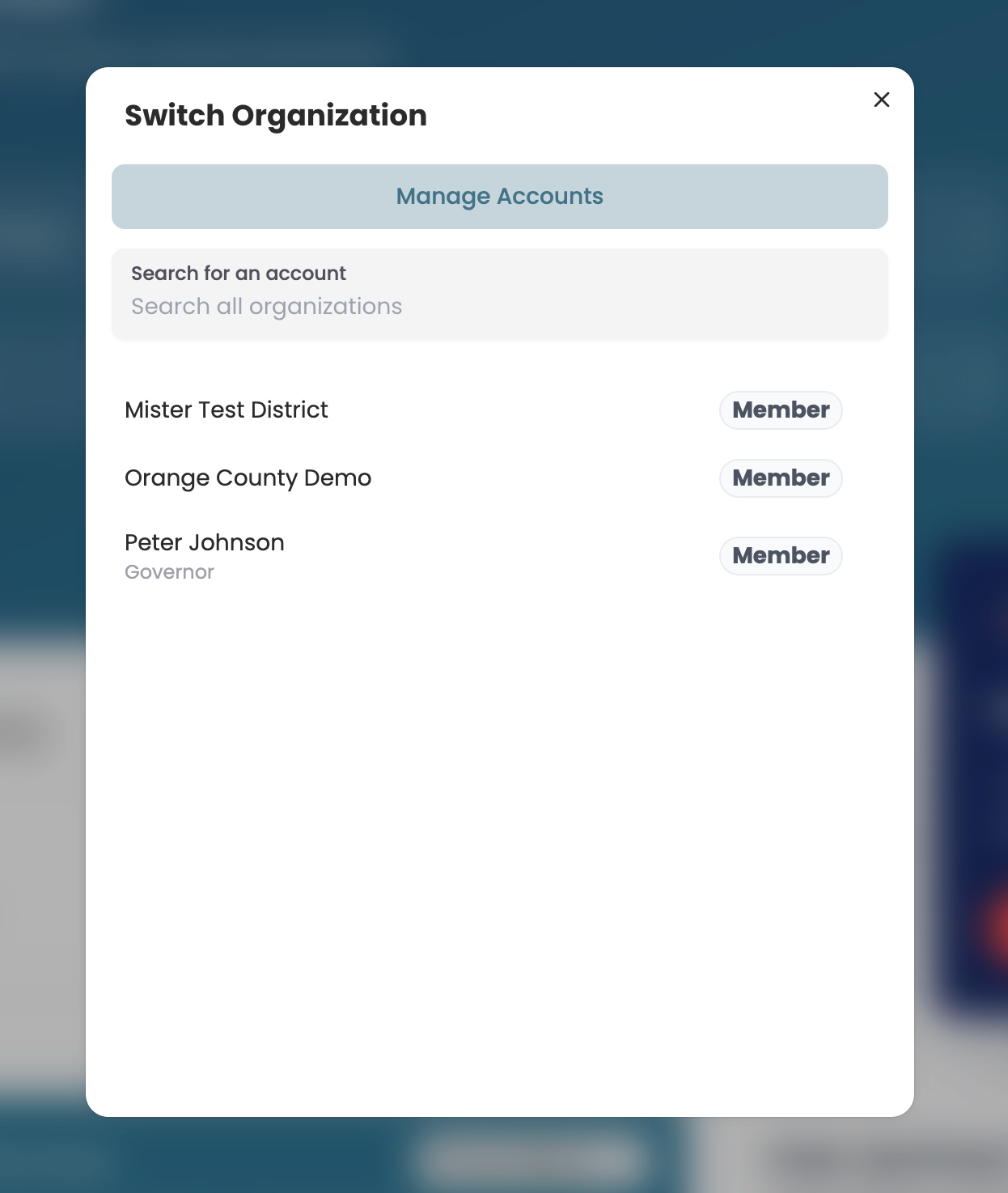
A Switch Organization window will appear.
Select the campaign or organization you would like to access.
You will then be taken to that campaign's dashboard.
When Vottiv Asks You to Pick an Account
If you belong to more than one organization, Vottiv will sometimes open the account picker for you the next time you load the dashboard. It stays open until you make a choice — this is a quick check so you always start in the right campaign.
There are three situations that bring it up:
You've been away. You haven't used Vottiv in 3 or more days.
You were added to another account. Someone added you to a new campaign or organization, or you accepted an invitation to one. The window will say You've been added to a new account.
Your session was reset. Vottiv support reset your account session, usually while helping you with a login or permissions question.
In every case you have the same two options:
To stay where you left off, click Continue (shown with the name of your current account).
To work in a different campaign, simply click that account in the list. Your current account is marked with a Current badge, and each row shows your role in that organization.
You'll only ever see the picker if you belong to two or more organizations, and only when you next load the dashboard — it won't interrupt you in the middle of your work. During normal day-to-day use it stays out of the way, and you can always switch accounts manually using the button in the bottom-left corner.
Leaving an Organization You No Longer Work With
If you're still a member of an old campaign you no longer help with, you can remove yourself right from the account switcher:
Open the Switch Organization window (bottom-left account button, or the automatic picker described above).
Hover over the organization you want to leave and click the leave icon that appears on the right side of the row.
Confirm by clicking Leave Organization.
A few things to know:
Leaving removes your access to that organization. You would need to be re-invited to rejoin.
If you are the only administrator of an organization, Vottiv won't let you leave until another administrator is added — this protects the campaign from being locked out.
The leave option only appears for organizations where you are a direct team member. Consulting firm staff won't see it on accounts they access through their firm.
You can also leave from the Team page inside the organization itself.
Switching Accounts in the Canvassing App
Open the Vottiv Canvassing App and sign in.
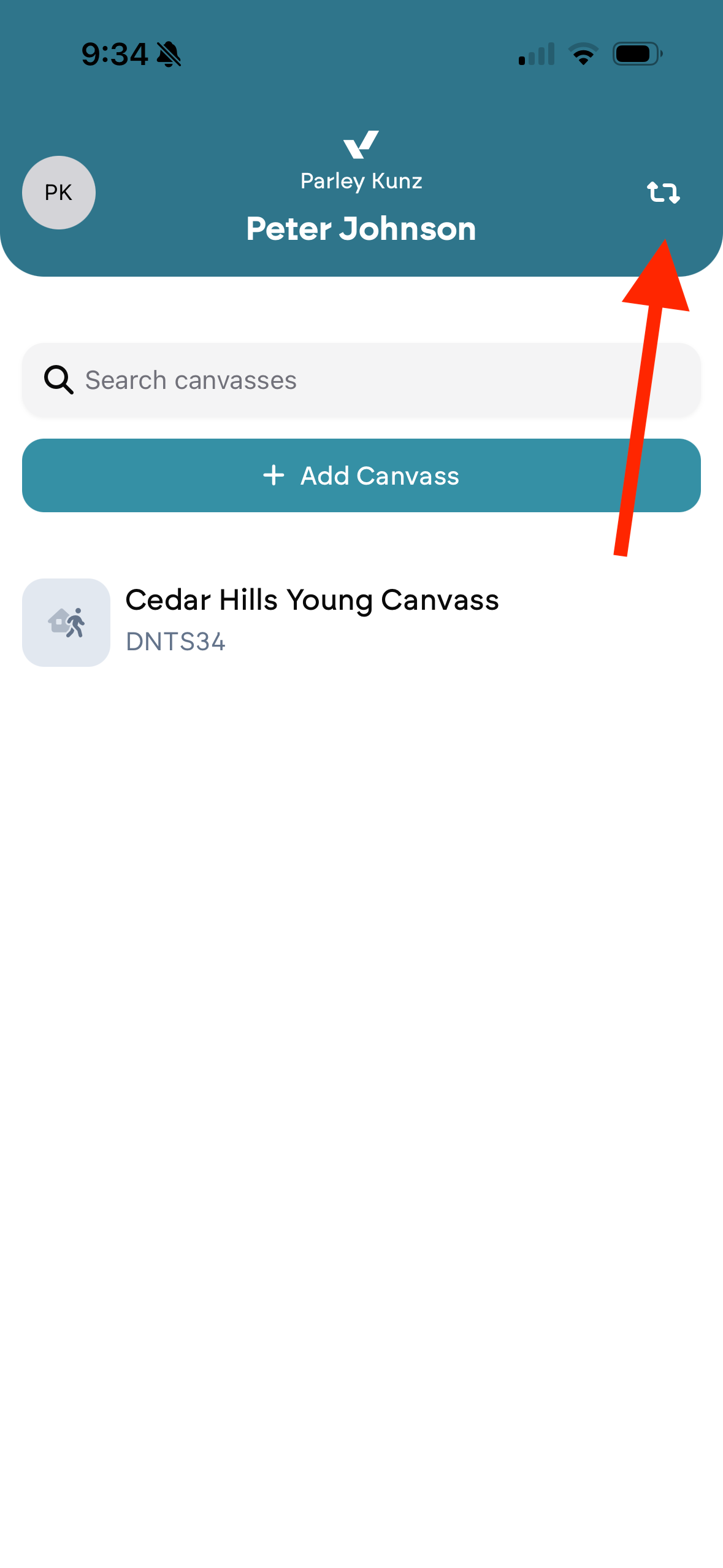
On the main screen, look in the top-right corner.
Tap the circular change icon.
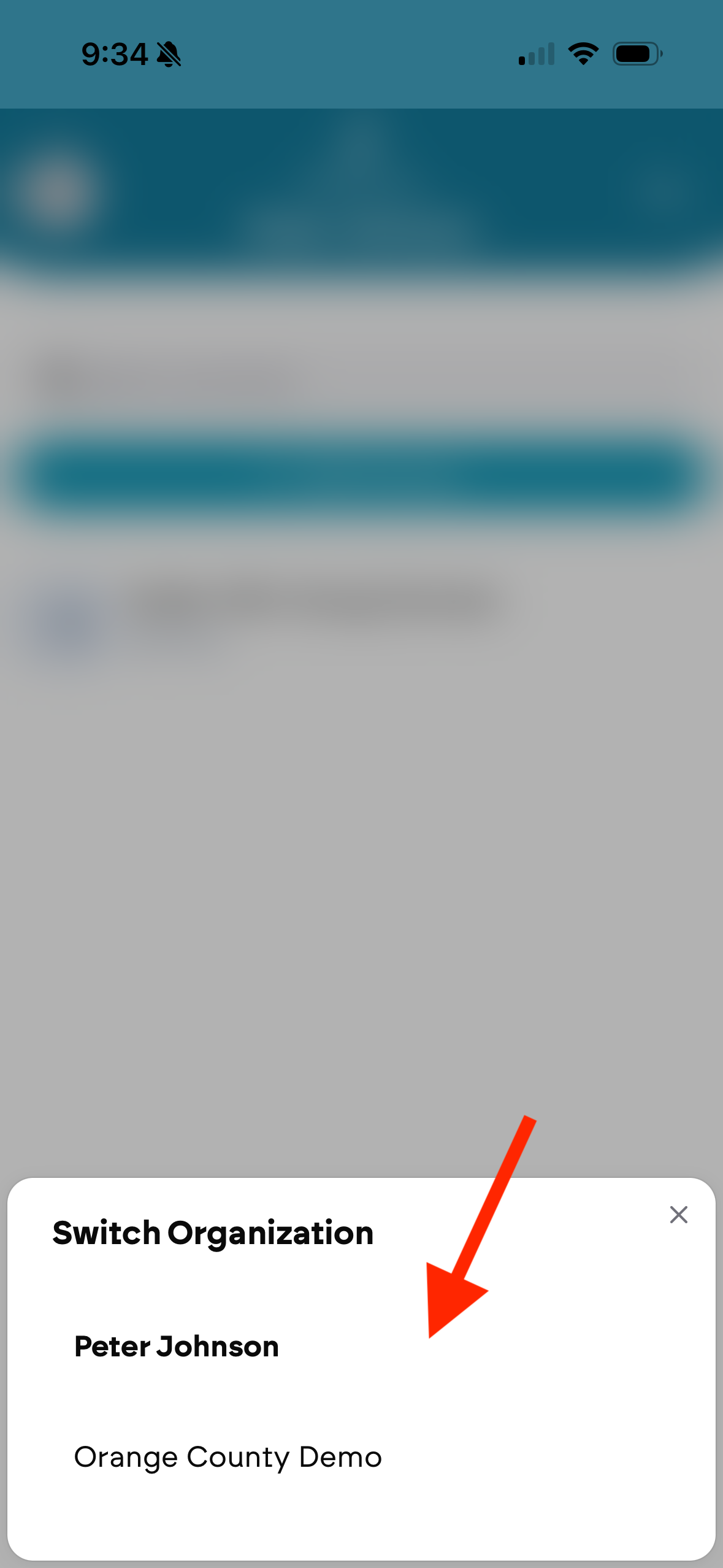
Select Switch Organization.
Choose the campaign you would like to switch to.
The app will then load that campaign's canvassing environment.
Important Note About Canvasses
When switching between campaigns, not all canvasses will automatically appear.
You will only see canvasses that you have joined using the campaign's six-digit canvass code. Each canvass has its own unique code, so if you have multiple canvasses in a campaign (for example, one for a ballot proposition and one for a candidate), you'll need to join each one separately on your phone.
If a canvass does not appear on your phone:
Ask the campaign administrator for the six-digit canvass code for that specific canvass.
In the canvassing app, tap Add new canvass, enter the code, and tap Join canvass.
Once you join a canvass, it will appear under that campaign's account.
Where to Find the 6-Digit Canvass Code (For Campaign Administrators)
If you are the campaign administrator or manager and you need to share a canvass with your team's phones, the 6-digit canvass code is located on the Vottiv web dashboard. It is not visible inside the mobile canvassing app.
To find the code:
Log in to the Vottiv dashboard in a web browser.
Make sure you are in the correct campaign account. If not, use the account switcher in the bottom-left to switch to the right campaign.
Go to the Canvassing section (either by clicking Door-to-Door Canvassing from the account home, or by going to Contacts → Canvassing).
Find the canvass you want to share in the list of active canvasses.
Click Invite on that canvass.
The pop-up will show the 6-digit canvass code, a copyable invitation link, and a downloadable QR code. Share any of these with your canvassers.
For a full walkthrough of inviting canvassers, see Setting Up Your First Canvass.
Was this article helpful?