

Door-to-Door Canvassing
Monitoring and Managing Canvass Activity in Vottiv
Vottiv makes it easy to monitor canvassing progress, review individual canvasser performance, and see the exact routes canvassers took in the field. Additionally, admins can update household statuses directly from the dashboard map, allowing for office-based management of canvass data. Notes entered by canvassers can also be reviewed centrally in the web portal.
When to Use This View
This view is useful if you want to:
Monitor canvassing progress in real time or after a shift
Update household statuses based on office inputs (calls, mail, etc.)
Review where canvassers walked and which doors were visited
Track productivity and efficiency
Recognize or reward top-performing canvassers
Audit canvassing coverage and outcomes
Search and review notes entered by canvassers in the field
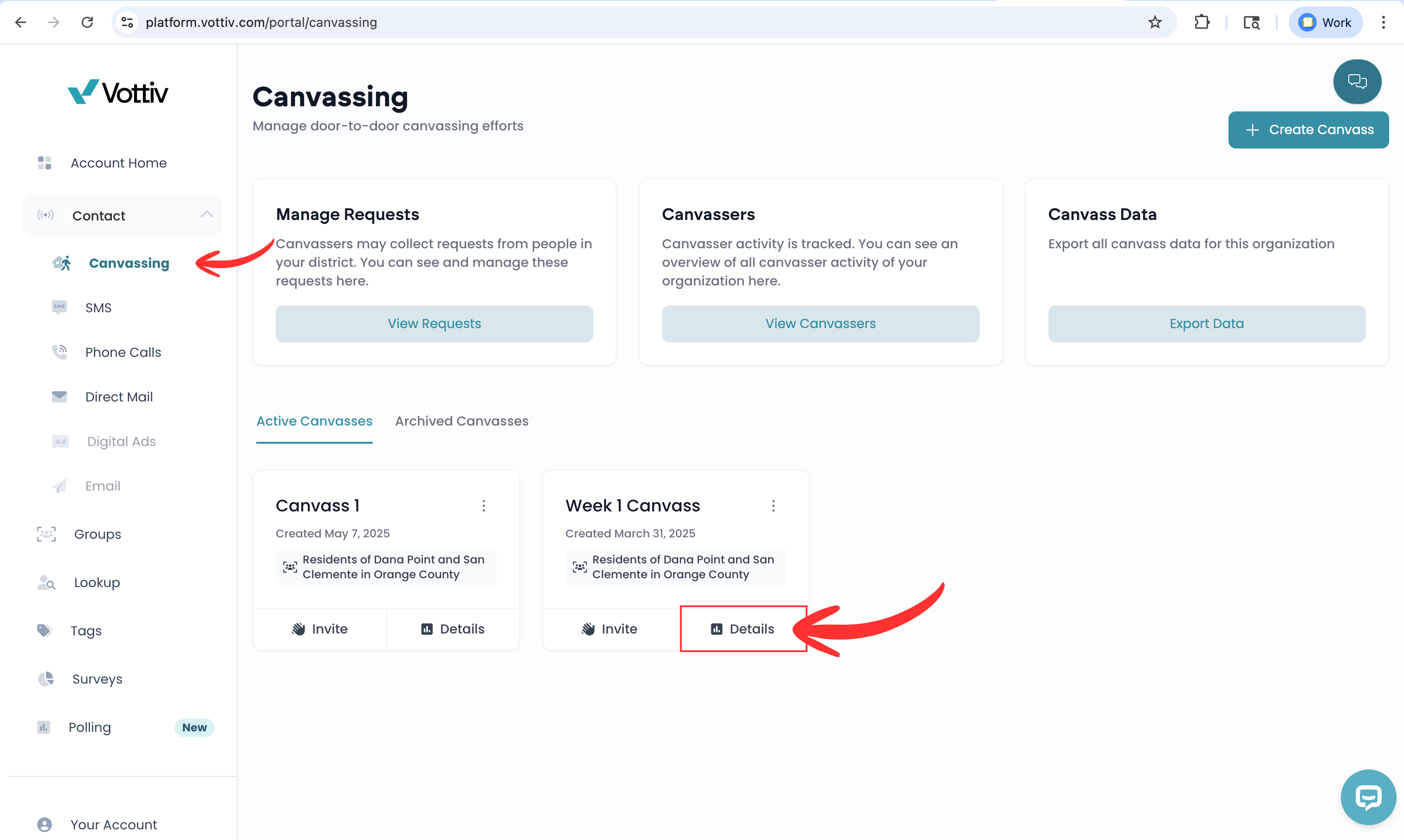
Step 1: Open Door-to-Door Canvassing
From the left-hand navigation, click Door-to-Door Canvassing
Find the canvass you want to review
Click Details on that canvass
This opens the main canvass details page.
Step 2: Review Overall Canvass Progress
On the canvass details page, you can see high-level information about the canvass, including:
Active and completed routes
Overall completion progress
Route-level status and coverage
This view helps you understand how the canvass is progressing as a whole.
Route Finder: Locate Voters in Routes
You can search for any voter or address to quickly find which canvass route they belong to. This makes it easy to answer questions like "Which route is this voter on?" or "Who is assigned to canvass this address?" without scrolling through route lists.
How to use Route Finder:
Locate the Canvass Routes table on the details page
Click Find Route in the table header
Search by name, address, or both
If multiple voters match, select one from the list to see their route
Click the route button to open full route details, or click View on Map to highlight the route on the map
Editing Route Boundaries
You can edit boundaries for existing Optimized or Manual routes directly from the canvass details page. Changes are saved automatically to mobile apps.
Click the Edit Routes button on the canvass details page
Select any route to edit its boundary or name
Adjust the route as needed
Marking Homes from the Dashboard
Admins can mark household canvass statuses directly from the admin canvass details page without needing to use the mobile app. This is perfect for office-based admins who need to update statuses based on phone calls, returned mail, or other information received outside of door-to-door canvassing.
How to use it:
On any canvass details page, click the Fullscreen button on the map card (or click anywhere on the map)
Click on any address dot to select it
A side panel will appear showing household details and residents
Choose a status: Mark Complete, No One Answered, Declined, or Inaccessible/Unsafe
For specific situations, such as moved residents or deceased voters, you can select the specific person affected within the side panel.
Map Features:
View all voters at the address with name, age, party, and tags
See real-time updates as your team marks homes in the field
View team member locations and route boundaries
Reviewing Canvasser Notes
Notes entered by your canvassers in the field are saved and searchable in the Vottiv web portal. Here's how to find, filter, and review them.
Viewing All Notes
Log in to the Vottiv web portal.
In the left sidebar, navigate to Tags > Notes.
You'll see a table of every note entered across your organization, with these columns:
Voter / Household (who the note is about)
Note (the text content)
Canvasser (who wrote it)
Method (Canvass, Phone, or Lookup)
Date
Click any row to open the full note detail, including the voter's profile information.
Searching Notes
Use the search bar at the top of the Notes page to search across all note content. This uses full-text search, so you can type natural phrases like "wants yard sign" or "moved away" to find matching notes.
Filtering by Date
Use the date filter dropdown to narrow results by time period. Available presets include:
Today
Yesterday
Last 7 days
Last 30 days
This month
Last month
Custom date range
Filtering by Method
Notes are tagged with how they were collected:
Canvass — Entered in the field during a canvassing session
Phone — Entered during a phone banking session
Lookup — Entered manually from the web portal
Use the method filter to show only canvass notes.
Viewing Notes for a Specific Voter
You can also view notes on a per-voter basis:
Navigate to the voter's profile.
Scroll to the Notes section in their activity feed.
All notes tied to that voter — or their household — will appear here.
Tips
Notes can be tied to a specific voter or to an entire household. Both types appear on the Notes page and on the voter's profile.
Notes are paginated at 10 per page. Use the page controls to browse through larger result sets.
Only users with access to your organization can view notes.
Download Canvass Data
Use canvass exports to review saved field activity or the latest result at each address. Vottiv prepares a CSV file that you can open in Excel, Google Sheets, or another spreadsheet tool. The two exports answer different questions.
Choose the Right Export
Saved visits: Use this to review who recorded an action, when it happened, and the saved result. Each row is a saved visit record. The same address can appear more than once.
Current status: Use this to review the latest recorded result at each address. Each row represents one address within one canvass that has a saved status record. It is not a list of every target household or a complete visit history.
Example: Alex records No Answer at a home on Monday. Jordan records a completed canvass there on Wednesday. If both visits were saved, Saved visits contains two rows with their respective times and canvassers. Current status contains one row with the latest result. Its First Recorded date can be Monday while its Latest Canvasser is Jordan. That does not mean Jordan visited on Monday.
Download Results for One Canvass
Select the correct campaign account. Open Groups, select the voter group, then open its Canvassing page and the canvass you want to review.
In the top-right corner of the canvass details page, open Download.
Select Saved visits or Current status. The short descriptions in the menu explain what each file contains.
Vottiv starts the export and opens Data Exports. The menu button can briefly show Preparing… while the request starts. This does not mean the file is ready yet.
Find the new export by its canvass name, type, and creation time. Wait until its Download button appears, then select it to save the CSV.
Open or import the file in your spreadsheet tool. Keep ZIP codes and identifiers as text if you need to preserve leading zeroes.
If your page still shows separate Export Saved Visits and Export Current Status buttons, choose the matching button. These start the same exports. The Canvass Exports card on the Canvassing overview can use the label Export Visit History for saved visits.
On the Data Exports page, saved visits are labeled Canvass Visit History. Current-status exports can still show the type Canvass Activity Log, with Current Canvass Status in the file name. This label does not make that file a history of every visit.
Who Can Use Each Option?
Saved visits is available to organization administrators. Administrator access is also required to download a saved-visit export or create its share link. Other team members with access to the canvass page can use Current status. If Saved visits is missing, check that you are in the correct campaign account and ask an organization administrator to help.
Read Saved Visit Records
Visit ID identifies a saved record. Use it to distinguish records that have the same address.
Timestamp is the saved visit time in the organization's time zone. Timestamp UTC gives the same instant in UTC. Time Zone names the zone used. Compare timestamps in the same zone before drawing conclusions about dates.
Visit Type identifies the recorded action. It can include a status update, information left, contact information gathered, signatures, voter registration, or an administrator's status update. An administrator's update does not by itself show that someone knocked on the door.
Canvasser Name, Canvasser ID, and Canvasser Email identify the person linked to the saved record.
Canvass Status and the outcome columns describe that record. Some columns can be blank when they do not apply or were not recorded.
Address fields identify the household. Location fields describe the saved coordinates and, when available, the location source, accuracy in meters, and fix age in seconds. Distance from the address is in feet. A Location Source of admin identifies an office update; its zero coordinates are not a device GPS reading. These fields provide context; they do not alone prove that an in-person conversation occurred.
Saved visits is not a count of every tap or every physical door knock. Repeating the same action and outcome at the same address, by the same canvasser in the same canvass on the same local day, may not create another record. A different saved outcome can produce another row. Separate recorded actions can also produce multiple rows for one household interaction. Count distinct address IDs for unique households, and examine Visit Type before counting rows as visits.
Read Current Address Status
First Recorded is when the current address record was first created.
Last Updated is when that record was last updated. It is not a separate list of earlier visits.
Latest Canvasser identifies the canvasser linked to the current record. Do not pair this person with First Recorded to infer when they first visited.
Canvass Status and the result columns show the saved current values. Use Saved visits when you need earlier recorded outcomes.
The same address can have separate records in separate canvasses. When comparing exports across canvasses, keep both the canvass and address in your analysis.
What These Files Do Not Include
Neither export contains note text, individual survey-answer columns, a complete voter profile, or a timesheet. A Surveyed flag in Current status is not the survey response itself. Review notes in the Notes view described above, use survey-result exports for answers, and use canvasser timesheets for time records. See the Data Export Field Reference for the columns in each export.
Troubleshooting and Common Questions
I selected an option, but nothing downloaded. Selecting the option starts file preparation. Finish the download from Data Exports when the file is ready. Use the latest row for the correct canvass and export type.
The export failed or does not finish. Refresh Data Exports to check its state. If it shows a failure, return to the canvass and request a new export. If the problem continues, contact support with the canvass name, export type, creation time, and error shown.
A recent result is missing. Confirm the campaign and canvass, let the canvasser's pending offline work finish syncing, then create a new export. Do not clear the app's stored data or remove it while uploads are pending.
Saved visits has headers but no rows. No saved visit records were available for that export. Confirm the canvass and whether the work has synced. An export cannot reconstruct records that were never saved.
The row counts differ between the two files or the map. Saved visits counts records; Current status has one saved current record per address and canvass. Map totals use the households currently in the map. Repeat actions, status changes, and changes to group membership can make these totals differ.
My earlier download still has old columns or results. A downloaded CSV does not update itself. Create a new export for the latest records and column labels.
How long is the file available? Check the Expires column in Data Exports. Canvass exports are created with a 90-day expiry. Download the file before that date if you need to retain it.
Step 3: Open the Canvassers Section
Scroll to the bottom of the canvass details page and select Canvassers. Review each person’s last active time, participation status, house totals, survey responses, and any location warnings. Select a canvasser to review their activity.
Houses visited and Houses canvassed count unique addresses for each canvasser in the selected period. Visiting the same address on two days counts as one house.
Repeat house visits count extra calendar days at the same address. For example, one canvasser who visits an address on three different days has one unique house and two repeat visits. Several updates at that address on the same day do not add repeat visits. Counts use saved canvass activity; they do not prove an in-person visit. Dates follow your organization’s time zone.
Totals include the full selected period. The daily table shows at most the most recent 366 days in that period.
Team Performance and Report Dates
Open Reports → Team Performance to compare canvassers and callers. The canvasser table and PDF show unique houses and repeat house visits. The house total at the top adds each canvasser’s unique count, so an address visited by two canvassers can count once for each person.
Select a date preset to apply it at once. For a Custom period, enter both dates and select Apply. Editing the dates does not change the report until you apply them. The start date must be on or before the end date. Report dates use your organization’s time zone.
GPS Spoofing Detection
Vottiv automatically monitors canvasser activity for unusual patterns to ensure data integrity. If potential GPS spoofing is detected, the system highlights these canvassers so you can review their activity.
Warning Messages
Instead of technical scores, you will see clear, human-readable messages explaining why a canvasser was flagged. These appear in the spoofing summary panel and as tooltips when hovering over warning icons in the canvasser table:
"GPS activity detected while device appeared stationary"
"Unusual GPS patterns detected"
"Location data inconsistencies found"
Managing Flags
For each flagged canvasser, you can use the following action buttons:
View Details: Quickly navigate to the canvasser's profile to review their activity, route map, and timestamps.
Mark as False Positive: If you determine the flag is incorrect, use this button to clear it. You will see a confirmation dialog before the flag is removed.
Step 4: View Individual Canvasser Details
Click View Canvasser Details next to a canvasser to open their detailed activity view.
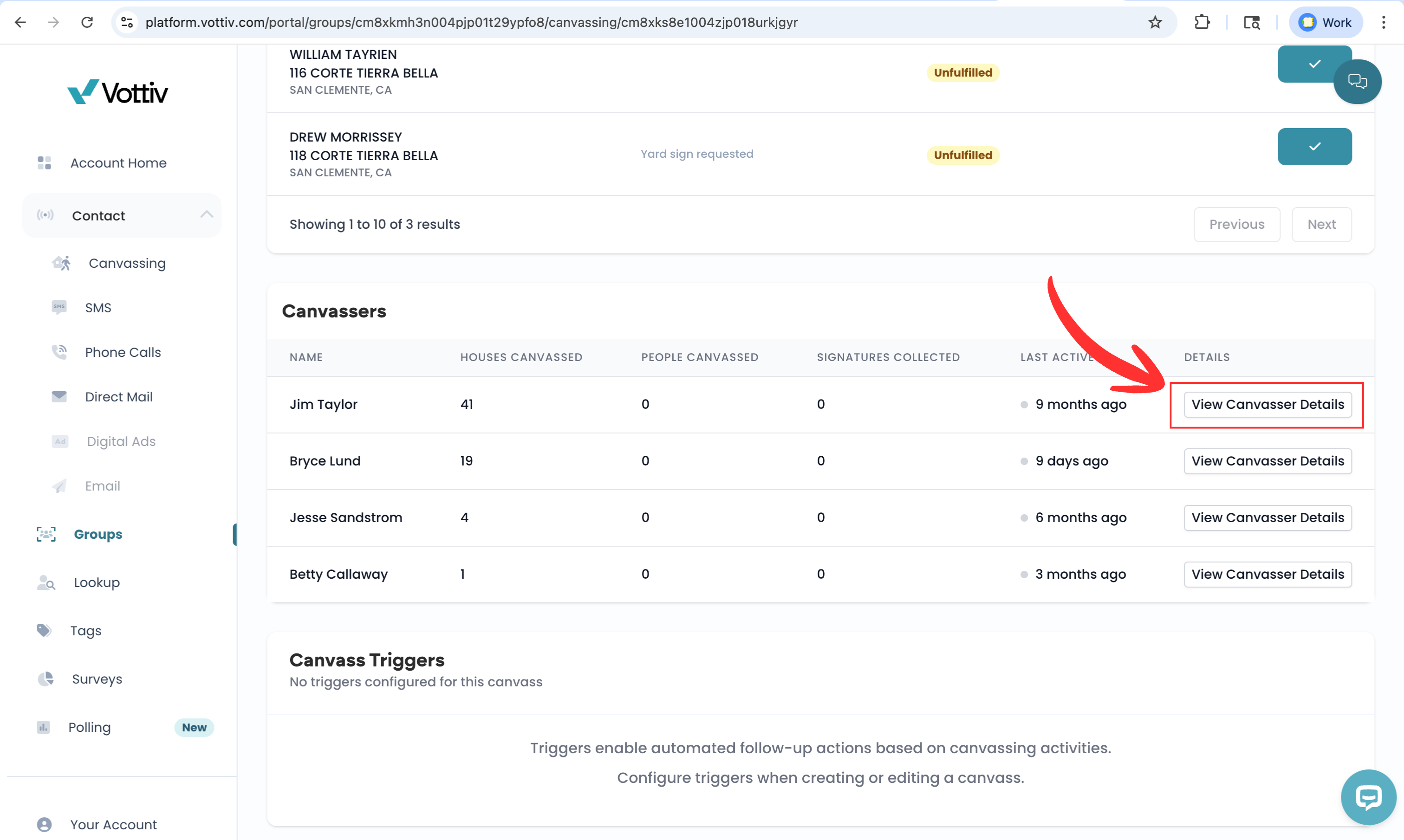
From this page, you can see a complete breakdown of that canvasser’s work, including:
Canvasser Performance Metrics
Total houses canvassed
Total people contacted
Total signatures collected
Total distance walked (miles)
Average distance between houses
Average doors per hour
These metrics are useful for tracking productivity, efficiency, and overall contribution.
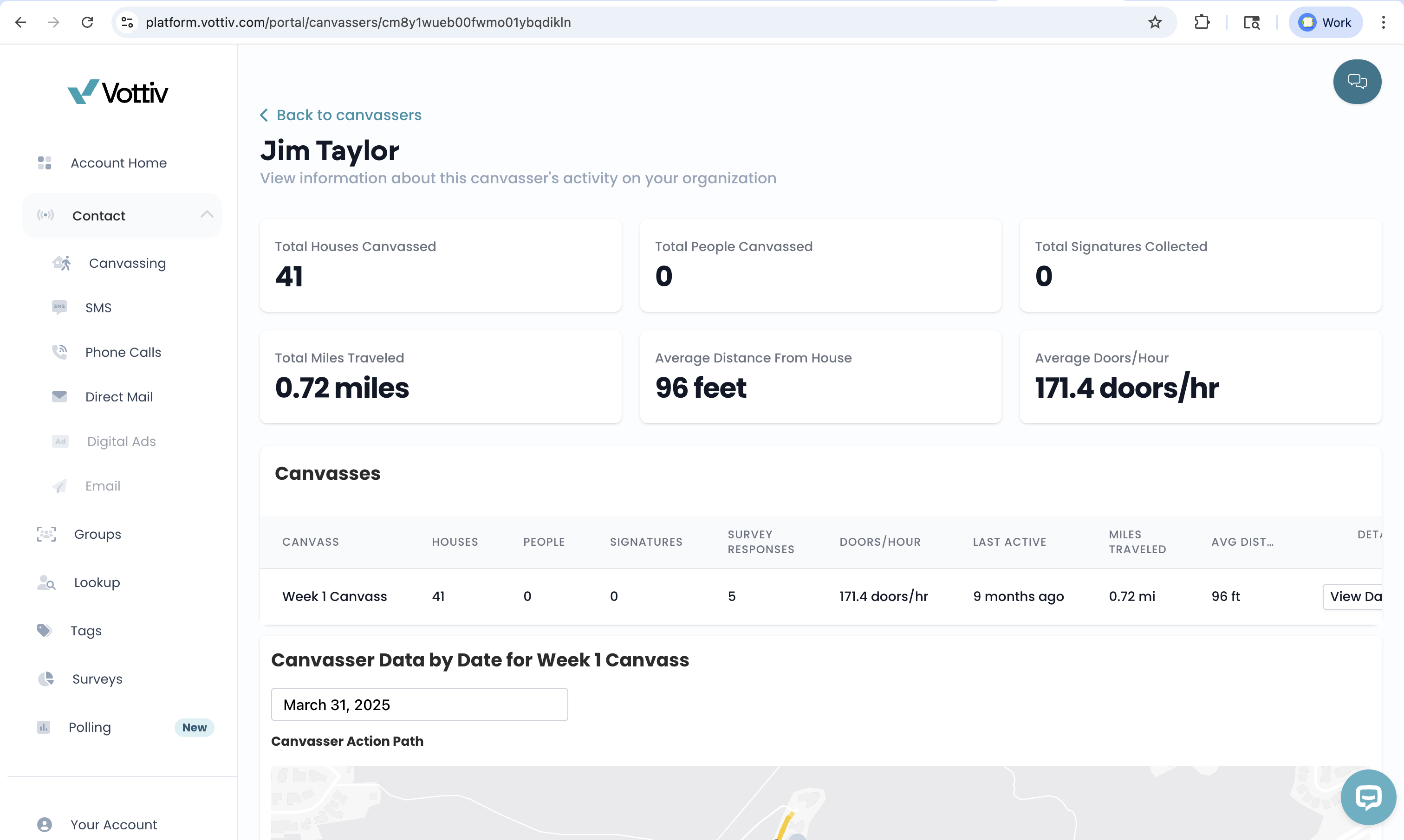
Route Map and Walking Path
Scroll down to view a map of the canvasser’s route.
This map shows:
Where the canvasser walked
The order in which doors were visited
Which households were completed
This is especially helpful for validating coverage and understanding field movement.
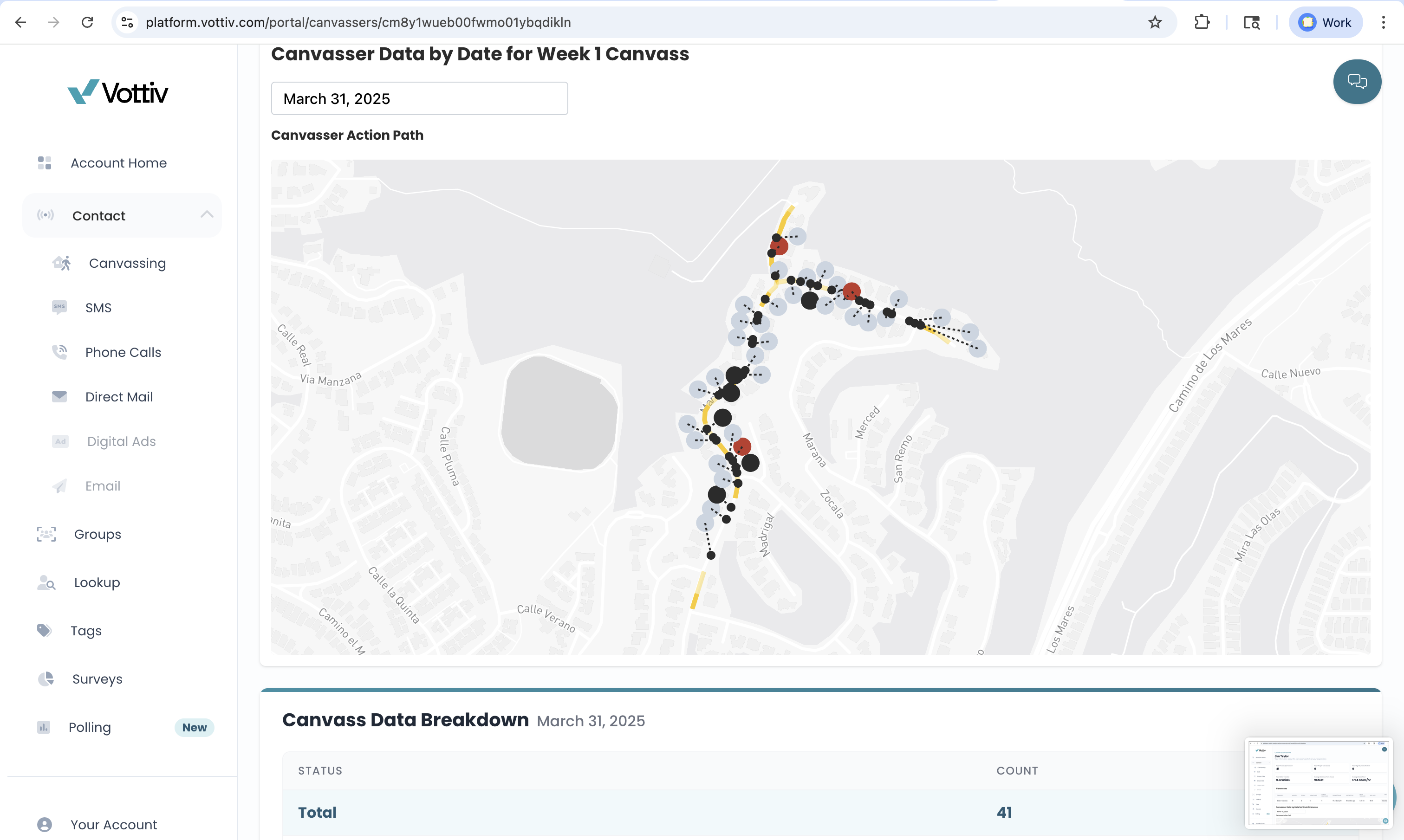
Canvass Outcome Breakdown
You’ll also see a summary of canvassing results, including:
Number of completed conversations
Declines
No answers
Inaccessible or unsafe locations
This provides context beyond raw door counts.
Survey Responses and Interactions
If the canvass included surveys, you can view:
Responses collected by the canvasser
Breakdown of answers by question
You’ll also see a complete log of interactions, showing how each door was handled.
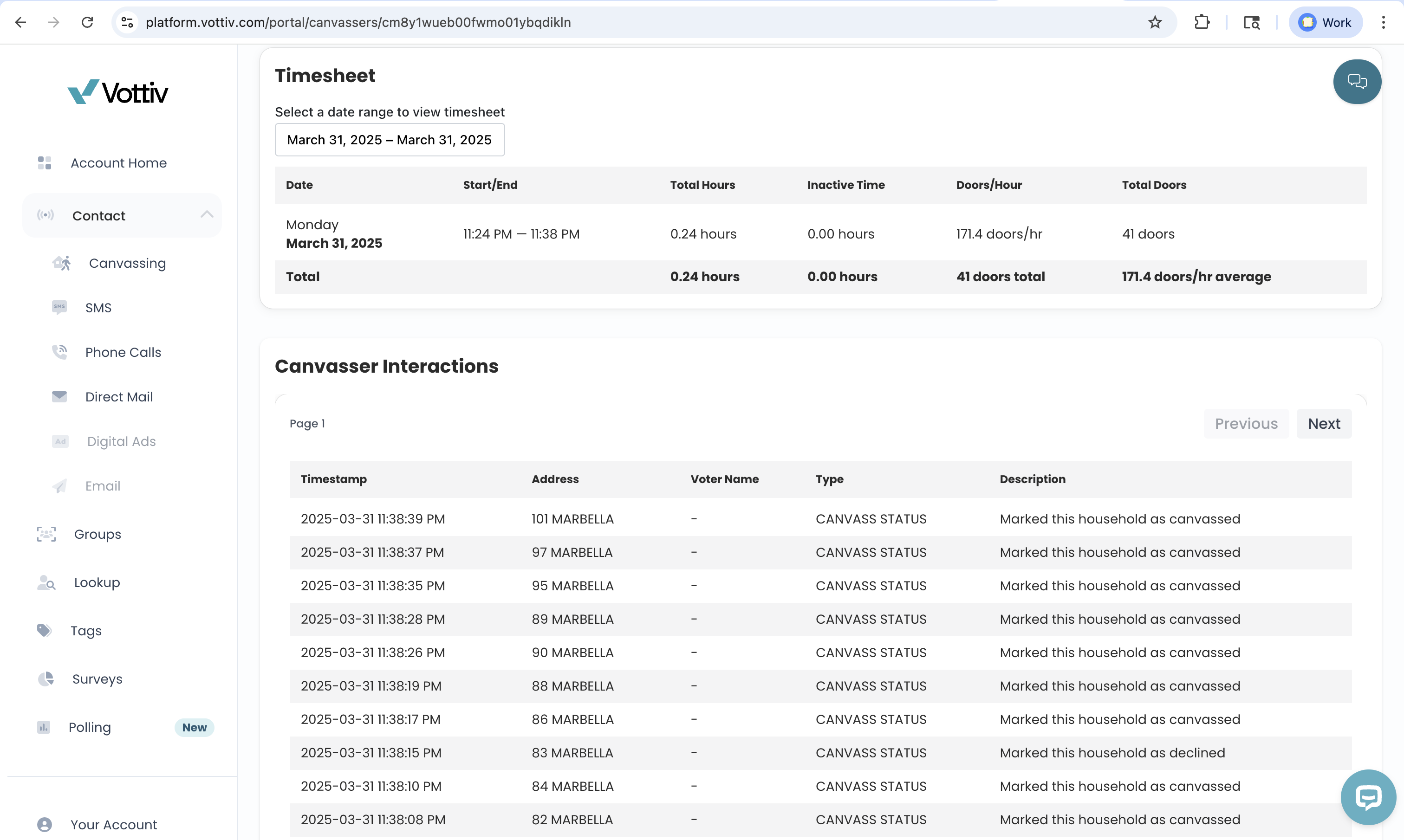
Timesheet and Activity Log
Each canvasser’s detail page includes a timesheet-style breakdown that shows:
When canvassing activity occurred
Duration of activity
Overall time spent canvassing
This can be useful for accountability, reporting, or volunteer recognition.
How Campaigns Use This Data
Campaigns commonly use canvasser route and activity data to:
Track progress during live canvasses
Identify high-performing volunteers or staff
Spot gaps in coverage
Improve route planning
Support stipends, reporting, or incentives
Review canvass quality after the fact
Was this article helpful?