

Phone Calls
How to Set Up a Phone Call
This article walks campaign admins through how to create and configure a phone call in Vottiv. By the end of this guide, your phone call will be fully prepared and ready to launch.
This article covers setup only. Launching a phone bank and inviting callers are covered in a separate article.
Setup happens in five steps
Call setup is a guided wizard. A step bar across the top shows where you are and lets you move between steps in any order:
Script — name the call and write what callers will say
Voicemail (optional) — record or upload a message for answering machines
Survey (optional) — attach a survey for callers to fill in
Dialing — choose phone types, dialer, and who may call
Review & Prepare — check everything and prepare the call
Your work saves as you go. You do not need to finish in one sitting. Vottiv saves your progress automatically as a draft, so you can close the page and come back later. The next time you start a call for the same voter group, Vottiv shows “You have an unfinished call” with the title and when you last edited it — choose Resume call to pick up where you left off, or Start fresh to discard it and begin again.
Drafts are private to setup — they do not appear in your call list, and no one can join or dial a call you are still writing.
1. Start a new call
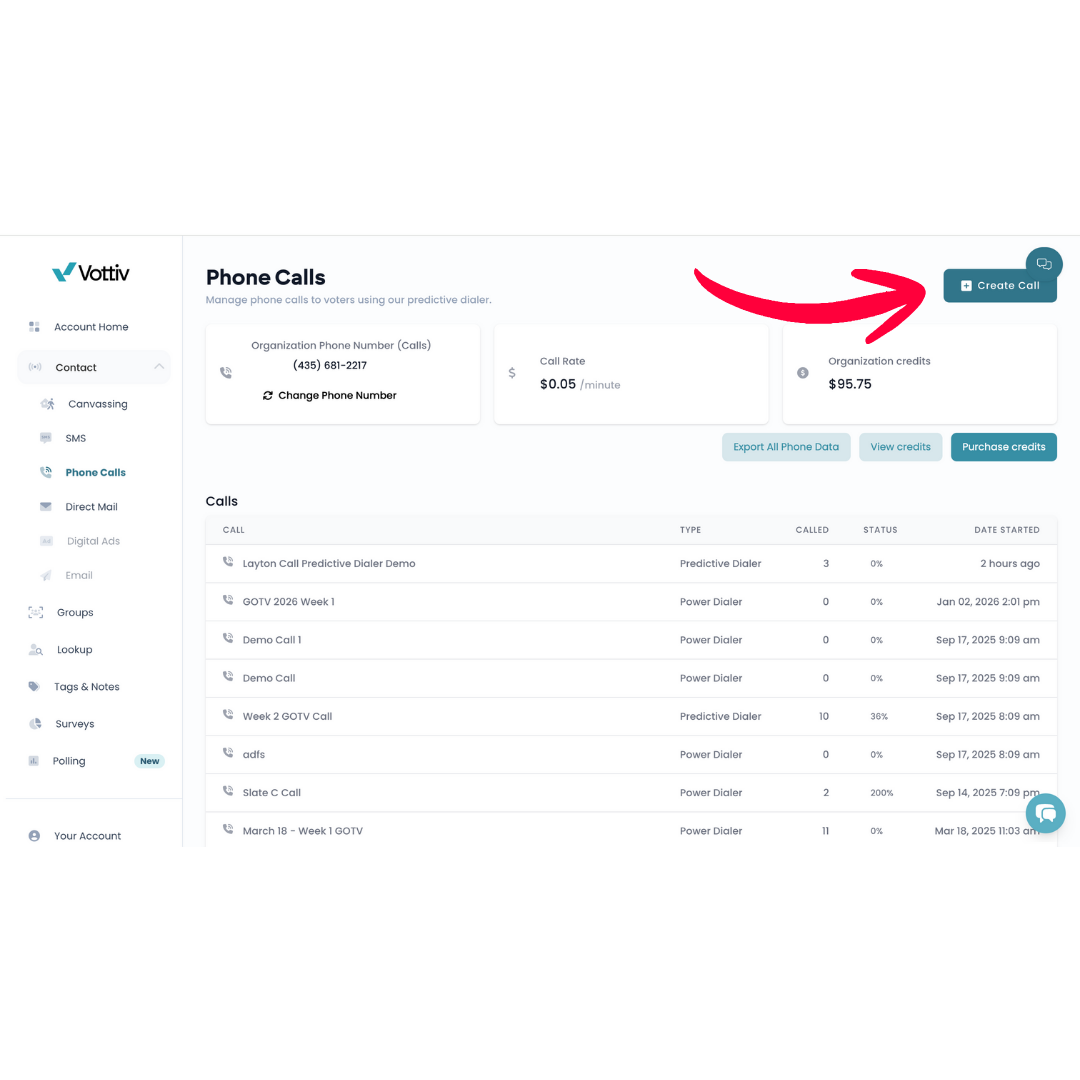
From your account home, click Phone Calls on the dashboard. On the Phone Calls page, click Create Call in the top-right corner, then choose the voter group you want to call.
The voter group determines who is included in the phone bank.
2. Script
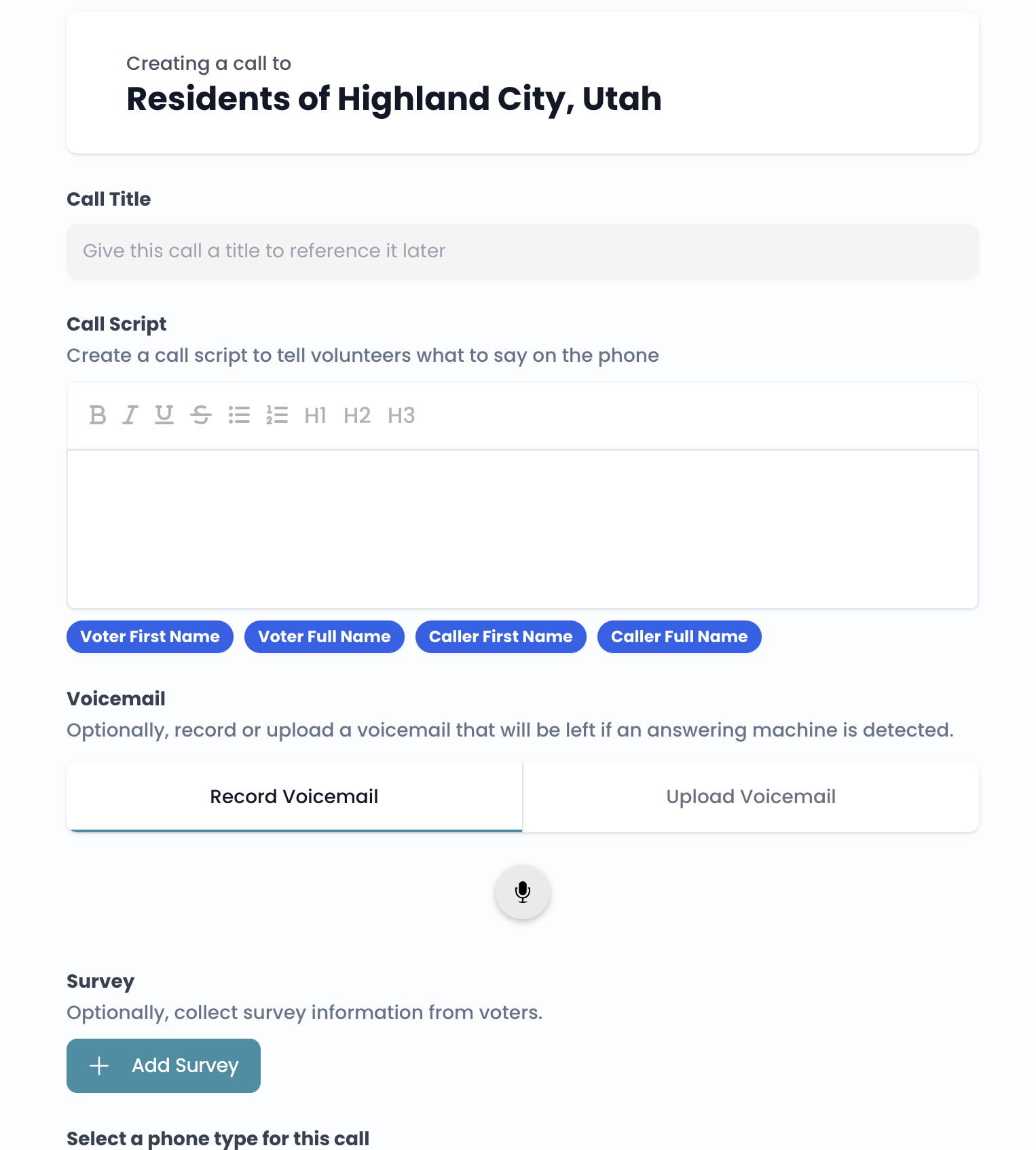
Call title
Enter a clear, descriptive title so your team can easily identify the call.
Call script
Write the script callers will read while speaking with voters.
You can personalize scripts using dynamic fields, including:
Voter first name
Voter full name
Caller first name
Caller full name
Use these fields wherever personalization is helpful. Vottiv fills them in for each voter as calls are placed, and you will see a preview with sample names on the Review step.
3. Voicemail (optional)
You can add a voicemail that plays if an answering machine is detected. Choose either tab:
Record Voicemail — record directly in the platform using the microphone button
Upload Voicemail — upload an audio file you already have
Your recording uploads as soon as you finish, and the step then shows a player so you can listen back. Use Remove to clear it and start again. If an upload fails, the step tells you and offers Try again.
A voicemail is required if you plan to use a predictive dialer with voicemail playback enabled.
4. Survey (optional)
If you want to collect responses during calls, attach a survey. Select an existing survey from your account, and responses will be recorded as callers complete calls. Use Remove survey if you change your mind.
Surveys already used to build your voter group are listed separately, so you can tell them apart from surveys you are choosing to run on this call.
5. Dialing
Phone call type
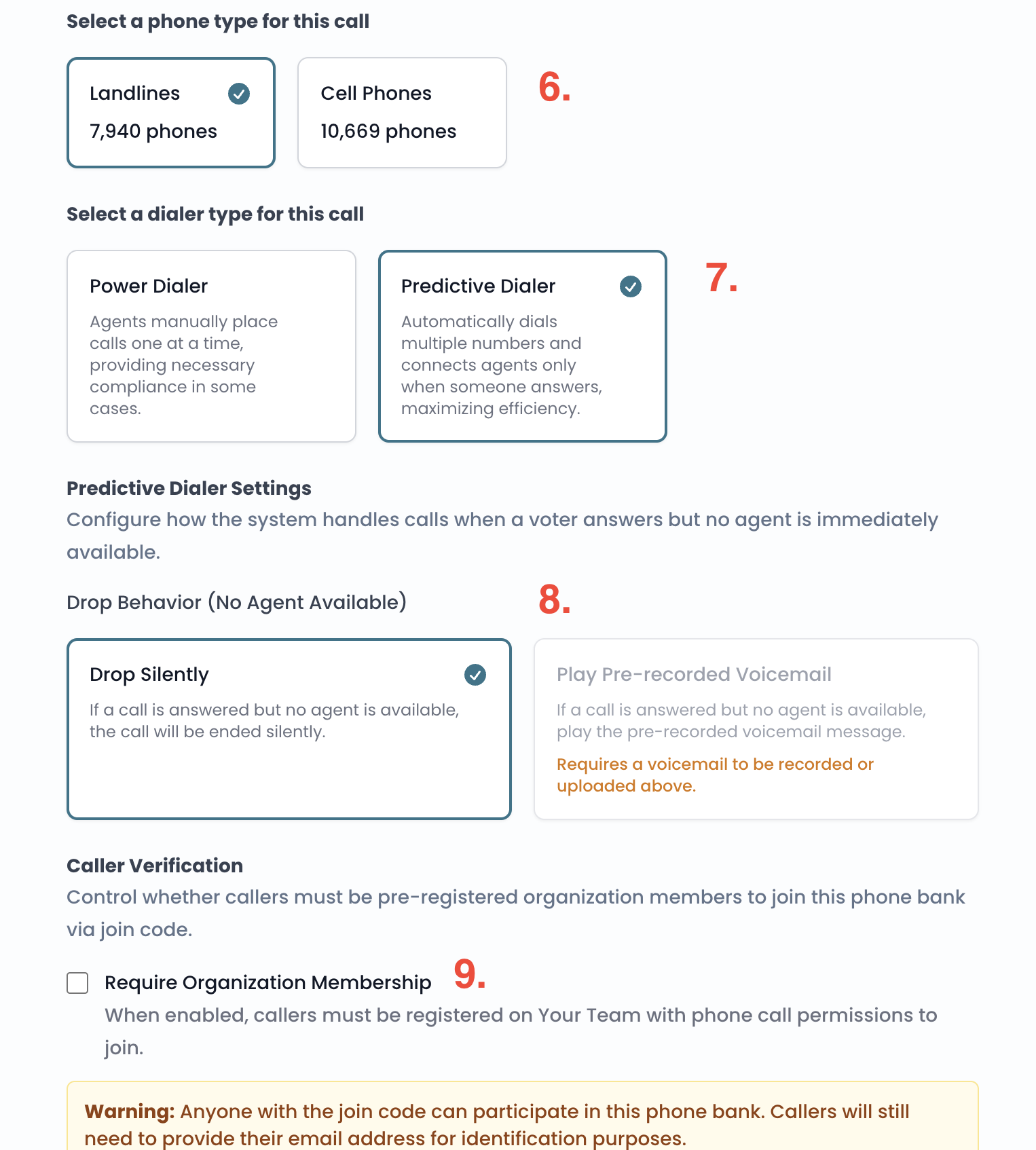
Select which type of phone numbers you want to call — Landlines or Cell phones. Vottiv shows an estimate for each phone type. Landline estimates use the same calling reliability rules as the group builder and group details. This selection affects compliance requirements and pricing.
Preparation checks campaign-added numbers and opt-outs and removes shared numbers, so the final call list may differ from the estimate. A zero estimate is a warning; you can still prepare the call to check for campaign-added numbers.
Dialer type
Power Dialer
Callers manually place calls one at a time
Often required in states with stricter compliance rules
Ideal for smaller teams or higher-touch calls
Predictive Dialer
Automatically dials multiple numbers
Connects callers only when a voter answers
Maximizes efficiency for larger calling efforts
Predictive dialer behavior
If you select the predictive dialer, choose what happens when a voter answers but no caller is available: silent drop, or play a prerecorded voicemail. If you choose voicemail playback, you must add a voicemail on the Voicemail step and confirm that you have explicit opt-in consent to play a prerecorded message to these voters.
Caller verification
Choose who is allowed to make calls:
Open access (leave unchecked):
Anyone with the phone banking code can call, with no phone-call permission required. Members of your organization can join with their existing Vottiv email, even volunteers who are set up only for canvassing. If someone enters an email tied to a Vottiv account from a different organization, they will be asked to use a different email instead.Require organization membership (check):
Callers must be added to your team and have phone call permissions
All callers must provide an email address for identification, even if organization membership is not required.
6. Review & Prepare
The final step gathers everything in one place:
A checklist of anything still outstanding, grouped by the step that can fix it — so you always know where to go
A script preview showing your script with sample names filled in
A cost estimate and the agreements you need to accept
The checklist separates items that must be resolved before you can prepare the call from suggestions you can safely ignore. For example, a script with no dynamic fields is only a suggestion, while an empty call title must be fixed.
Pricing and compliance agreements
Before preparing the call, you must agree to the pricing and compliance terms shown for your organization:
Per-minute pricing for connected calls
A flat per-attempt rate for calls that end without a conversation — including no answer, busy, failed, and dropped calls — when that rate differs from the connected-call rate
FCC compliance agreement when calling cell phones
The amounts shown in Vottiv are your organization's current rates. When the non-conversation rate matches the connected-call rate, Vottiv shows a single per-minute price for all calls: the pricing agreement and the Phone Credits page each list one rate instead of two.
Prepare the call
When the checklist is clear, click Prepare call. Vottiv gathers the voters for your call, which can take a moment on a large group.
Preparing does not start dialing. When it finishes, you will see how many voters are in the set and a Go to call list link, where you launch the phone bank when you are ready.
If preparation fails, Vottiv explains why and offers Try again. Your setup is not lost.
Editing a call after it is prepared
Open a prepared call from the call list and click Edit, and you get the same five-step wizard — with a few differences:
Changes are not saved automatically. Edit as much as you like, then click Save changes on the Review step. The header shows an Unsaved changes marker until you do, and Vottiv warns you if you try to navigate away with unsaved work.
The phone number type is fixed. The voters for the call were already selected by phone type when you prepared it, so this shows as a fact rather than a choice.
Agreements are not asked again. You accepted them when the call was first prepared.
If callers are actively connected to the phone bank, Vottiv will not let you change the dialer type — callers load the script live, and switching dialers underneath them would disrupt calls in progress. Vottiv tells you on the Review step if this happens; pause the phone bank first, then save.
Next Steps
Launch the phone bank
Invite callers using a link, QR code, or join code
Monitor call progress and reports
Was this article helpful?