

Tags
Importing Data as a Custom Tag
If you have a list of voters from an outside data source and want to quickly mark them inside Vottiv, you can import that list and apply a custom tag. This allows you to easily organize those voters and build voter groups around them for outreach.
For example, you might import a list of supporters from an event or participants in a previous election.
Step 1: Create a Tag
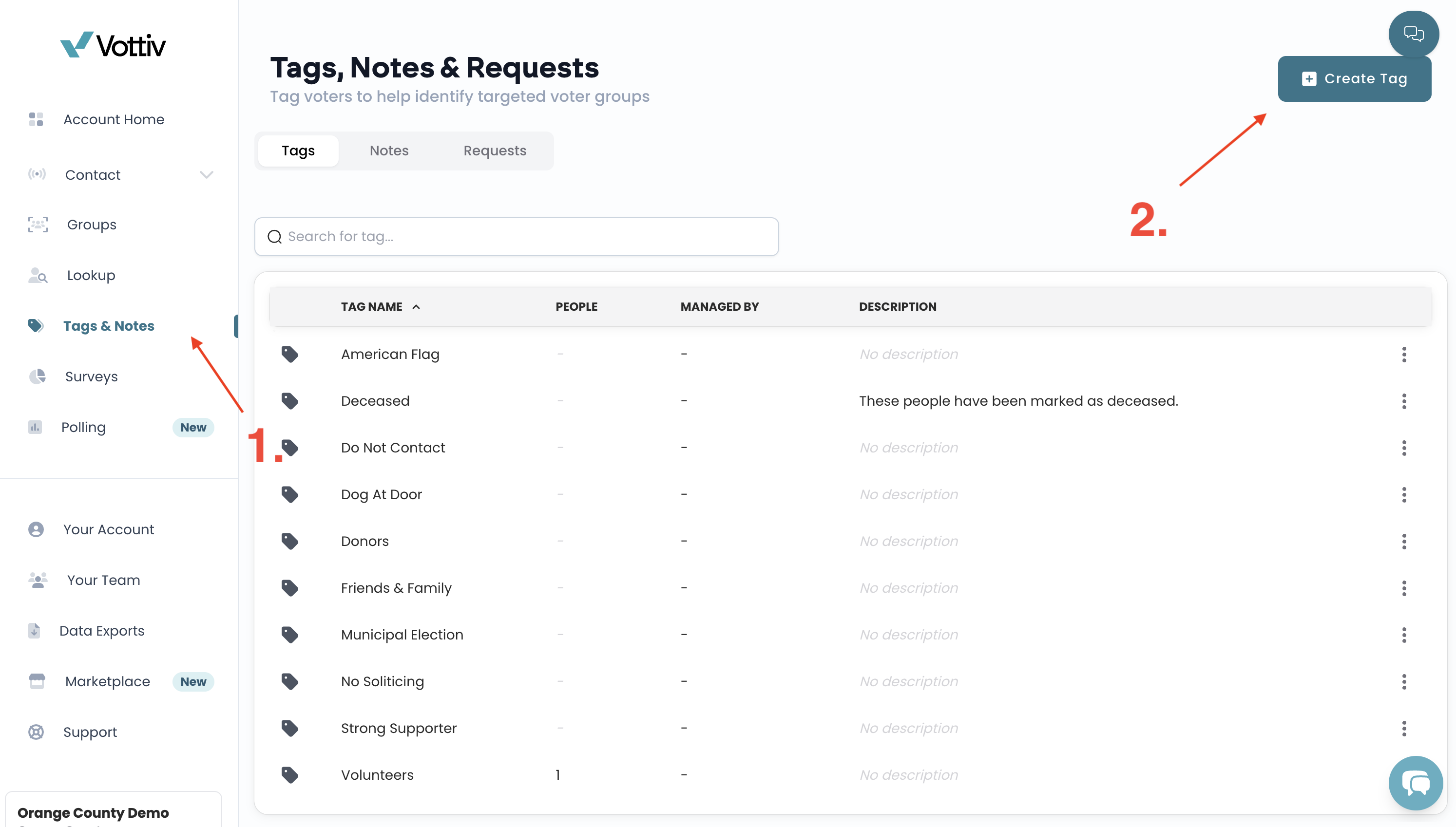
Navigate to Tags & Notes.
Click Create Tag.
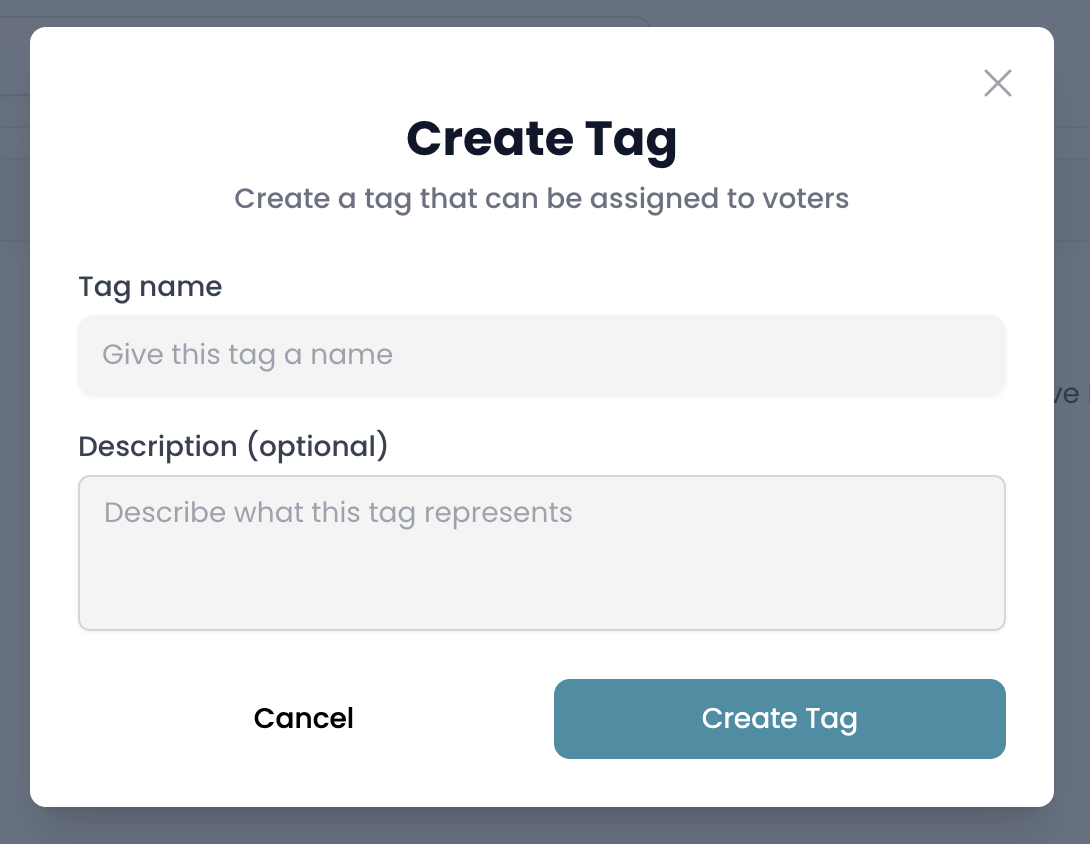
Enter a name for your tag (for example: Event Supporters, Donor List, or Past Volunteers).
Click Create Tag again to save.
Your new tag will now appear in your list of tags.
Step 2: Import Your CSV File
Click on the tag you just created.
In the top right corner, click Import.
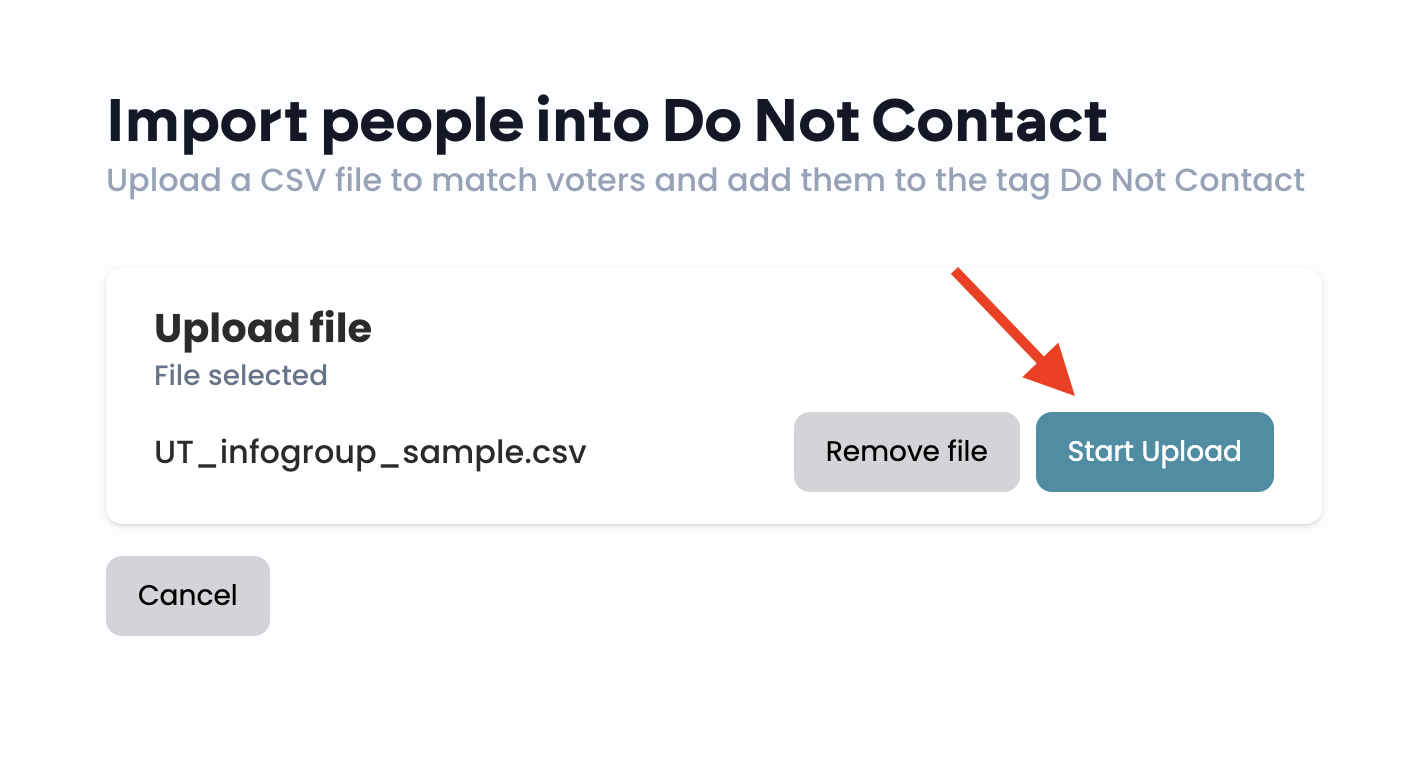
Select the CSV file containing your voter data.
Click Start Upload.
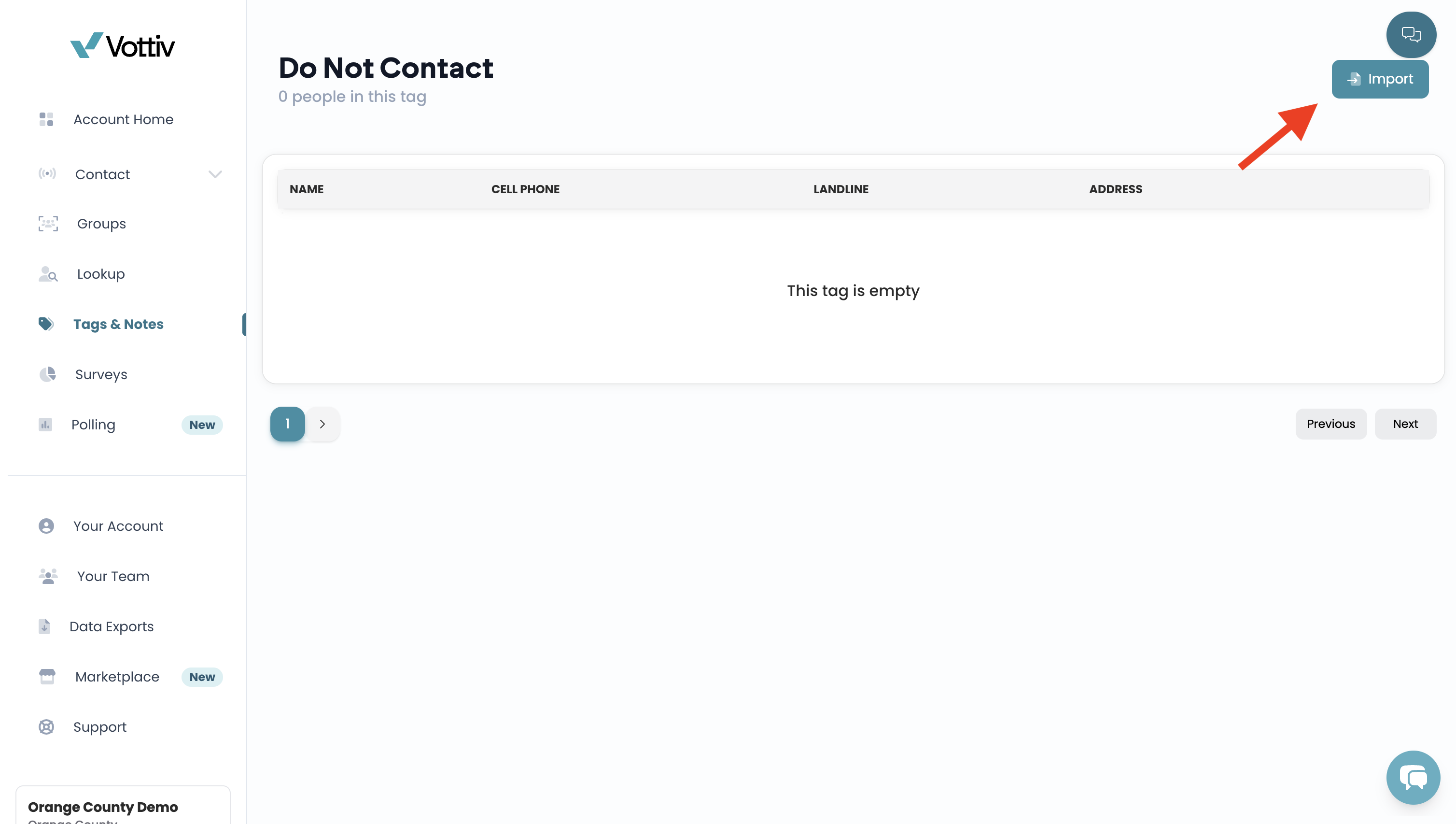
Click on the tag and click import
Step 3: Match Fields
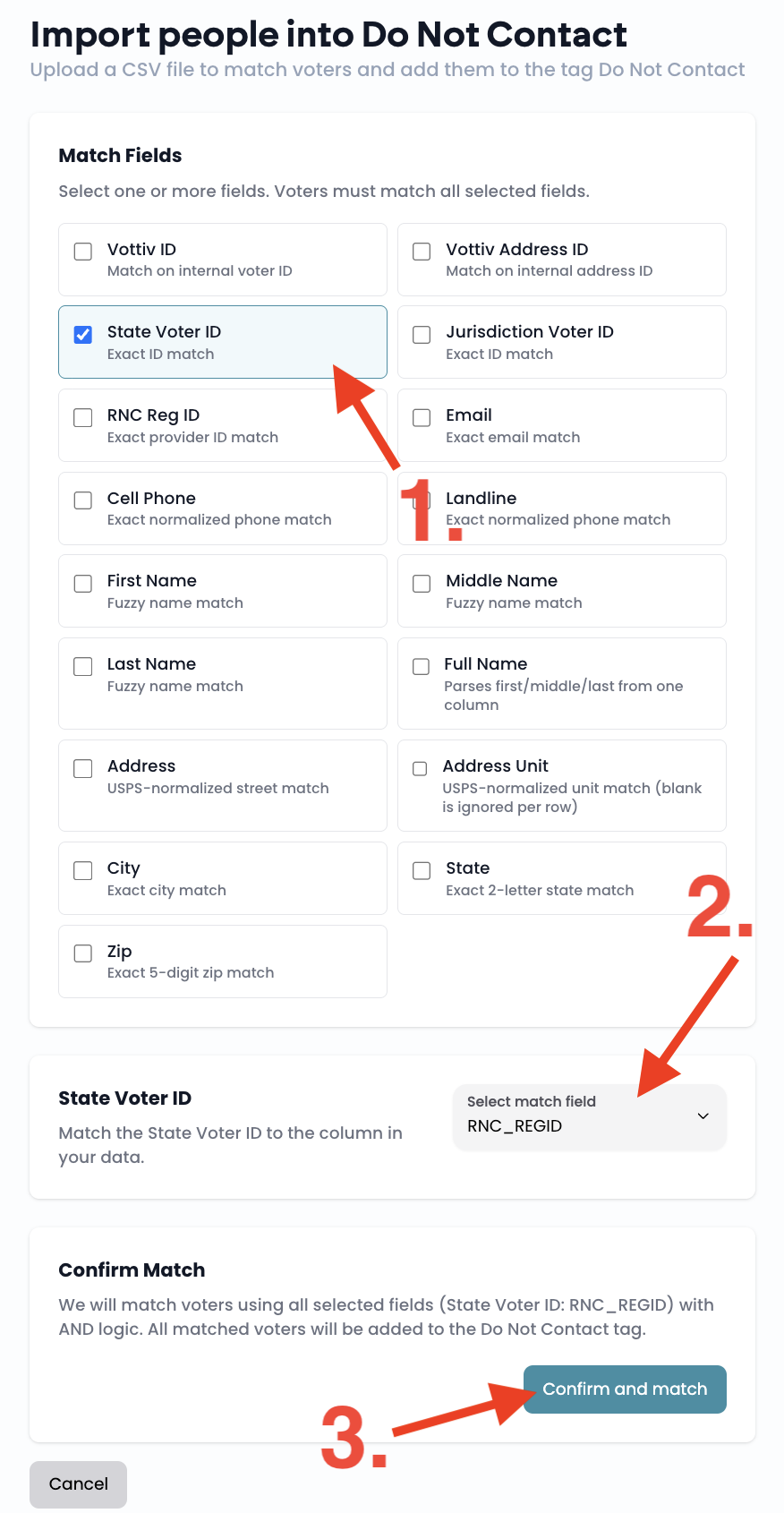
After uploading your file, you will match columns from your CSV to voter fields in Vottiv.
Check the File Preview
After the upload, Vottiv shows the top of your file: the heading row and up to 10 rows, in the same order as your file. Above the table, it says: Check that the values below each heading belong in that column before you continue.
Look down each column. Make sure the values fit the heading. For example, a voter ID column must hold IDs, not dates or names. If values sit under the wrong headings, the columns in your file are shifted.
The columns you match are highlighted and labeled, for example Voter_ID → Jurisdiction Voter ID.
Long values are cut short in the table. Click a cell to read its full value below the table.
A file with many columns scrolls sideways.
The preview can show these warnings:
Unnamed column: A column has no heading. You cannot match it until you add a heading in your file.
Same heading as another column: Two or more columns have the same heading. You cannot match them until you give each column its own heading.
Skipped rows: A row has more or fewer values than the heading row. The import skips that row. This often means a missing or extra comma in the file.
Advice about values: For example, most values under a voter ID column look like dates. This is only a hint. Check the column. If it is correct, you can continue.
Vottiv does not change your file. To fix a problem, correct the file in your spreadsheet program. Then click Choose another file and upload it again.
Match Your Columns
Select the Vottiv field you want to match.
Choose the column from your CSV that contains that information.
Once the fields are matched, click Confirm and Match.
Vottiv will then attempt to match each voter in your CSV to an existing voter profile.
Large files are supported. After you upload, Vottiv reads your file to detect its columns for the matching step above. Very large files (hundreds of megabytes) are read from a sample so this stays fast. Once you click Confirm and Match, the voter matching runs in the background, so you can leave the page while it finishes.
Step 4: Follow the Import
After you click Confirm and Match, the page shows the import as it runs. It updates every few seconds.
Waiting to start: Your import is in line behind other imports. It starts on its own. You do not need to do anything.
Matching voters: The page shows how many rows Vottiv has read, matched, not matched, and skipped. A row is skipped when its match column is empty. For a voter ID match, the page also shows a percent complete. For other imports, Vottiv cannot know the total in advance, so it shows only the counts.
Finishing up: Matching is done. Vottiv saves the results and builds the file of rows that did not match.
You can leave or refresh the page. The page address keeps a link to your import. Open it again to see where the import is. Do not start the same import again.
When the Import Is Done
The page shows the final counts and how many voters were added to the tag. Use Back to tag to return to the tag.
Rows and voters are not the same. If your file lists a voter twice, or a voter is already in the tag, the matched rows count is higher than the number of voters added.
The tag is saved right away. Tag counts and search results can take a few minutes to show the new voters.
If some rows did not match, click Download unmatched rows to get a CSV of those rows. Fix them and import that file.
If No Voters Matched
The page says Import complete: no voters matched. This usually means the wrong match field or the wrong column was picked. Check that:
The Vottiv field you picked is the right kind of value (for example, State Voter ID, not Voter ID).
The CSV column you picked holds that value.
Download the unmatched rows to look at the values, then start a new import with the right settings.
If the Import Stops
The page says Import stopped and shows the counts up to that point. Voters matched before the stop stay in the tag. Vottiv does not remove them. If you checked Replace voters in this tag, the tag's earlier voters were already removed. Start the import again with the full file. If it stops again, contact support.
If Progress Updates Stop
If your connection drops, the page says Progress updates are unavailable. The import keeps running. Click Reconnect to check it again. Do not start a new import.
Replacing the Voters in a Tag
By default, an import only adds voters to the tag. Voters already in the tag stay in it.
Sometimes a new file should take the place of the old one. For example, a county sends a new ballot cure list every day. To make the tag match only the new file, check Replace voters in this tag before you click Confirm and Match.
With replace on:
Every voter now in the tag is removed. Then the voters matched from the new file are added.
Voters that your team added to the tag by hand or from a survey are also removed.
Voter groups that use the tag update right away. Voters who leave the tag also leave those groups.
Canvasses that use those groups refresh their routes when the import finishes. This can take a few minutes.
Notes, survey answers, and visit history for removed voters stay. Only the tag changes.
Important: Replace keeps only the voters in the file you upload. Always upload the full, current list. While the import runs, the tag can be empty or partly filled for a short time.
Replace is available for management firm tags too. A firm tag is shared by every campaign the firm manages, so a replace changes the tag for all of those campaigns.
Best Practice for Matching
Using exact voter identifiers will produce the most accurate results. The best fields to use include:
State Voter ID
Voter ID
Jurisdiction Voter ID
These identifiers help Vottiv match individuals in your CSV to the correct voter profiles in the database.
What Happens After Importing?
Once the import is complete:
All matched voters will be added to the tag. If you checked Replace voters in this tag, the tag holds only the voters from this file.
You can create a voter group using the tag.
You can use the tag to send messages, mail, or outreach to those voters.
Was this article helpful?