

SMS & MMS Text Messages
Getting Started with Texting in Vottiv (SMS, MMS & 4K Video)
Texting is one of the fastest and most effective ways to reach voters. Vottiv makes it easy to send compliant, personalized SMS (text-only), MMS (text with images), and 4K Video Texting messages while meeting current texting regulations, including 10DLC requirements.
Before you can send any text messages, your account must be registered and approved through 10DLC. A one-time $200 registration fee is required as part of this process.
Vottiv provides a separate, complete guide that walks through the entire registration process step by step.
➡️ See: Getting Registered for 10DLC Texting (required before sending messages)
Texting Basics: SMS, MMS, and 4K Video
Once your account is approved for texting, you can send:
SMS – text-only messages
MMS – text messages that include images (JPEG, PNG, and other supported formats)
4K Video Texting – a full HD or 4K video delivered by text: the complete video plays in the message, and every recipient gets a personal link that streams at up to 4K when their device and connection support it (see Sending Video: 4K Video Texting below)
Messages can include dynamic fields (such as a voter’s first name) and optional images to increase engagement.
Voter Contact Package — Messaging Rates
When you subscribe to the Voter Contact Package, you receive our lowest usage-based messaging rates. You only pay for what you send — there are no minimums or long-term commitments. Credits are purchased through your dashboard and deducted as you use them.
Credits are reserved while a message is being sent. Once a message is accepted for sending, it remains charged even if the carrier later reports that it expired or could not be delivered. A missing delivery confirmation does not release the charge. A Failed, Error, or Undelivered status alone does not mean a message is free.
If a send is rejected because the number is invalid, inactive, or cannot receive that message type, its full cost is released back to your available credits. Sends that fail before they are accepted are also free. This includes any SMS, MMS, video, translation, and managed-send fees in that message's cost. You do not need to request a credit release for these rejected sends.
Sent means the message was accepted for sending, but delivery is not yet confirmed. Delivered means the carrier confirmed delivery; it does not mean the person read the message. A Sent message can remain unconfirmed, so delivery is not guaranteed. If a rejected message is later confirmed Delivered, its original charge applies once. Automatic video fallback attempts never add a second charge. If an earlier video attempt was accepted and chargeable, a later failed attempt does not remove that charge.
Subscriber Rates (with Voter Contact Package)
SMS (text messages): 3.5¢ per message
MMS (picture messages): 6¢ per message
4K Video Texting: the MMS rate plus a small per-message video surcharge (the exact surcharge is shown in the text builder before you send)
Phone calls: 5¢ per minute
Managed Service Fee
If you use our managed messaging service (scheduled sends, automated campaigns), there is an additional 1¢ per message fee on top of the base rate.
Compliance Overview
Current texting regulations require that:
Each message is sent with human interaction (not fully automated)
Campaigns are registered and approved through 10DLC
Messages avoid misleading or spam-like language
Opt-out language is included when required (for example, “Reply STOP to opt out”)
Vottiv is built to support these requirements while keeping the process fast and intuitive.
Which cell phone number does Vottiv use?
A voter can have cell numbers from several sources, including DataAxle, Neustar, ABEV, and RAWVF. Vottiv does not use a fixed priority order among these sources.
For a group text, Vottiv selects one valid, eligible cell number for each voter:
It first selects an eligible cell number marked as primary. For RNC voter data, this is a source number that matches the voter file's main cell number.
If no eligible primary cell number exists, it selects the first eligible cell number in the voter's record. This fallback does not rank the sources or choose the highest match level.
If no eligible cell number exists, the voter is excluded from the text send.
Vottiv does not send the same group message to every phone number on a voter's record. Landline numbers are not used for group texts. Opt-outs still apply.
Do match levels affect which number is used?
Match level does not determine which number Vottiv selects. The separate High-Reliability Phone Numbers setting can change which numbers are eligible. You can find this setting on the Phone Numbers page in your account settings.
Setting off: valid cell numbers can be used without a high vendor reliability grade.
Setting on: vendor cell numbers must have Vottiv's high reliability grade, H. ABEV and RAWVF numbers are imported without a reliability grade, so they do not qualify under this setting.
Campaign-entered or CSV-imported numbers: these can qualify without a vendor reliability grade. They must still be valid cell numbers.
This setting limits eligible vendor numbers; it does not create a source priority order or guarantee delivery.
Do I need to provide phone numbers in a spreadsheet?
You do not need to provide phone numbers if your list can be matched to existing voters who already have eligible cell numbers in Vottiv. Use Update Voter Data to match the list to existing voters and apply a tag. Then create a voter group from that tag and select the group for your text send.
Include a voter ID where possible. If you do not have voter IDs, include names and address details to help match the correct people. Names alone can produce incorrect matches. Check the import results before sending.
If you use Add Voter Data to create new contacts, include their cell numbers to text them. Adding new records does not automatically find phone numbers for them.
Save an Excel spreadsheet as a CSV file before uploading it. A matched voter without an eligible cell number will not receive a group text.
Before You Start
Before sending messages, make sure:
✅ Your account is approved for texting through 10DLC
✅ You are subscribed to the texting service
✅ You have a voter group ready to message
✅ Your message is clear, friendly, and compliant
If you have not completed 10DLC registration yet, you must do so first.
➡️ Read: Getting Registered for 10DLC Texting for the complete setup guide and FAQs.
Sending Your First Text Message
Once your account is registered and approved, you are ready to send. The text builder has four parts: Voters → Message → Extras → Send. The bar at the top shows each part. A part with a problem shows a count, so you can see what is left before you send.
The right side of the builder shows a phone. It shows your text the way a voter sees it, and the cost of the text. Both change as you type.
Your work saves on its own. The bar at the top shows when your text is saved. You can leave at any time. When you come back, the builder shows You have a text you did not finish and lets you open it. Your drafts are also on the texting dashboard. Unfinished drafts are deleted after 30 days.
The texting dashboard
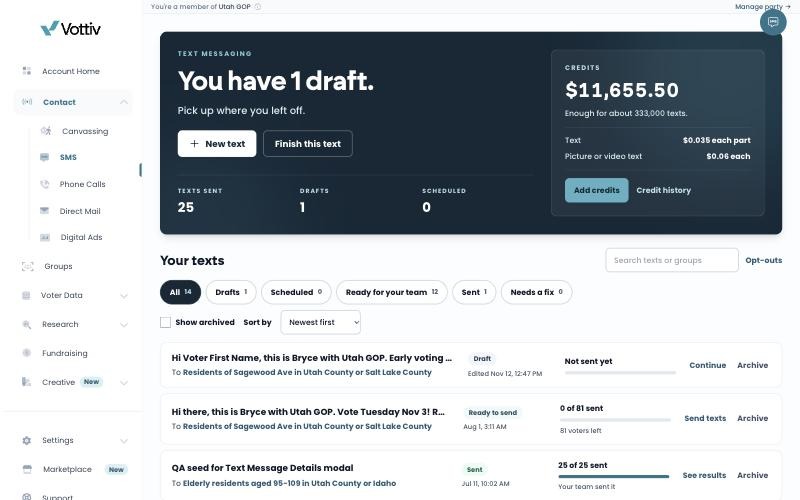
Click SMS in the left menu to open the texting dashboard. Admins see:
A short status line that tells you what to do next, with a button for it (for example, Finish this text)
The number of texts sent, drafts, and scheduled texts
Your credit balance, about how many texts it covers, your rates, and Add credits
One list of all your texts. Search by message or group name. Use the filters: All, Drafts, Scheduled, Ready for your team, Sent, and Needs a fix. Use Show archived to see archived texts.
Team members who are not admins see a short list of the texts the team can send. They do not see drafts or scheduled texts, and they cannot write a new text.
Step 1: Voters
On the dashboard, click New text. You can also start a text from a voter group's page.
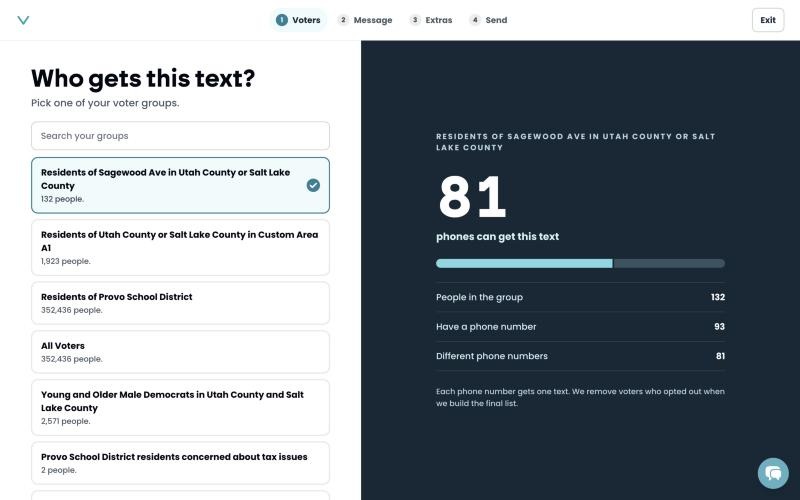
On Who gets this text?, pick one of your voter groups. Use Search your groups to find a group by name.
Check how many phones get the text. If the group has no phones that can get texts, the builder tells you why.
Click Write my text.
You must pick a group before you can open the other parts.
Step 2: Message
Type your text.
Add dynamic fields, such as the voter’s first name.
Tell voters how to stop the texts (for example, “Reply STOP to opt out”). If your text does not, the builder shows a problem, and you cannot send.
Click Add a photo or video.
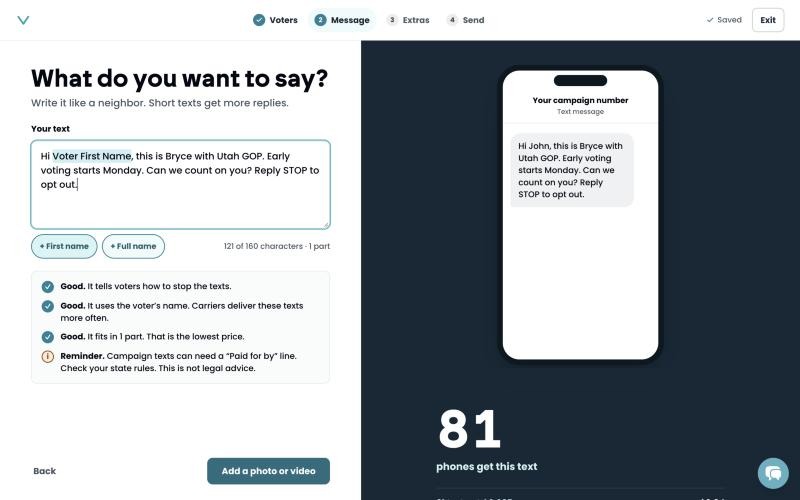
The builder shows how many parts your text uses. A text over 160 characters is split into parts. A text can have up to 5 parts, with a maximum cost of $0.06 per message.
To include a weblink, paste the URL directly into the message body. We recommend placing the link as the last item in your message. Messages with a link can see lower delivery rates, because carriers filter link texts more. When the builder finds a link, it shows a reminder. Use your own website address. Carriers block short links. A link alone does not turn your text into MMS.
Disclosure reminder
Campaign, party, and organization accounts see a disclosure reminder on the Message part. It reminds you that campaign texts may need a disclosure, such as “Paid for by” and the name of who paid.
The reminder does not check your text. Vottiv does not tell you whether you need a disclosure. It does not add text to your message, and it does not block your send. It is not legal advice. If you are not sure, ask your campaign’s legal counsel.
Step 3: Extras (optional)
This part is optional. Skip it to send words only.
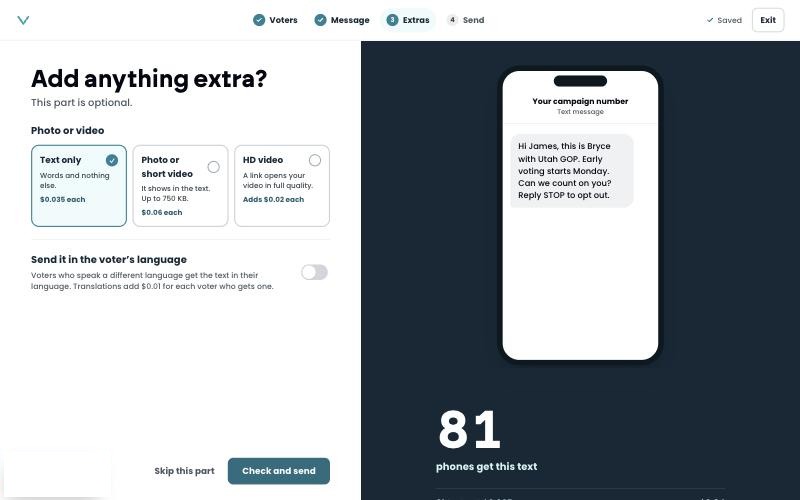
Photo or video
Pick one:
Text only – words and nothing else (SMS).
Photo or short video – a photo or short video that shows in the text (MMS), up to 750 KB. Pick a file you used before, upload a new one, or use a design from Design Studio. Vottiv sizes images for you.
HD video – a full HD or 4K video with a personal watch link for each voter (see Sending Video: 4K Video Texting below). If your texting registration does not allow HD video, this choice is off. Contact support to get it.
Translations
Voters who speak a different language can get the text in their language:
Turn on Send it in the voter’s language. Vottiv shows which languages are in your group and how many voters speak each.
Pick the languages you want.
Check and edit each translation in its own tab.
If you change your text after Vottiv translates it, the builder tells you. Click Update translations to make them again. Each translated text adds $0.01. The cost on the right shows it.
Click Check and send.
Step 4: Send
On Check your text.:
Check the summary of voters, message, and extras. Each line has a link to change it.
If a part has a problem, the list shows it with a link to fix it.
Send a test to your own phone with Send a test. If your text has translations, you can pick the language to test.
Pick how to send:
Your team sends it – your volunteers press send for each voter. There is no extra fee. You pay for each text when your team sends it. Click Build the send list.
We send it for you – pick a day and a time, and Vottiv sends every text. The managed service fee applies. Only an admin can schedule a text. Click Schedule for $X.
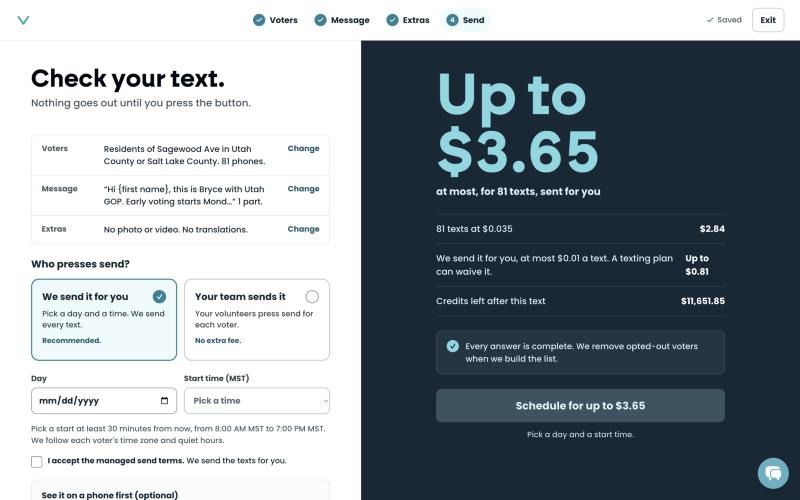
Nothing goes out until you press the button. The right side shows the cost, your credits, and the credits left after this text.
The price on a scheduled send
Before the send list is built, the button shows the most the send can cost, for example Schedule for up to $11.90. Vottiv never schedules the send for more than the total on the button you pressed. If the total is higher after the list is built, Vottiv does not schedule the text. It shows the new total, and you press the button again to accept it.
If your credits do not cover the text, the builder shows a warning with Add credits. A texting plan can waive the managed service fee, so Vottiv checks your credits again when you schedule.
When the list is built, Vottiv opens the page for your text.
The page for your text
Every text has its own page. Open it from the dashboard. The page shows what is happening now:
Building the list – Vottiv is building the send list. The page updates on its own.
Did not build – nothing was sent and nothing was charged. An admin can click Try again or open the text in the builder.
Team sending – your team sends the text from here. The page shows the next voters. Click Send for each voter. Turn on Fast mode to send the next voter with the Enter key. An admin can also schedule the rest of the texts here.
Scheduled – the day, time, and cost of the send. An admin can change the time or cancel the schedule before the send starts.
Sending now – the progress of a scheduled send.
Night pause – texts cannot go out after 8 PM. The page shows when sending can start again. An admin can schedule the rest for the next day.
Results – what happened to each text (see below).
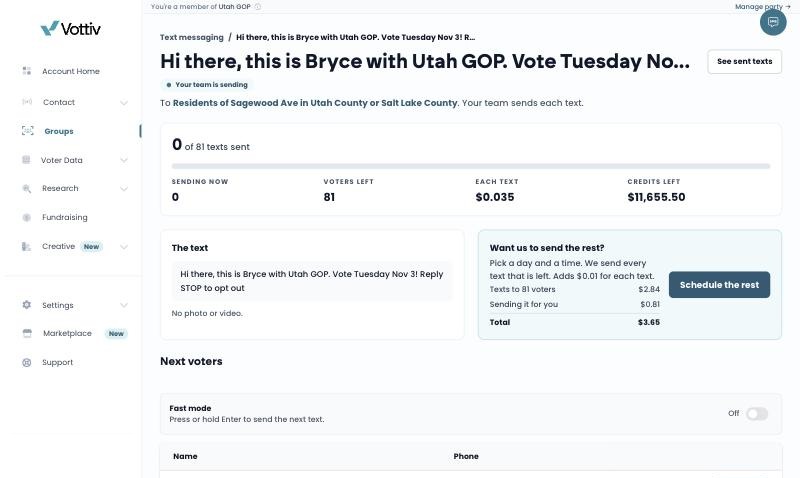
Check a managed send's progress
Sending now means that some messages are still queued or being processed. This includes messages held for the next allowed sending window. Keep the existing send. Do not create another send just because this status stays on the screen.
When all messages have finished, the page shows the results. Finished does not mean that every message was delivered. Vottiv checks for completion on its own, also after a processing interruption. If the results and the send status do not agree, contact support before you resend.
Results
The results start with a line such as “812 of 830 texts arrived.” Each voter is in one group:
Arrived – the carrier confirmed the text.
Did not arrive – the text failed.
Waiting for the carrier – the text was sent, but the carrier has not confirmed it yet.
Not sent yet – the team has not sent this text yet.
Opted out before the send – the voter opted out earlier, so Vottiv did not send the text.
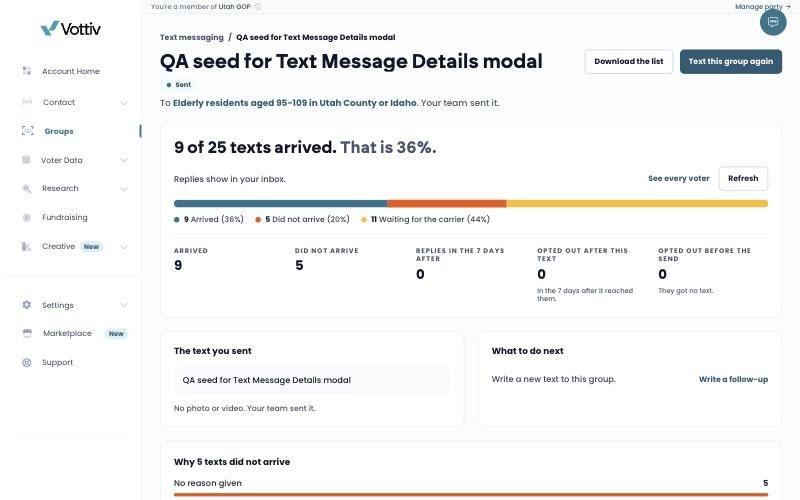
The results also show the replies in the 7 days after the text, and the voters who opted out after this text.
Why texts did not arrive lists each reason in plain words, with a count. Where it helps, it tells you what to do. For example, if your texting registration is the cause, an admin gets a Check your registration link.
Use the voter table to see each voter's result. Pick a group to filter the table, or search for a voter. Download the list exports every voter and their result. The error column in the file now holds the plain reason.
From the results, you can read the replies, see the video results, or click Write a follow-up. Click Refresh to load new numbers.
Sending Video: 4K Video Texting
4K Video Texting lets you send a full video ad by text without worrying about carrier size limits. You upload one HD or 4K video, and Vottiv prepares everything automatically: a carrier-safe version of the complete video that plays right in the message thread, plus a personal watch link for every recipient that streams at up to 4K when their device and connection support it.
How to send a video message
In the text builder, open Extras and choose HD video.
Upload a video — MP4 or MOV, up to 60 seconds and 2 GB, portrait or landscape — or reuse a video you’ve already processed.
Vottiv processes the video for delivery, which usually takes a few minutes. You can leave the builder and check back later; Vottiv also shows an in-app notification when it’s ready.
Pick a poster frame (the preview image shown before the video plays) and, if you like, add one call-to-action button with a label and link.
Check the video on the phone preview, and send a test to your own phone from the Send part before sending to voters.
Shorter videos look sharper in the message itself: under about 15 seconds delivers a crisp in-message video, while a 60-second video is heavily compressed to fit carrier limits. Every recipient always gets the full-quality link regardless of length — the builder shows you a quality meter before you upload. If you use translations, the same video applies to every language, and the “Watch in full quality” link text is localized automatically.
What recipients see
The complete video plays right in their messaging app as a normal video attachment.
The message ends with a short “Watch in full quality” link that opens a mobile player streaming at up to 4K. The link is unique to each recipient and expires 90 days after sending.
If a carrier can’t accept the video attachment, Vottiv automatically retries with a preview-image message, and then a text-plus-link message — you are never charged twice for the same recipient.
See who watched — and retarget them
The page for a video text includes a Video engagement section. It shows as soon as the send list is built:
A funnel from delivered to viewed, play started, 25% / 50% / 75%, completed, and call-to-action clicks — plus rates and an engagement-over-time chart.
A per-recipient table showing which voters’ links recorded each milestone, with timestamps. Clicking a funnel stage filters the table to that audience.
Create group from engagement: turn any audience — watched to the end, tapped the call-to-action, or delivered but never viewed — into a voter group for follow-up texts, calls, or mail. Video engagement is also available as a criterion in the group filter builder.
Video pricing
A video message costs your normal MMS rate plus a small per-message video surcharge. The exact surcharge appears in the builder's cost before you send. Automatic delivery fallbacks never add a second charge, and test sends are billed like normal video messages.
Viewing Responses and Managing Opt-Outs
After sending messages, you can monitor replies and opt-outs directly from the SMS inbox in the top right of your dashboard.
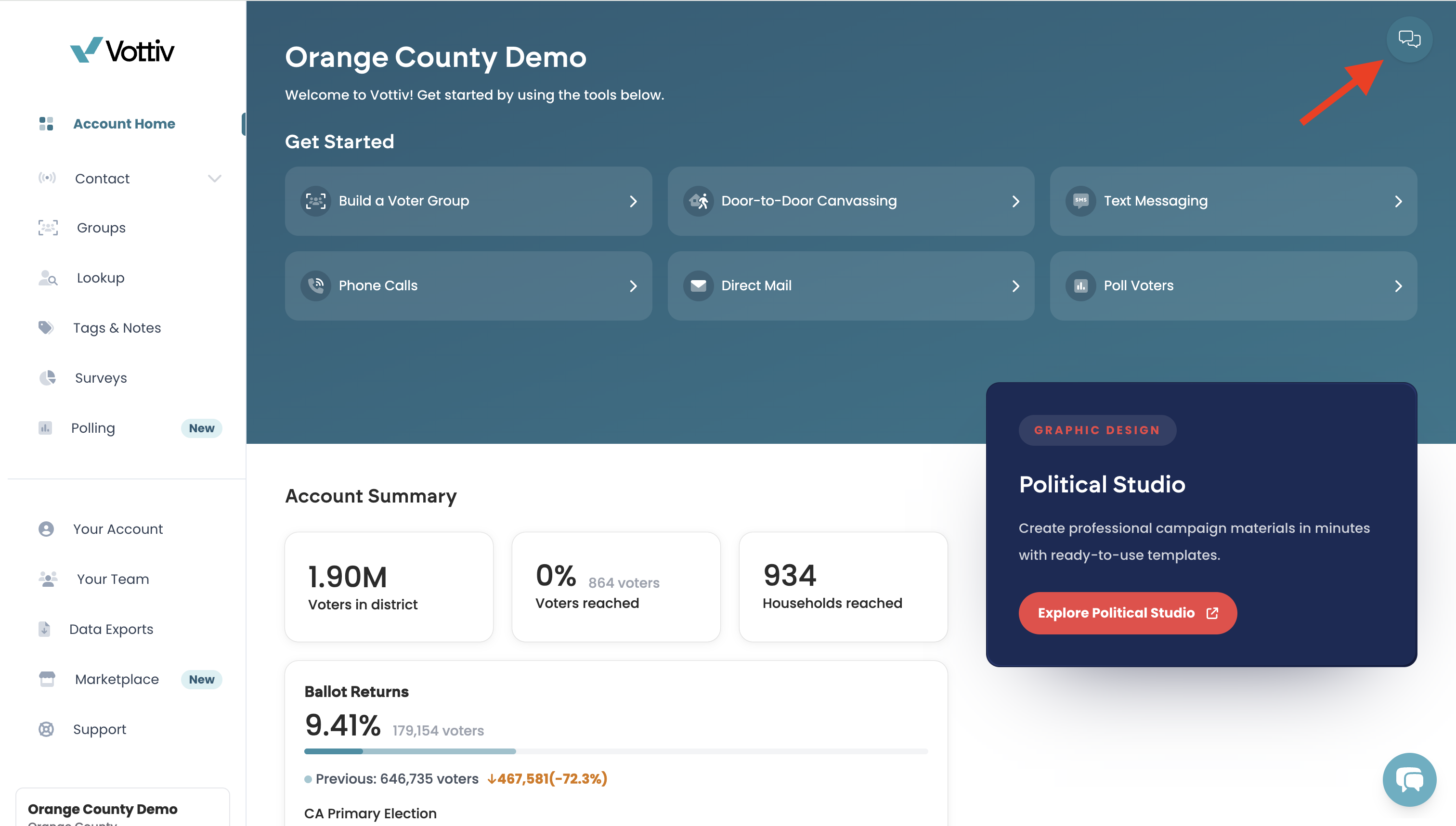
Opening your inbox
From the left-hand navigation, click SMS, then select Your Messages. You'll see a list of conversations organized by voter.
What the blue dot means
A blue dot to the left of a voter's name indicates an unread reply — that voter has responded and their message hasn't been viewed yet. Once you open the conversation, the dot will clear.
Choose an inbox tab
- Needs Response shows unread replies that Vottiv has identified as needing a response.
- Unread shows conversations with unread incoming messages.
- All lets you return to conversations you have already read.
- Opt-Outs shows conversations from people who have unsubscribed.
Opening a conversation marks its incoming messages as read, so it can leave the Unread and Needs Response lists even if you have not sent a reply. Use All to find it again. Reading a message does not mean your campaign has answered it.
Find a conversation or mark it unread
Use Search by name or phone to filter the conversations loaded in the selected tab. If you do not find a match, use Load more when available to bring in more conversations.
Open the conversation’s three-dot menu and choose Mark as unread if you need to return to it. The same menu offers Mark as read for unread conversations. Use Mark all as read only after reviewing the messages you want to clear.
Reading and responding to a reply
Click any conversation to open it. You'll see the full message thread with that voter. You can reply directly from this view.
Message delivery status
When you send a reply, it appears in the thread right away with a delivery status shown beneath it: Sending… while Vottiv hands the message to the carrier, then Sent and Delivered as the carrier confirms it. If you reply outside the recipient's allowed texting window (8 AM–8 PM in their local time zone), the message shows Scheduled with the time it will go out, and sends automatically at that time. If a message can't be delivered, it stays in the thread marked Failed so you know it didn't reach the voter.
Check SMS opt-out totals
Open SMS > View Opt-Outs. The SMS Opt-Outs card shows the number of phone numbers currently opted out of texting your campaign. Multiple replies from the same number count once. This is a count of phone numbers, not incoming messages or unique people.
The Deceased and Moved cards show full campaign totals for those voter statuses. Card totals do not change when you filter the voter list or move between pages.
The Voter Opt-Out List shows voter records marked opted out, deceased, or moved. An SMS opt-out can be absent from that list, so the SMS total can be higher than the number of voter records shown. Use the Opt-Outs tab in your SMS inbox to review opt-out conversations.
Viewing and understanding opt-outs
When a voter clearly asks to stop receiving campaign messages, Vottiv automatically marks them as unsubscribed. Standard opt-out keywords—including STOP, STOP ALL, UNSUBSCRIBE, CANCEL, END, QUIT, REVOKE, OPT OUT, and REMOVE—are recognized even with surrounding punctuation or PLEASE before the keyword.
Vottiv also recognizes clear requests written in everyday language, such as “stop texting me,” “take me off your list,” or “do not contact me again.” These replies follow the same opt-out process as a standard keyword.
Ambiguous phrases that are not clearly asking to end future campaign contact remain ordinary replies for campaign staff to review.
A few things to know:
Opted-out voters are automatically excluded from future sends — you don't need to remove them manually.
You can view opt-outs in the SMS inbox window under the Opt-Outs tab.
A Few Things to Keep in Mind
Messages with emojis or special characters use Unicode encoding, which reduces characters per segment (70 vs. 160 for standard text). Longer messages may be split into multiple segments, each billed separately.
If a text message exceeds 5 segments, our system automatically sends it as MMS since it becomes more cost-effective at that length.
Best Practices for Texting
Use:
Personalized messages
A friendly, campaign-identified tone
Clear calls to action
Avoid:
Over-messaging
Aggressive or spam-like language
Unverified links
Troubleshooting & Help
Contact support if:
Your 10DLC registration is still pending
Messages are not sending correctly
MMS images fail to upload
A 4K Video upload is stuck processing or fails repeatedly
You have questions about compliance
Watch the Video Walkthrough
Want to see this process in action?
Watch the video walkthrough for a full demonstration of creating and sending text messages in Vottiv. The video shows the older version of the builder. The steps are the same idea, but the screens look different.
Was this article helpful?