

Data Center
Advanced Group Builder: Build Audiences Visually with Branching Logic
The standard group builder stacks filters on top of each other — every filter narrows your audience, and a voter must match all of them. That's perfect for most lists, but some targeting can't be expressed that way: "strong Republicans OR frequent primary voters, but not anyone we've already canvassed."
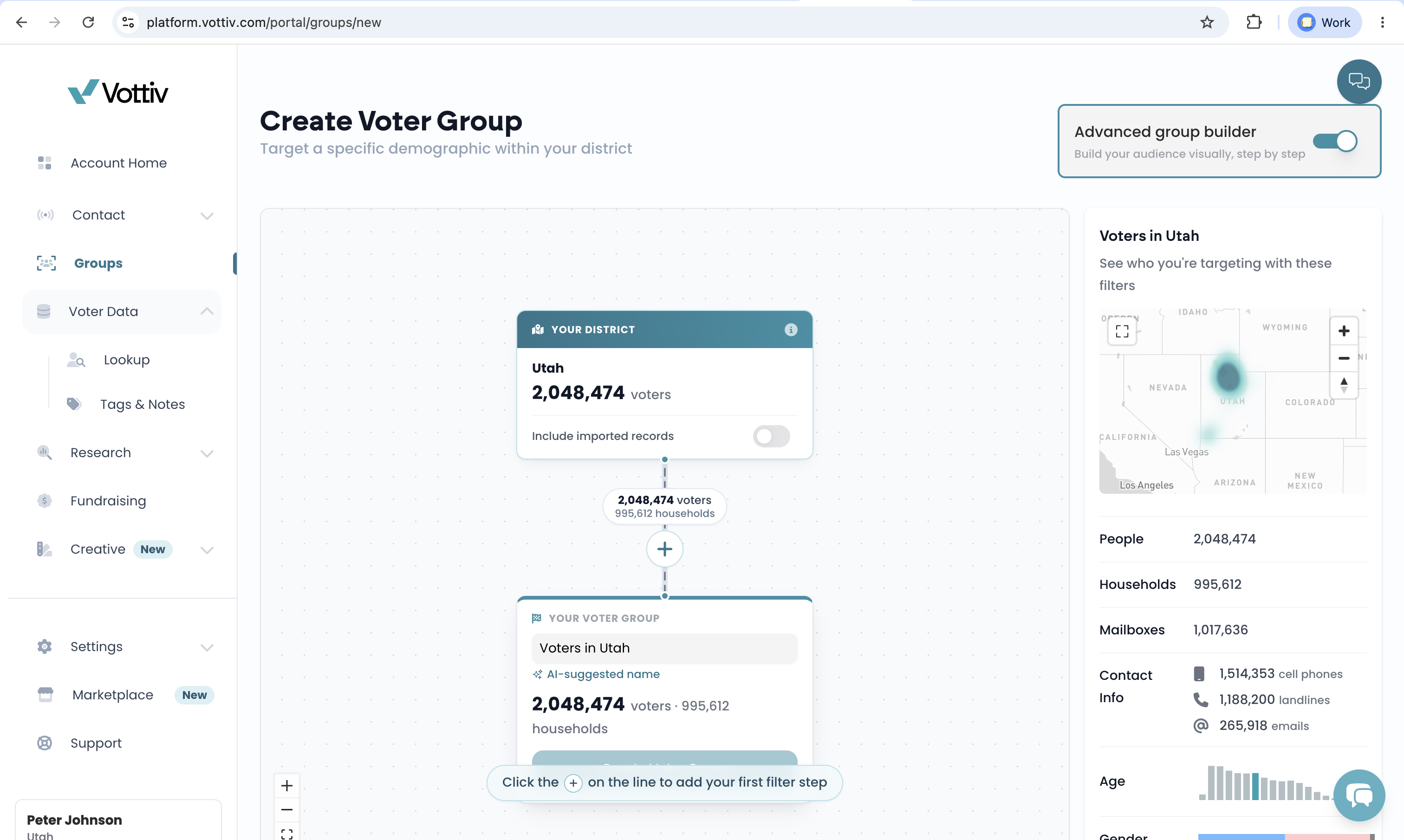
That's what the Advanced Group Builder is for. Instead of a stack of filters, you build on a visual canvas where your audience literally flows from your district, down through filter steps, into a finished voter group — with a live voter count on every connection so you can watch your audience take shape.
Turning It On
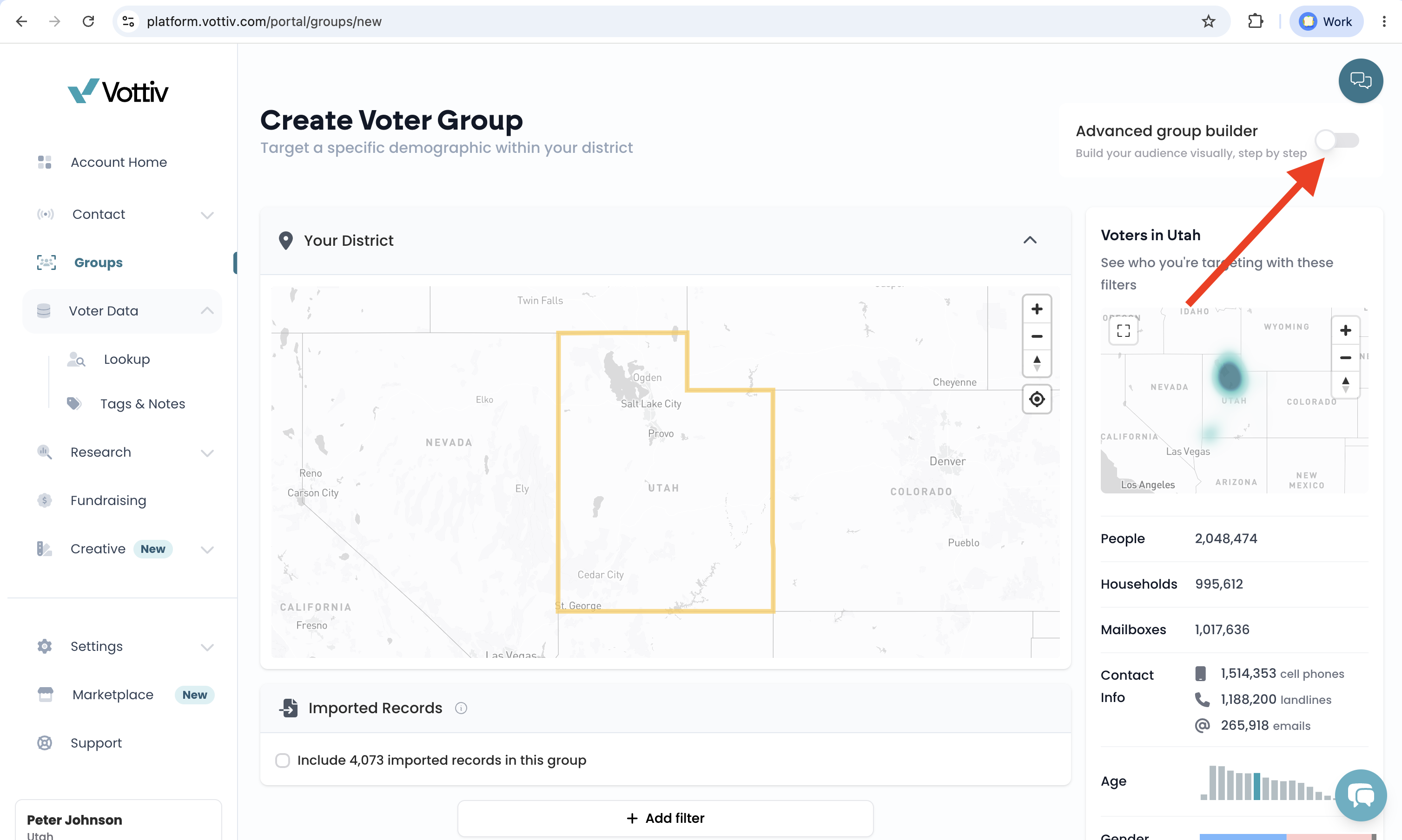
Go to Voter Groups → Create Voter Group. In the top-right corner of the page, flip the Advanced group builder switch ("Build your audience visually, step by step"). The switch swaps the standard filter list for the visual canvas — you can build any group in either mode.
How the Canvas Works
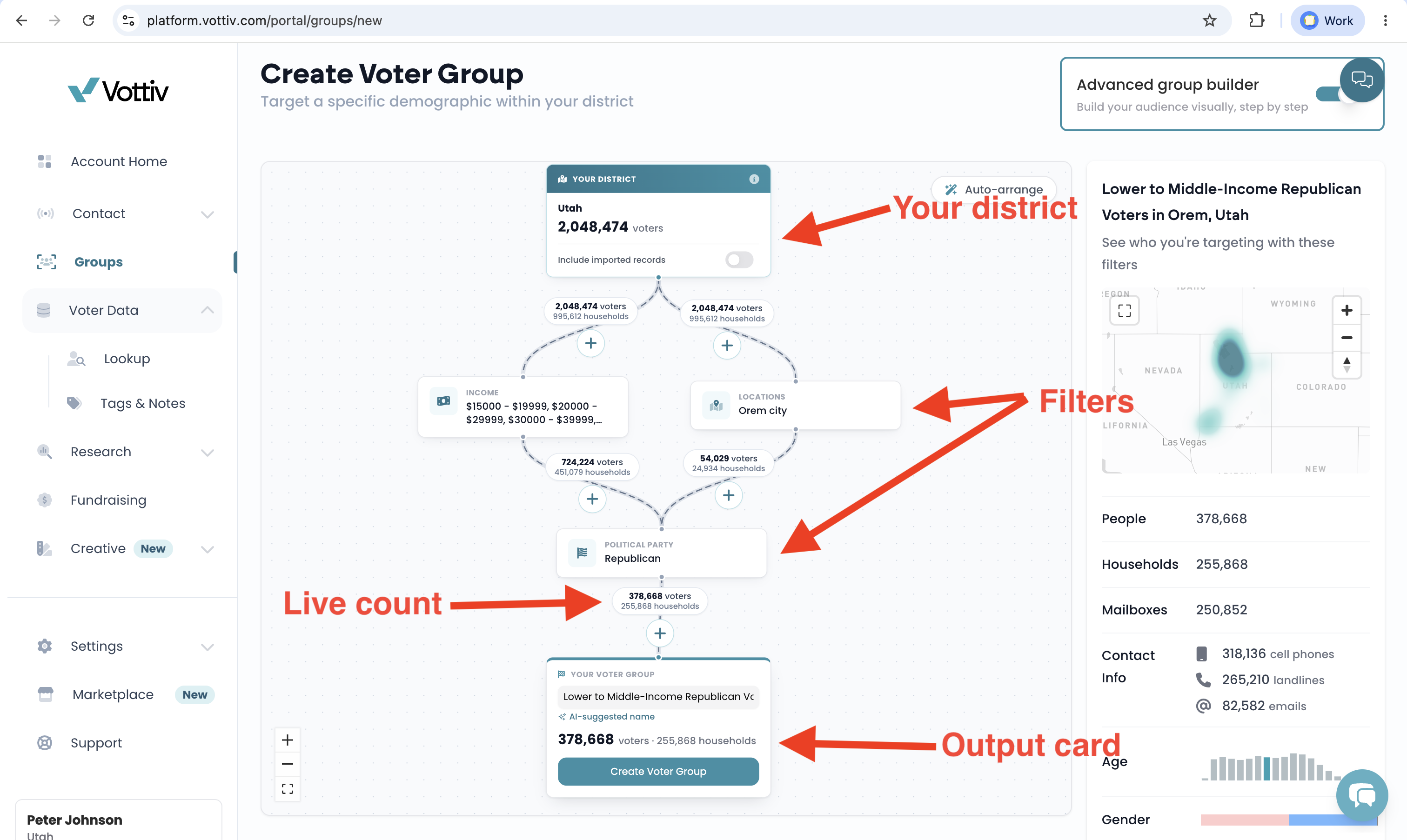
Every group starts and ends the same way:
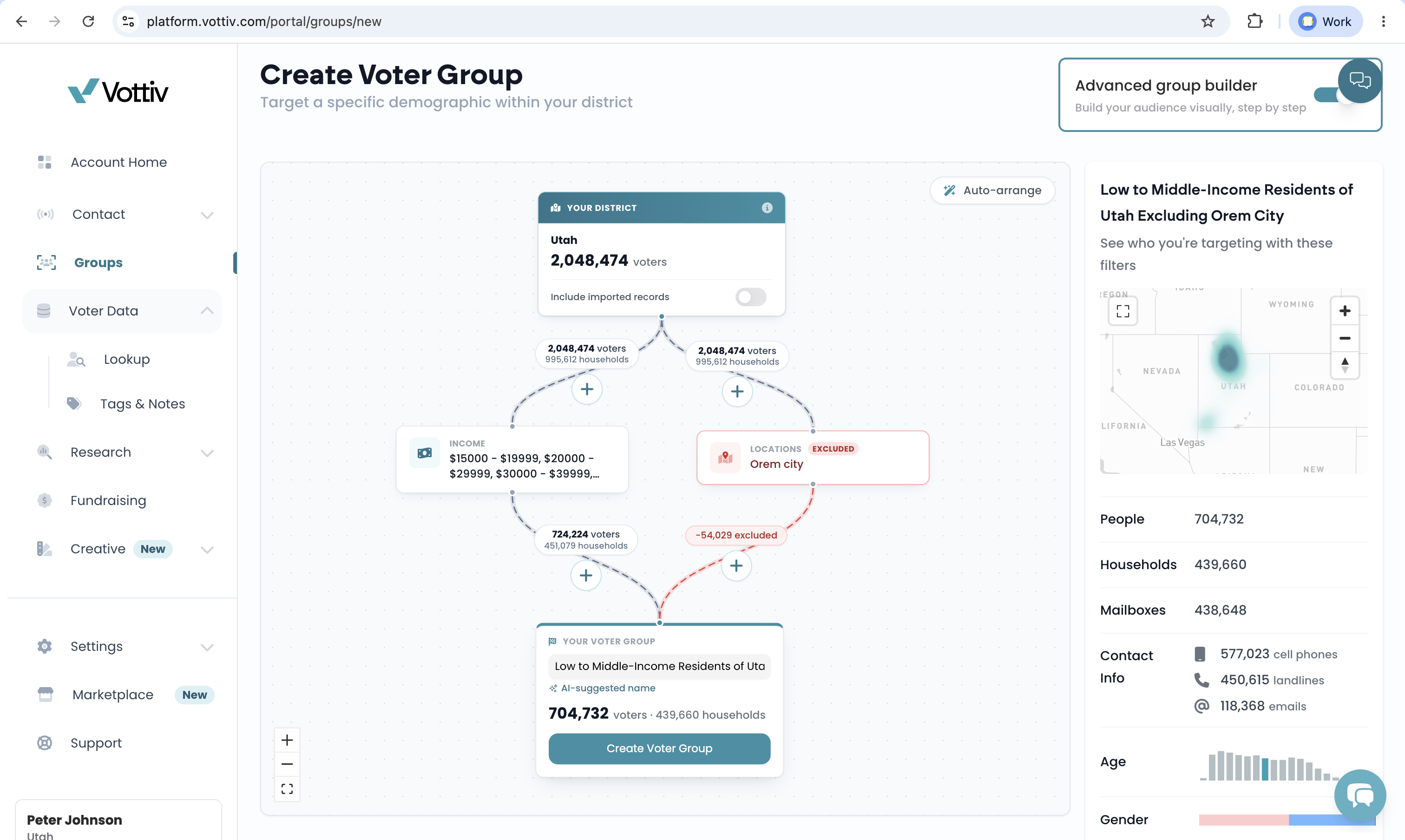
Your district (top) — the source of your audience. Vottiv automatically limits every group to voters inside your account's geographic boundaries, so this card is always your starting point.
Filter steps (middle) — each card applies one filter, using the exact same filter options and controls as the standard builder. See Using Filters in the Group Builder for the full catalog of filters and what each one does.
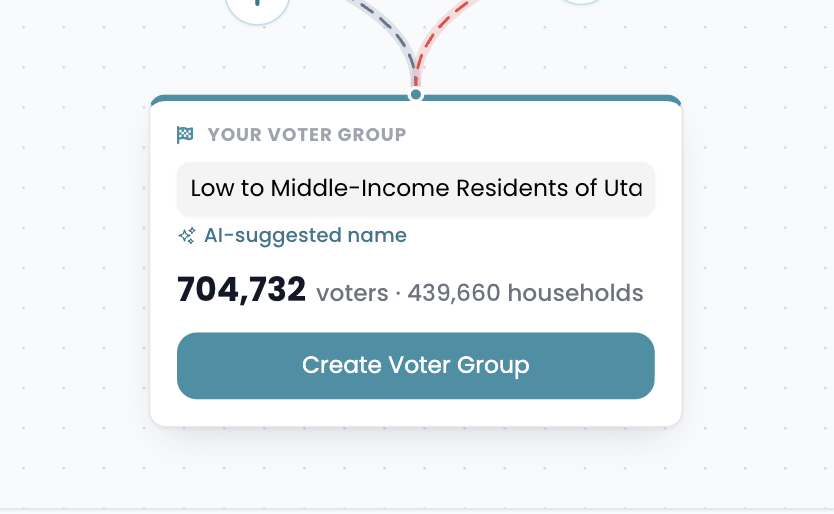
Output card (bottom) — shows your final audience size in voters and households, and is where you name and create the group.
The connections between cards show a live count of voters and households that match each path. You can add or change another step while counts load. New connections show counting while Vottiv prepares their filters. When a changed audience needs a new count, its previous total is replaced by a loading message until the new result arrives. If a connection count fails, click its retry icon. You can continue to edit your steps while it retries.
The Four Moves
1. Add a Step — "voters must also match" (AND)
Chaining steps one after another works exactly like the standard builder: each step narrows the path further. A voter has to match every step in the chain to make it through.
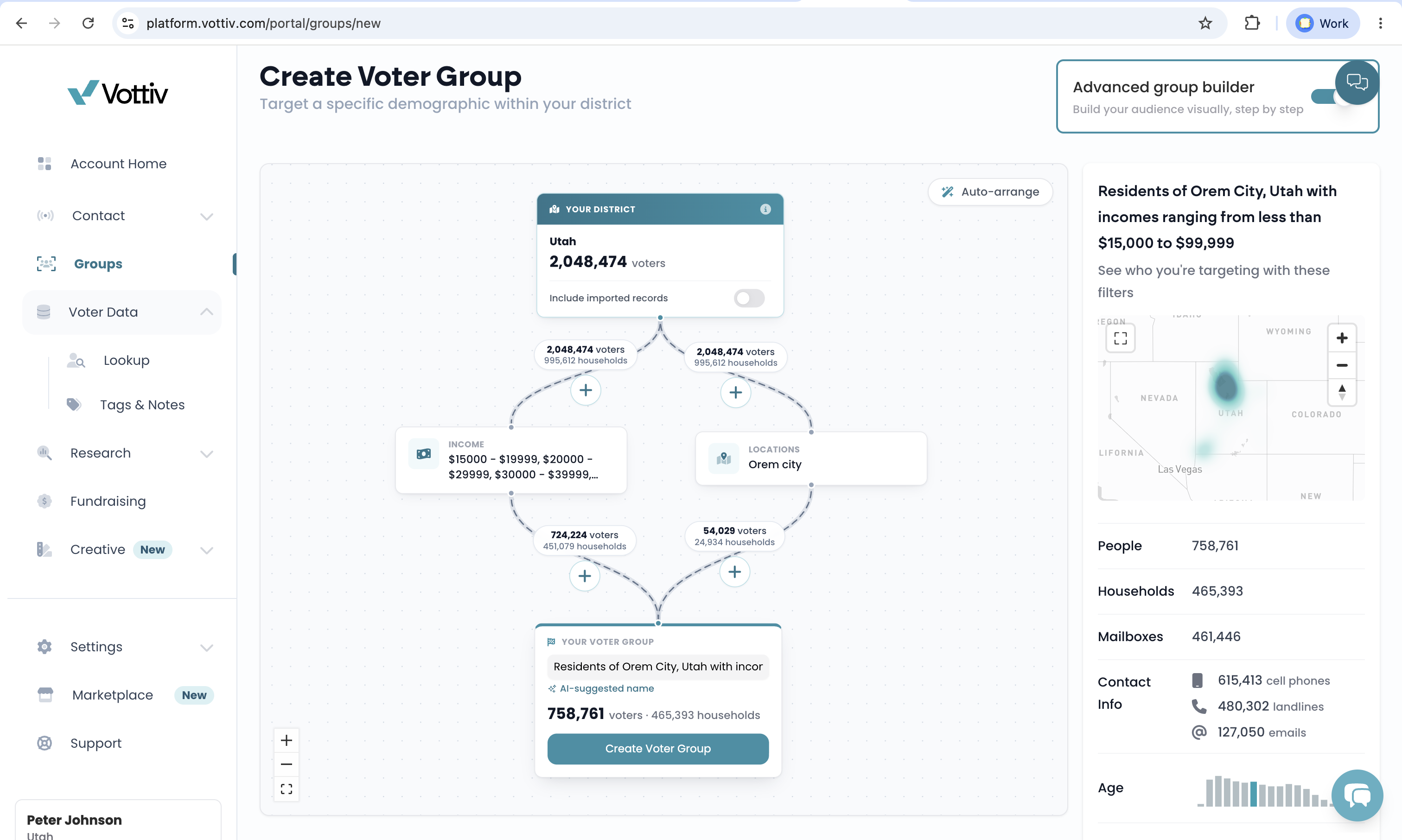
2. Add a Branch — "either one counts" (OR)
This is the Advanced Builder's superpower. Split the stream into two (or more) paths, put different filters on each, and merge them back together downstream. A voter who matches either path is included.
Example: one branch filters for voters with a high partisan score, the other for voters who voted in 3 of the last 4 primaries. Merged together, your group is "reliable partisans OR proven primary voters" — something a simple filter stack can't express.
3. Exclude These Voters — carve-outs (NOT)
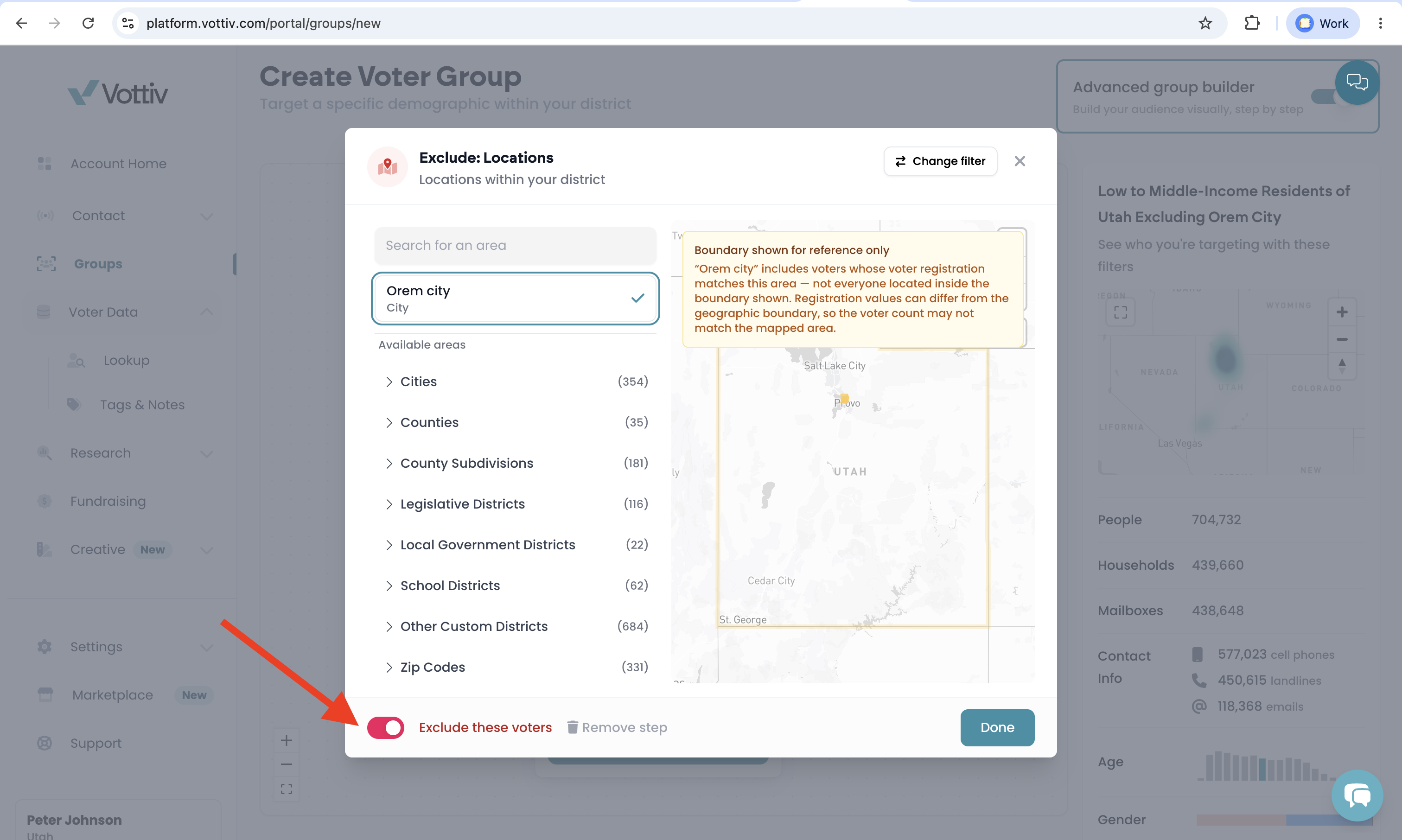
Any step can be flipped to an exclusion with its Exclude these voters toggle. The card gets a red border and an Excluded pill, and its stream turns red showing −N excluded — voters matching that step are removed from your audience instead of kept.
Example: end your flow with an excluded "Canvassing Results" step to drop everyone your team has already knocked, or an excluded "Groups" step to remove members of your donor list.
4. Remove a Connection — fix a bypass
You can also build an OR split by dragging another connection from the bottom of a card to a different next step. The new connection is added without replacing the card's existing path.
When a card has more than one outgoing connection, each of those connections shows a trash button beside its + button. Use it to remove a path you no longer want. This is especially important if your district connects directly to the output card: that direct path includes the whole district and bypasses every filter on the other paths, so remove it when you want every voter to pass through your filters.
Vottiv protects the last outgoing connection from every card. The trash button only appears when another path forward will remain, so removing a connection can't strand the card.
You can chain, branch, exclude, and remove connections as much as you like — there's no limit on the number of steps. The canvas prevents connections that wouldn't make sense (like circular flows), and if a layout gets messy after dragging cards around, click Auto-arrange in the top corner to tidy it up.
Creating the Group
When the output card shows the audience you want, enter a name in its Group name field. Vottiv can suggest a name based on your filters; the sparkle icon marks a suggestion. You can edit or replace that name. Once you type your own name, later AI suggestions will not replace it.
Click Create Voter Group. The confirmation dialog uses the name you entered. Review it, make any final edits, then click Done. Your new group works everywhere any other group does: canvassing, texting, phone calls, direct mail, digital ads, polling, and exports.
Reviewing a Group's Targeting Later
To see how an existing group was built, open it from Voter Groups and go to its Group Filters page. Groups built on the visual canvas show that same canvas again, so you can read the flow top to bottom.
Click any card to see its details. Every card on the canvas opens a panel with the full story behind it:
A filter step opens the same chart, list, or map you would have used to build it, with the group's actual selections marked — so you can see exactly which options were picked and which criteria was applied ("at least 1 of", "none of", and so on), not just the shortened summary on the card. It also shows how many voters and households were left after that step. For an excluded step, the number is how many voters that step removed.
Your district lists every district on your account in full, plus whether records you imported yourself are included in this group.
Your voter group shows the final audience and how you can reach it — cell phones, landlines, email addresses, and mailing addresses.
These panels are read-only. Filters can't be changed after a group is created, so nothing you click here will alter the group — it's purely for reviewing what was built.
Things to Know
Filters can't be changed after a group is created. Double-check your flow before clicking Done. If you need a variation later, build a new group and use the Group filter to reuse the old group's membership as a starting block, then layer on your changes.
Your counts keep themselves fresh. Groups are dynamic — as new registrations, canvass results, and survey responses come in, group membership updates automatically. Time-relative filters (like Birthday "This Month") re-evaluate on their own, too.
Counts finish in the background. Right after you create a group, its totals may take a few seconds to appear. If you jump straight into canvassing you might see "Group data is still loading" — give it a moment and try again.
Canvassing has a size cap. Groups over 150,000 households can't be used for door-to-door canvassing — split very large universes into regional groups first.
Merging rules for exclusions. An excluded step can't merge an included path with an excluded path — if you see "split the merge," reconnect the excluded step so its inputs are all the same kind.
Older advanced groups look different. Groups built with the previous version of the advanced builder show their targeting as a criteria tree instead of a flow diagram. They keep working normally — they just can't be edited (no group's filters can). Rebuild them in the new canvas whenever you want the visual version.
Recipe Ideas
Persuasion universe: branch "soft partisans (score-based)" OR "split-ticket households" → merge → exclude "Support Status: Support" (no need to persuade your own supporters).
GOTV cleanup: your supporter group → exclude voters who already voted (Active Election exclusion) → exclude anyone texted in the last blast.
Volunteer prospecting: branch "answered a survey positively" OR "tagged Volunteer-Interest" → merge → require "Has Cell Phone."
Want a refresher on what every individual filter does? See Using Filters in the Group Builder, or start with Building Your First Voter Group if you're new to groups.
Advanced Group Builder Walkthrough
Was this article helpful?