

Phone Calls
How to Make Calls as a Volunteer
This article walks volunteers through how to join a phone bank and start making calls.
You can join using a link or QR code provided by the campaign. No app download is required, and phone banking works on any device with a microphone and internet connection.
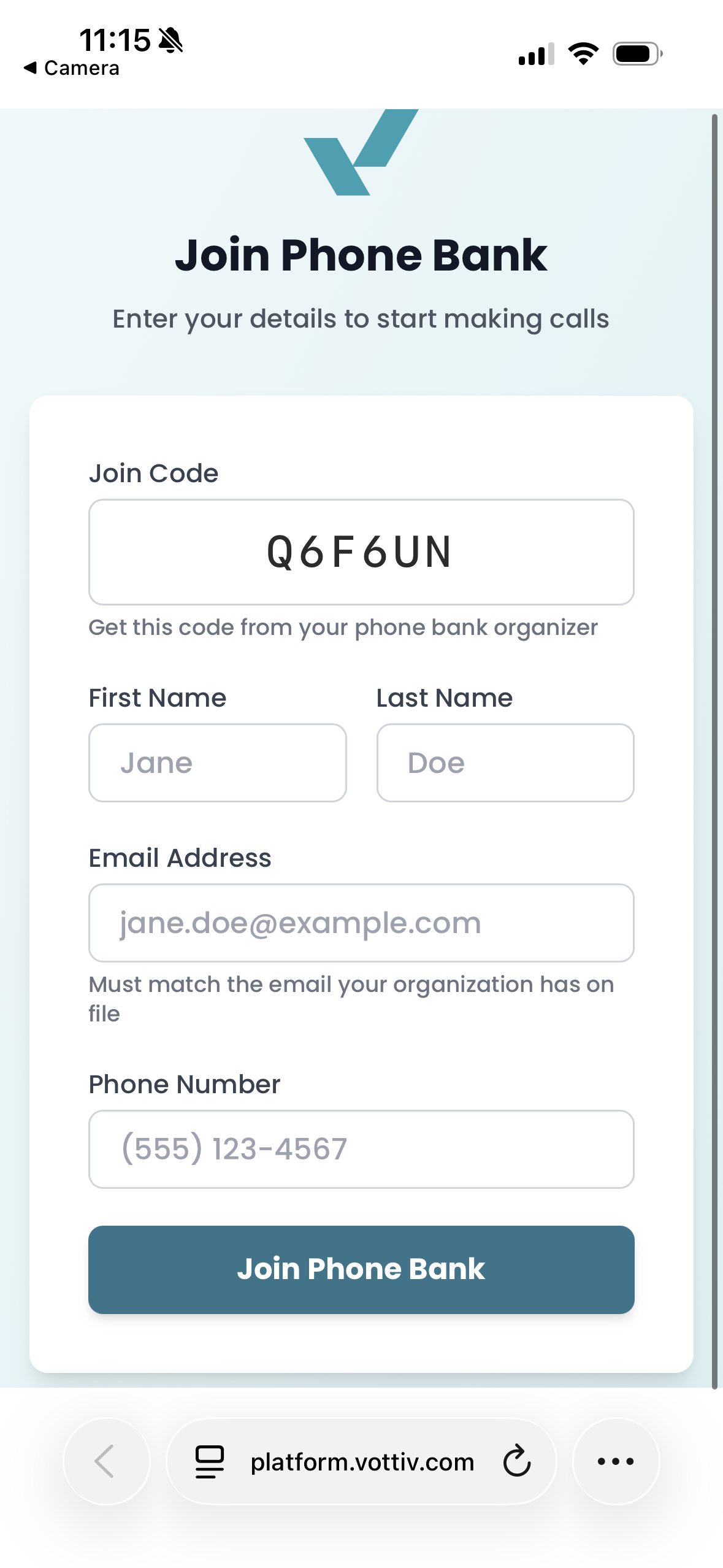
1. Join a Phone Bank
Volunteers can join a phone bank in two ways:
Clicking a shared link
Scanning a QR code
Steps
Open the link or scan the QR code
Enter the six-digit join code
Fill out:
First name
Last name
Email address
Phone number
Click Join Phone Bank
No app download is required. Phone banking works on any device with a microphone and internet access.
2. Allow Microphone Access & Set Up Audio
Before calling begins, volunteers must allow microphone access.
Steps
Click Allow when prompted to use your microphone
Select:
Microphone
Speaker
Click Test Microphone
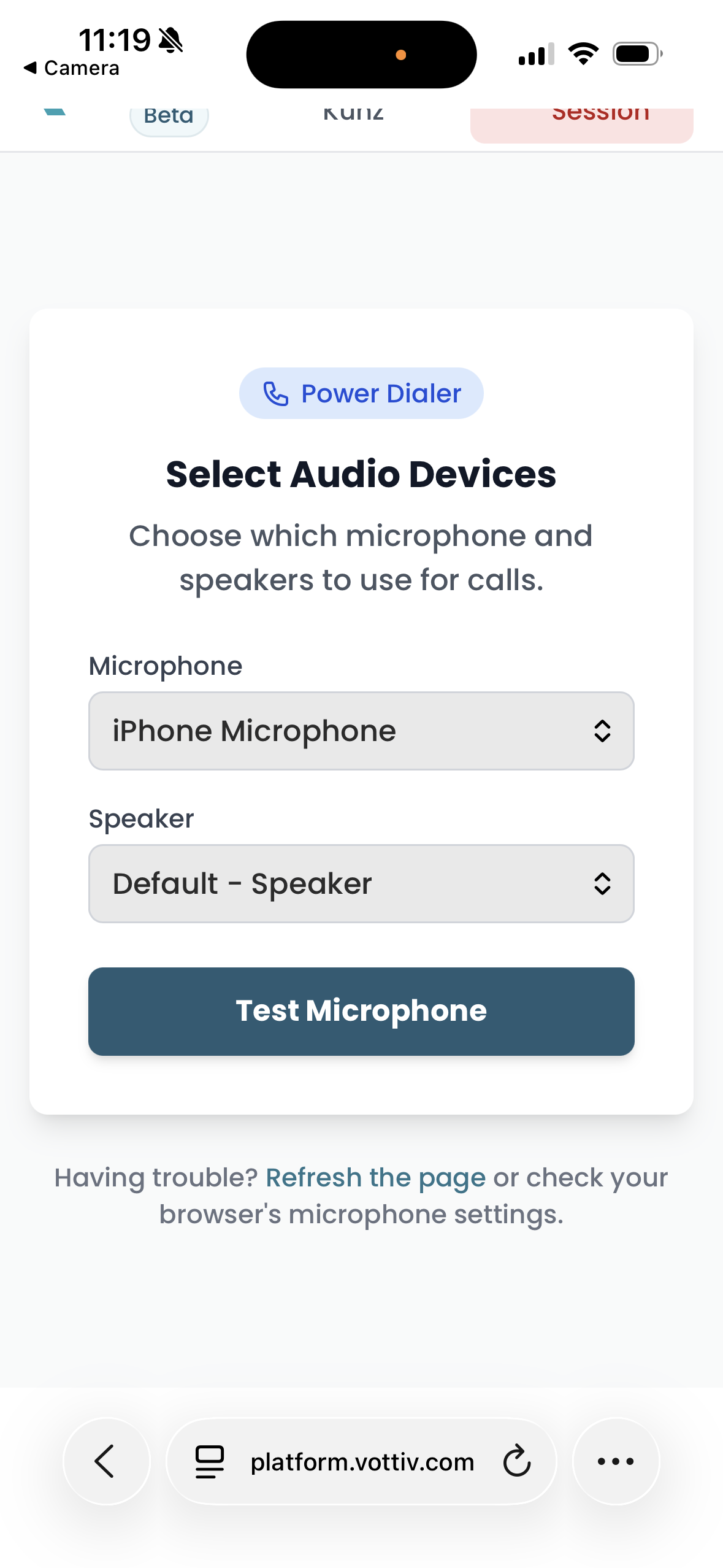
Adjust devices if needed
Click Start Calling
🔁 At any time, volunteers can:
Change devices
Leave the session using Leave Session (top right)
If the browser phone cannot start
Vottiv displays recovery steps when it cannot start the browser phone. Follow the message shown on screen:
Microphone access is blocked: Open your browser's site settings for Vottiv, set Microphone to Allow, and confirm your browser has microphone access in your computer's privacy settings.
The microphone could not start: Reconnect your headset or choose another microphone in your computer's sound settings, then close any other app using the microphone.
No microphone was found: Connect a headset or enable a microphone in your computer's sound settings.
After correcting the problem, click Try Again. If the phone still does not connect, reload the page and repeat the audio check. You do not need to leave and rejoin the phone bank.
If the microphone problem appears during a connected call, your call controls stay available. Finish or end the current call first; Vottiv will then show Try Again so you can safely restart the browser phone.
3a. Making Calls with the Power Dialer
The Power Dialer lets callers place calls one at a time and choose when to start each call.
How it works
The next voter appears automatically
Review voter information, including available demographics, before you place the call
Read the call script
Select the phone number you want to call
Click Call
During the call
Follow the script
Add tags or notes as needed
Ending the call
Click End Call
Select the call outcome:
Completed
Left a message
No answer
Busy
Call failed
The next voter loads automatically
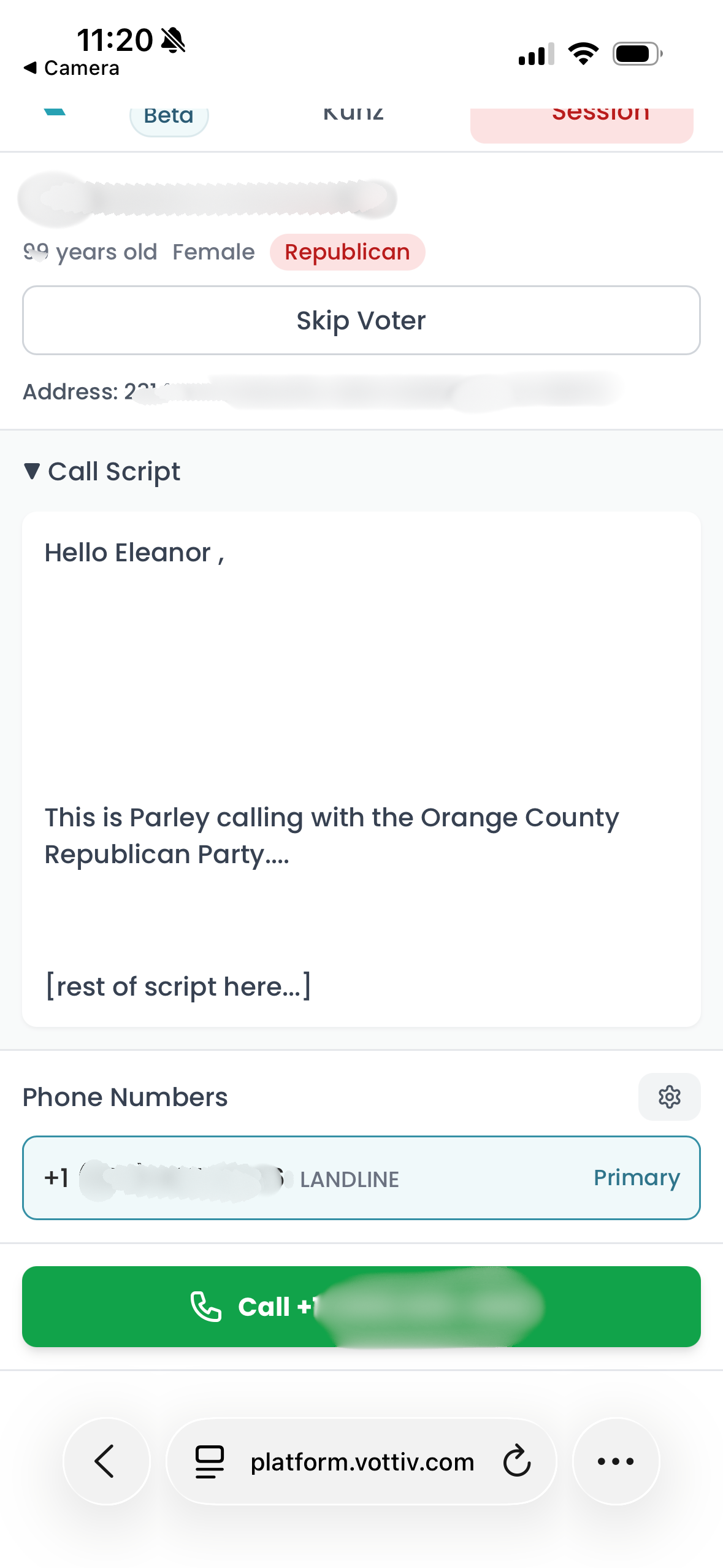
Making Calls with the Power Dialer, Where Volunteers Place Calls One at a Time
3b. Making Calls with the Predictive Dialer
The Predictive Dialer places calls automatically and connects you the moment someone answers — you’ll often hear the voter’s “hello” right as the call connects, so be ready to start your script immediately. You wait for the system to connect you instead of choosing when to call each voter.
What to expect
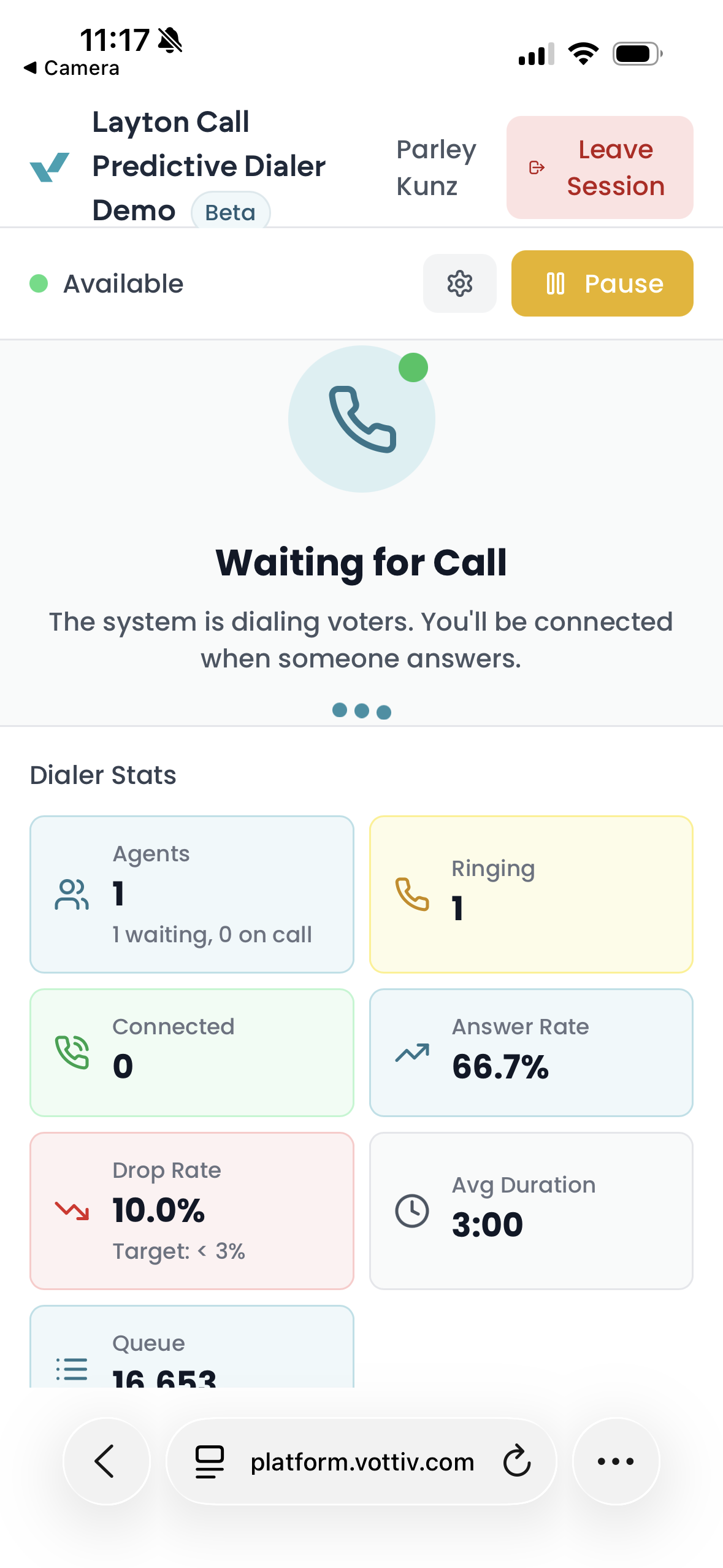
Calls connect instantly when a voter picks up — no waiting on hold
Status shows when calls are ringing or connecting
Option to Pause calling at any time
Live stats display:
Agents
Ringing
Connected calls
Queue size
Answer rate
Drop rate
Average call duration
During a connected call
Voter info and script appear
Add tags and notes
End the call and select the outcome
You are automatically returned to the queue
If you reach an answering machine
Because calls connect the instant they’re answered, you may occasionally hear an answering machine greeting instead of a live person.
Click Answering machine to move on right away — the system stays on the line and automatically leaves the campaign’s voicemail at the beep (if the campaign has a voicemail recording set up). You don’t need to log an outcome.
If Vottiv detects the answering machine on its own, the call ends automatically with a brief “voicemail dropped” notice and you’re returned to the queue — nothing to log there either.
Can I change the dialer type?
No. The campaign decides which dialer type the phone bank uses. Callers cannot switch between Predictive Dialer and Power Dialer from the calling screen.
If you want to use the Power Dialer, ask the campaign to switch the phone bank. Power Dialer shows available voter information, including demographics, before each call and lets you choose when to place it. Predictive Dialer places calls automatically, so you wait for the system to connect you to an answered call.
4. Calling from a Phone or Tablet
Phone banking works great from a phone or tablet browser — you can join and complete calls entirely from a mobile device. On smaller screens, the calling screen reorganizes so everything stays within easy reach:
Always-visible call controls: the voter’s name, the call timer, and the mute, keypad, and hang-up buttons stay pinned to the top of the screen during every call.
Three simple tabs: the script, the survey, and voter information are organized into Script, Survey, and Info tabs. The Survey tab shows a badge with how many questions still need answers, and opening a survey takes you to it automatically.
Action buttons at the bottom: the most important buttons — Call and Skip Voter in the Power Dialer, the call-outcome buttons after each call, and Leave Voicemail — appear in a bar at the bottom of the screen, so you never have to scroll to find them.
Tags and notes: add tags and notes from the Info tab, which also shows the voter’s details and phone numbers.
Everything works the same as on a computer — only the layout changes. Calls, survey answers, tags, and notes are recorded identically.
5. Leaving a Phone Bank
When finished calling:
Click Leave Session (top right)
Choose to:
Join another phone bank using a new code
Return to Vottiv
Was this article helpful?