

Door-to-Door Canvassing
Vottiv Canvasser App: Setup and Canvassing Guide
This section covers how to access the Vottiv Canvasser App and get set up before joining a canvass. No app store download is required.
Step 1: Open Vottiv in Your Browser
When you arrive at a canvassing event, you’ll typically be given one of the following:
A direct link, or
A QR code to scan
Both options open vottiv.app in your mobile browser.
Step 2: Add the App to Your Home Screen (Recommended)
Adding the Canvasser App to your home screen gives you the best experience and enables offline canvassing. It opens full screen, without the browser bar taking up room on the map.
Vottiv works like an app on your phone, but there's nothing to download from an app store. You add it straight from your browser, and after that it opens with one tap right alongside your other apps.
When you first log in
Shortly after you log in, Vottiv will prompt you to install it. A panel slides up from the bottom of your screen.
On Android, tap Install and confirm. That's it.
On iPhone and iPad, Apple doesn't allow websites to install themselves, so instead of an Install button you'll see the steps to add it yourself. Follow those and you're set.
If you tap Not now, nothing is lost. You can add Vottiv any time using the steps below, and it will offer again after about a week.
Adding it later
On Android
Tap the three dots next to the website address
Tap Install app
Confirm
On iPhone or iPad
Tap the three dots next to the website address
Tap Share
Scroll down and tap Add to Home Screen
Tap Add to confirm
You must use Safari on iPhone and iPad. Chrome, Firefox, and other iPhone browsers cannot add apps to the home screen. If you opened your link in one of those, Vottiv will tell you to switch to Safari — copy the link into Safari and try again.
Once added, the app appears on your home screen and opens like any other mobile app.
Step 3: Create Your Profile and Log In
Open the app from your home screen and log in.
You’ll be prompted to enter:
First and last name
Email address
Phone number
Tap Sign in to continue.
Step 4: Enable Required Permissions
After logging in, you’ll be prompted to allow permissions that help the app function properly:
Location access to find nearby routes and addresses
Motion and orientation access to improve map navigation
If permissions don’t apply immediately, you may need to fully close and reopen the app after enabling them.
Step 5: Join a Canvass with a 6-Digit Canvass Code
Once you’re logged in and permissions are enabled, you can join a canvass.
To join:
From your dashboard, tap Add new canvass
Enter the 6-digit canvass code provided at the canvassing event
Tap Join canvass
The canvass will then appear on your dashboard and is ready to use.
Subscription Access and Switching Organizations
Your organization needs active Canvassing Tools or a Voter Contact Package to use mobile canvassing. Both the monthly and one-time packages qualify. Access follows the subscription’s trial, paid-through period, and two-day expiration grace period.
If access ends, the app shows Canvassing subscription required for that organization. Ask an organization administrator to renew, then tap Check access again.
You can still use Switch organization on this screen to select another organization you belong to. An expired subscription in one organization does not block another organization with active access. You can also choose Join another canvass to enter a code for another campaign.
The access block does not delete saved canvassing work. Keep the app’s stored data until your pending results have synced.
No Downloads Needed (Progressive Web App)
Vottiv uses progressive web app (PWA) technology, which means:
No app store download is required
The app works offline
Updates happen automatically
Using the Canvassing App
Once you’ve added a canvass, you’re ready to begin canvassing in the field.
What You’ll See After Joining a Canvass
After joining a canvass, you’ll have access to:
Canvasses you’ve added
Assigned routes or available routes nearby
A map view with households and walking paths
Tools for logging interactions and notes
When you start a canvass, you may also see instructions provided by the campaign. Be sure to review these before selecting a route.
All activity syncs automatically when you’re online.
Your Dashboard
The dashboard shows all canvasses you’ve added.
Tap a canvass and select Start canvassing to begin
Tap Add new canvass to enter another canvass code
Voter Lookup: If your user role includes voter lookup permissions, you will also see a Voter Lookup card below the "Add Canvass" button. Tapping this opens the voter search screen.
Select a Route
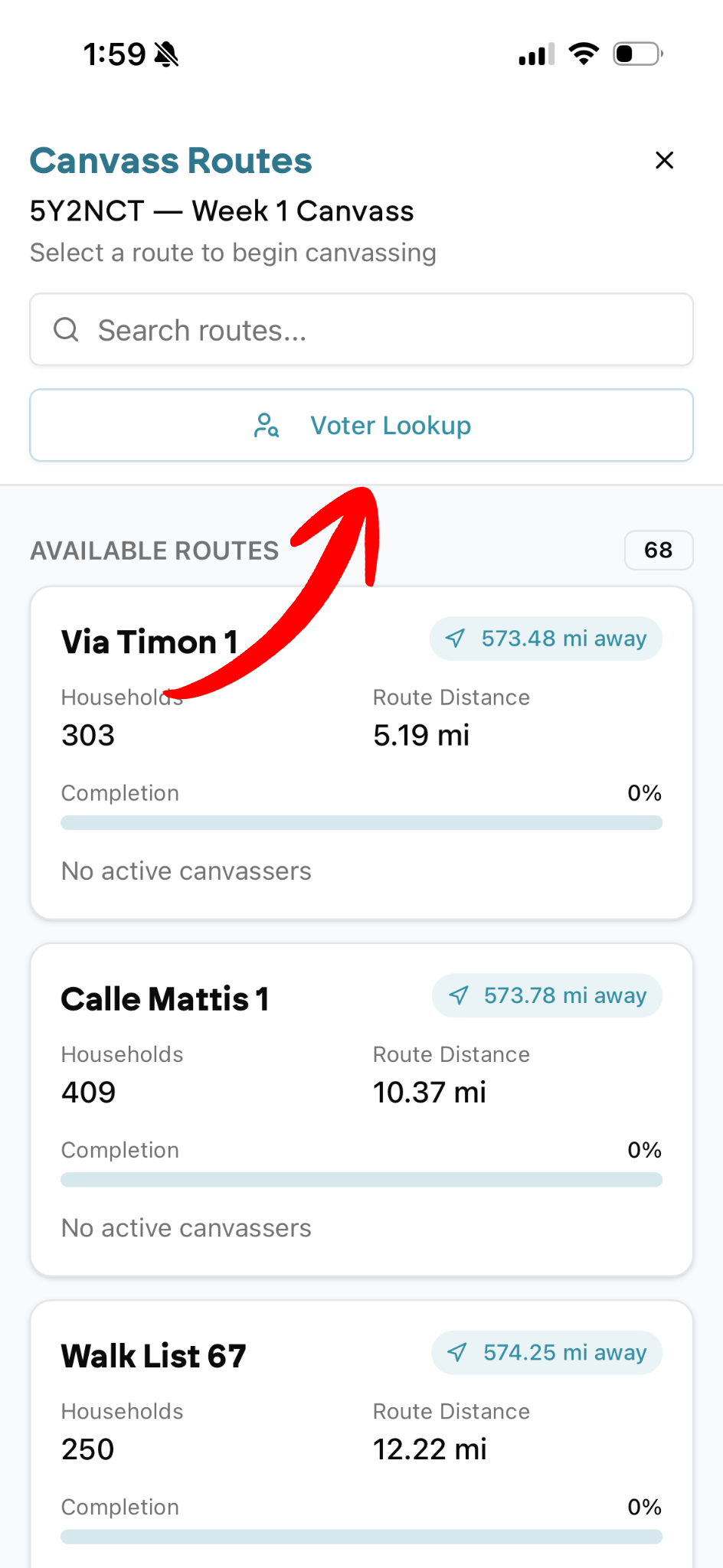
Canvasses are divided into walkable sections called Canvass Routes.
Routes assigned to you appear at the top
Additional available routes are listed below, sorted by distance
Each route shows completion percentage, distance, and number of households
Select a route and tap Start canvassing
You can also access the Voter Lookup tool from this page by tapping the button at the top of the screen.
Start Canvassing
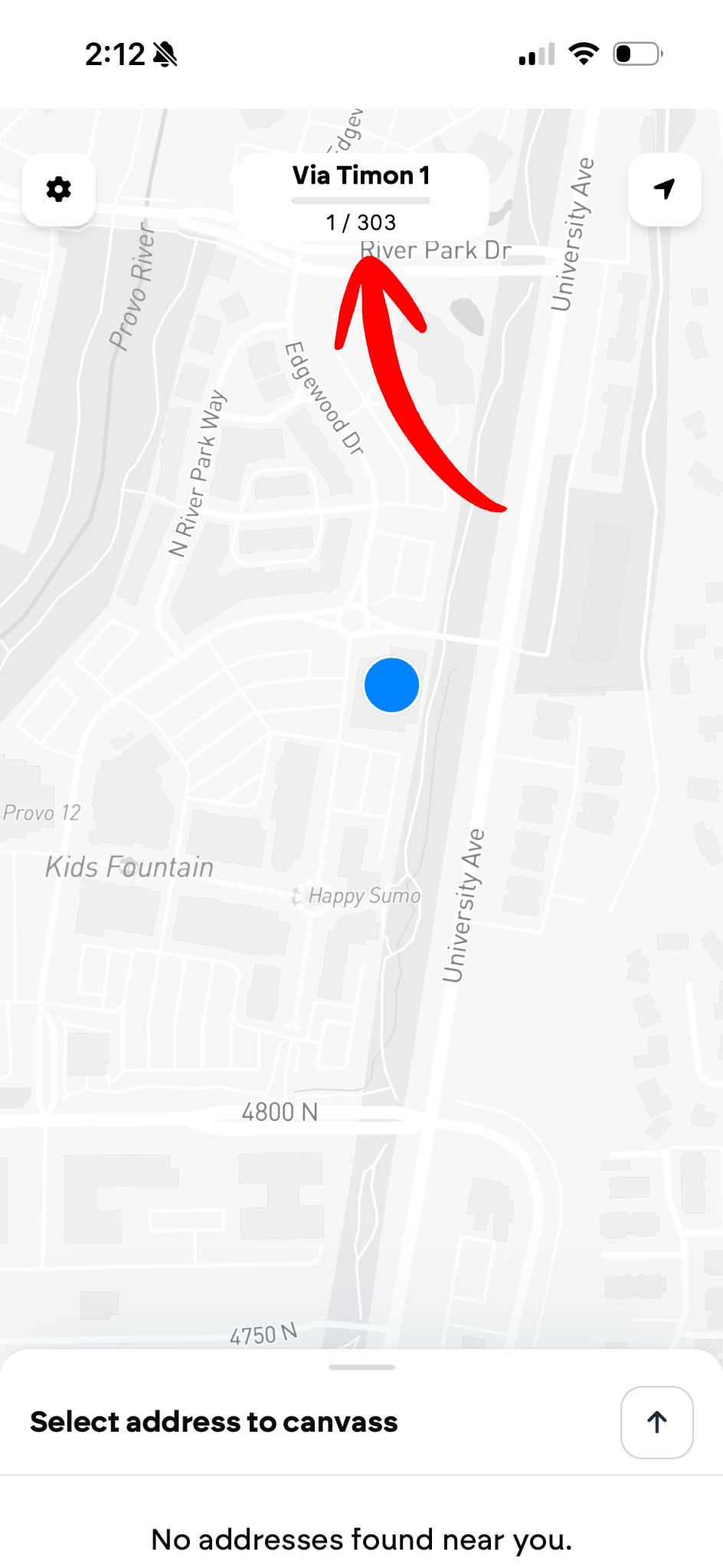
The first time you open a route, the app will display a brief map tutorial.
Map indicators:
🟣 Purple dots: Households not yet visited
⚫ Dark gray dots: Marked as not home
🔴 Red dots: Declined, unsafe, or inaccessible
⚪ Light gray dots: Completed
The blue line shows a suggested walking loop for the route. It follows nearby streets and returns to the start. The route can use the same road more than once, especially near dead ends. It aims to reduce walking distance, but it is not guaranteed to be the shortest possible path. Use the home dots to see all homes in the route; a home on a disconnected street may not be included in the line.
Seeing and Switching Between Routes on the Map
When you open a route, the map also shows the other routes in the same canvass, so you can see where they are at a glance — especially when you zoom out.
Each other route appears as a faint outline with its name labeled in the middle of the route.
Households in the other routes appear as faded dots (the same status colors as your route, just dimmed), so you can tell which areas are already being covered.
Your active route stays bright and fully colored, so it always stands out from the faded routes around it.
To switch to another route, tap its name, its outline, or any of its faded households on the map. A route details popup opens showing that route's households, distance, completion, and active canvassers. Tap Start canvassing to switch — the app downloads that route's data and loads it on the map.
A few things to know:
Seeing other routes' faded households requires an internet connection. If you're offline, you'll still see the other routes' outlines and names, but not their faded households.
Switching to a new route also requires a connection, since the app needs to download that route's data first.
For precinct-based canvasses, other routes show their names and faded households but not an outline (precinct routes aren't drawn as shapes on the map).
At the Door
Tap a household to view additional details, such as:
Distance to the address
Household size
Navigation options (Google Maps)
Voter details (when available)
Tap Open canvass to enter the main canvassing interface.
Quick actions allow you to mark a household as:
Not home
Declined
Complete
Inaccessible
Depending on how the canvass is configured, you may also see options to:
Record support or survey responses
Collect signatures
Leave information
Apply tags
Update contact information
Register voters
Open custom links (such as volunteer sign-ups)
Submit requests (for example, yard signs)
Not all canvasses will include every option.
Working With Others
When multiple people are canvassing at the same time:
Updates from others appear in real time
Completed or updated households sync instantly
Other canvassers appear on the map as orange dots with their names
This helps avoid duplicate work and keeps progress visible.
Location Sharing Privacy
You can control whether your real-time location is visible to other canvassers on their maps via the Share location with team setting.
Where to find it: Open your profile by tapping your avatar in the top-right corner of the dashboard.
Default setting: Enabled (your location is shared with your team).
When disabled: Other canvassers will not see your position on the map, but your location data will still be recorded for route tracking and analytics.
Canvassing Offline
Download your route while online before you canvass without a connection. A temporary failure to check your organization’s subscription does not stop you from using saved canvassing work.
If the app has confirmed that your organization no longer has canvassing access, that block remains until access is restored. Reconnect after renewal and tap Check access again, or switch to another organization with active access. Saved work stays on your device.
All necessary data loads when a canvass is added
Actions are saved locally if service is lost
Data uploads automatically once you reconnect
Device Storage Warnings
Vottiv needs space on your device to save canvass progress. Cookies can be enabled while the site’s storage is full. Vottiv tries to free space by removing cached information it can download again. This cleanup keeps pending canvass results, downloaded route data, and sign-in information.
Device Storage Full: Automatic cleanup could not free enough space. If your device is low on storage, free space outside Vottiv, then return and tap Refresh. If the message stays, contact Vottiv support. Site storage can be full even when the device has free space.
Device Storage Blocked: Follow the browser permission steps shown in the app. On iPhone, check Settings → Apps → Safari → Advanced → Block All Cookies and make sure it is off. Use a regular browser tab rather than a private tab.
Device Storage Unavailable: Tap Refresh. If needed, close and reopen the tab or app. Contact Vottiv support if the warning remains.
The app checks again automatically and continues when storage works. Some cached information may need to load again while you are online.
Do not clear website data or remove the app while canvass results may still be waiting to upload. Contact support first if you are unsure. Send the warning text, device and browser details, and when it appeared.
Voter Lookup Feature
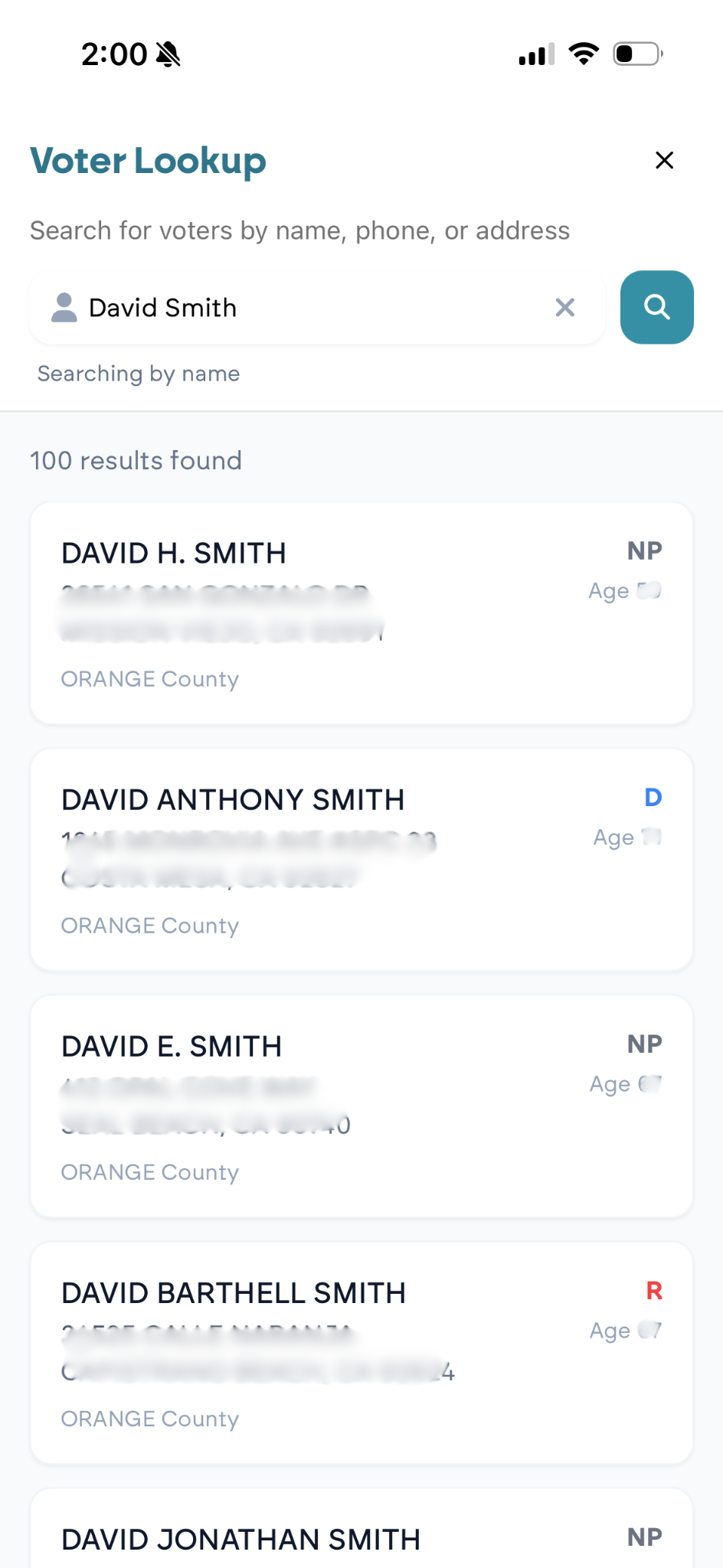
The Voter Lookup feature allows authorized canvassers to search for and view detailed voter information directly from the mobile canvassing app. You can search by name, phone number, or address to view profiles, notes, and tags.
Note: Unlike standard canvassing, Voter Lookup requires an active internet connection and cannot be used offline.
Access Requirements
Voter Lookup is permission-gated. You will only see the Voter Lookup options if your organization role includes the VOTER_LOOKUP or ORGANIZATION_ADMIN permission. Contact your administrator if you believe you should have access.
Smart Search
The search bar uses intelligent input detection to automatically determine what you're searching for:
Input Type | Example | How It's Detected |
|---|---|---|
Name | "John Smith" or "Smith" | Default when no other pattern matches |
Phone Number | "555-123-4567" | 7+ digits detected |
Address | "123 Main St" | Number followed by street suffix (St, Ave, etc.) |
A hint will appear below the search bar indicating the detected search type (e.g., "Searching by phone...").
Voter Profiles & Actions
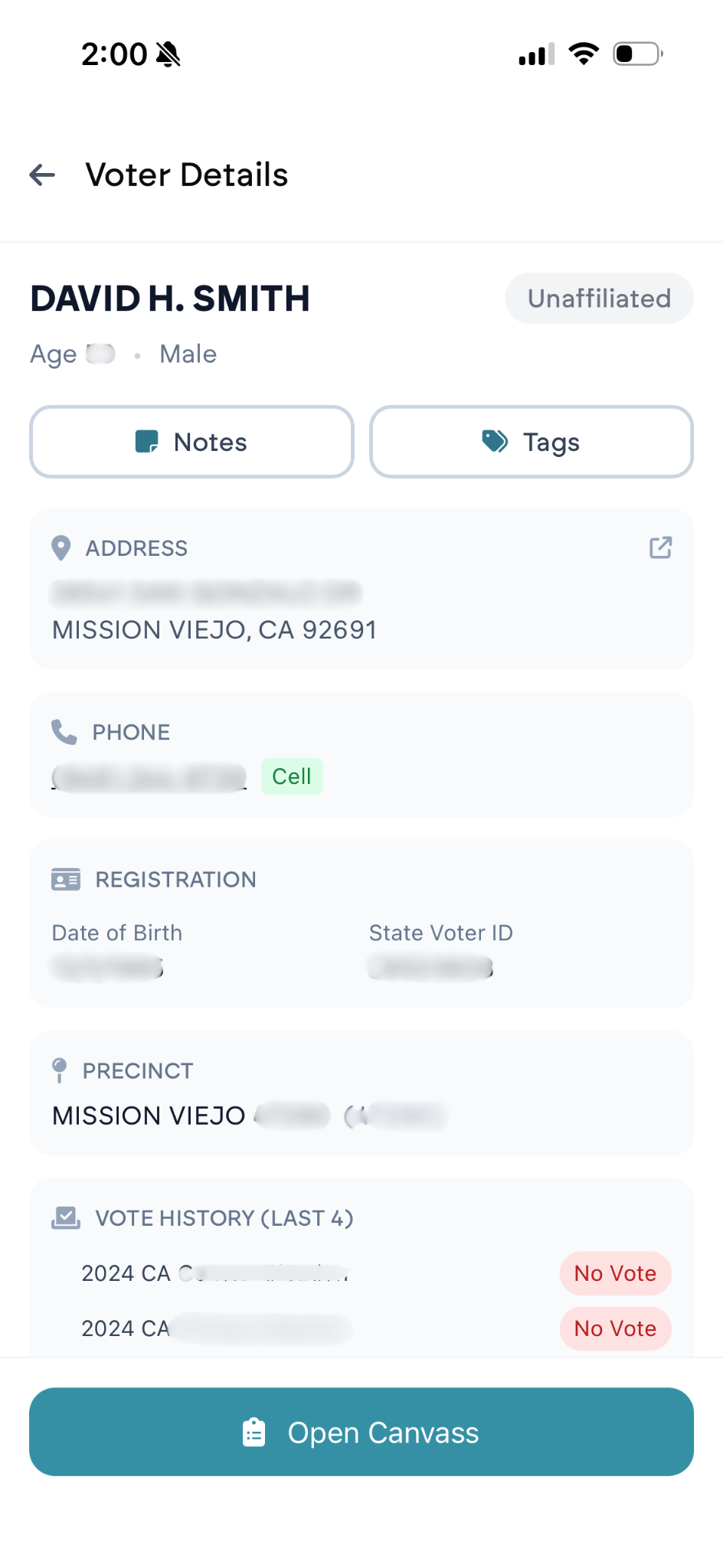
Tapping a search result opens the full voter profile, where you can view:
Basic Info: Name, Age, Party Affiliation, Gender
Location: Full address, County, Precinct
History: Voting history for the last 4 elections
Notes & Tags
Notes: View existing notes from your team or add new ones. Notes are visible to all organization members with lookup access.
Tags: Apply or remove existing organization tags to categorize voters. New tags must be created in the web dashboard.
From the profile, you can also navigate to the voter's address or start a canvass interaction immediately.
Important Note About Canvasses
When switching between campaigns, not all canvasses will automatically appear.
You will only see canvasses that you have joined using the campaign’s six-digit canvass code.
If a canvass does not appear:
Ask the campaign administrator for the six-digit canvass code.
Enter the code in the canvassing app to join the canvass.
Once you join a canvass, it will appear under that campaign’s account.
Complete Walkthrough Video
Prefer a visual walkthrough?
Watch the complete video for a step-by-step demonstration of accessing the app, joining a canvass, selecting routes, and logging doors.
Was this article helpful?