

Surveys & Polling
Building Dynamic Surveys in Vottiv
Surveys in Vottiv are more than just a list of questions — they’re a strategic tool to engage voters and gather data that drives better decisions and personalized outreach. With our intuitive builder and dynamic branching logic, it’s easier than ever to create surveys that adapt to how a voter responds.
🔍 Accessing the Survey Builder
To get started, navigate to the Surveys tab in the left-hand menu of your dashboard.
If you’ve already created surveys, you’ll see them listed under Active Surveys. To create a new one, click the + Create Survey button in the top right corner. You’ll immediately be taken into the Survey Builder.
🧠 Building Questions with Logic
Each survey starts with a first question — for example: “What political party are you a part of?”
From there, you can use branching logic to ask follow-up questions based on how a voter responds. For example:
If a voter selects "Republican," you can ask what issue is most important to them.
If they say “Crime/Safety,” you could follow up with whether they support more funding for police.
This kind of branching builds a personalized experience for the voter and collects more relevant, targeted information for your campaign.
If a response choice does not have its own branch but the question has a default path, Vottiv follows that default path. If there is no matching or default path, the survey ends for that branch.
Add new questions by clicking + Add Question. To connect questions, simply drag lines between the response choices and the next question block.
Multi-select and slider questions send everyone down a single path instead of branching by answer. Their connection starts from the “Continue to default next question” row at the bottom of the question block.
Removing a connection
Every connection you draw is labeled on the line itself with the response choice it follows — for example, a small “Yes” or “Default” tag floating on the line between two questions. To remove a connection, click the trash can icon on that label.
Removing a connection does not delete the question or the response choice. It only clears the path between them, so you're free to point that choice somewhere else. A response choice with nothing connected to it is marked End, meaning the survey finishes there for anyone who picks it.
⚠️ If the question a connection led to has no other paths leading into it, removing the connection leaves that question stranded. Vottiv will tell you which question became unreachable, and your survey will not save until you either reconnect it or delete it.
💡 Tip: Make sure there’s only one “Start” point — the system will alert you if multiple starting points exist.
✏️ Editing, Saving, and Naming
You can edit question text and response options by clicking on any question box. Make sure to give your survey a clear name (e.g., "First Canvass - July 2025") and click Save Changes in the top right to lock it in.
To exit the builder at any time, click Exit Survey Builder.
If you want to revisit or revise a survey, go back to the Surveys tab, click the 3 dots next to the survey name, and select Edit or View.
🧠 Retarget Smarter with Tags
Every single answer to a survey question is automatically saved as a Tag in Vottiv. That means you’re not just collecting data — you’re unlocking the ability to retarget voters based on their actual responses.
Let’s say a voter answered “Affordability” as the most important issue. That response becomes a tag. Now you can:
Send a mailer focused on affordability solutions to all voters with that tag.
Launch a texting campaign that connects your candidate’s message directly to what that voter cares about.
It’s one of the most powerful ways to personalize outreach and convert more voters.
💻 Step-by-step photos
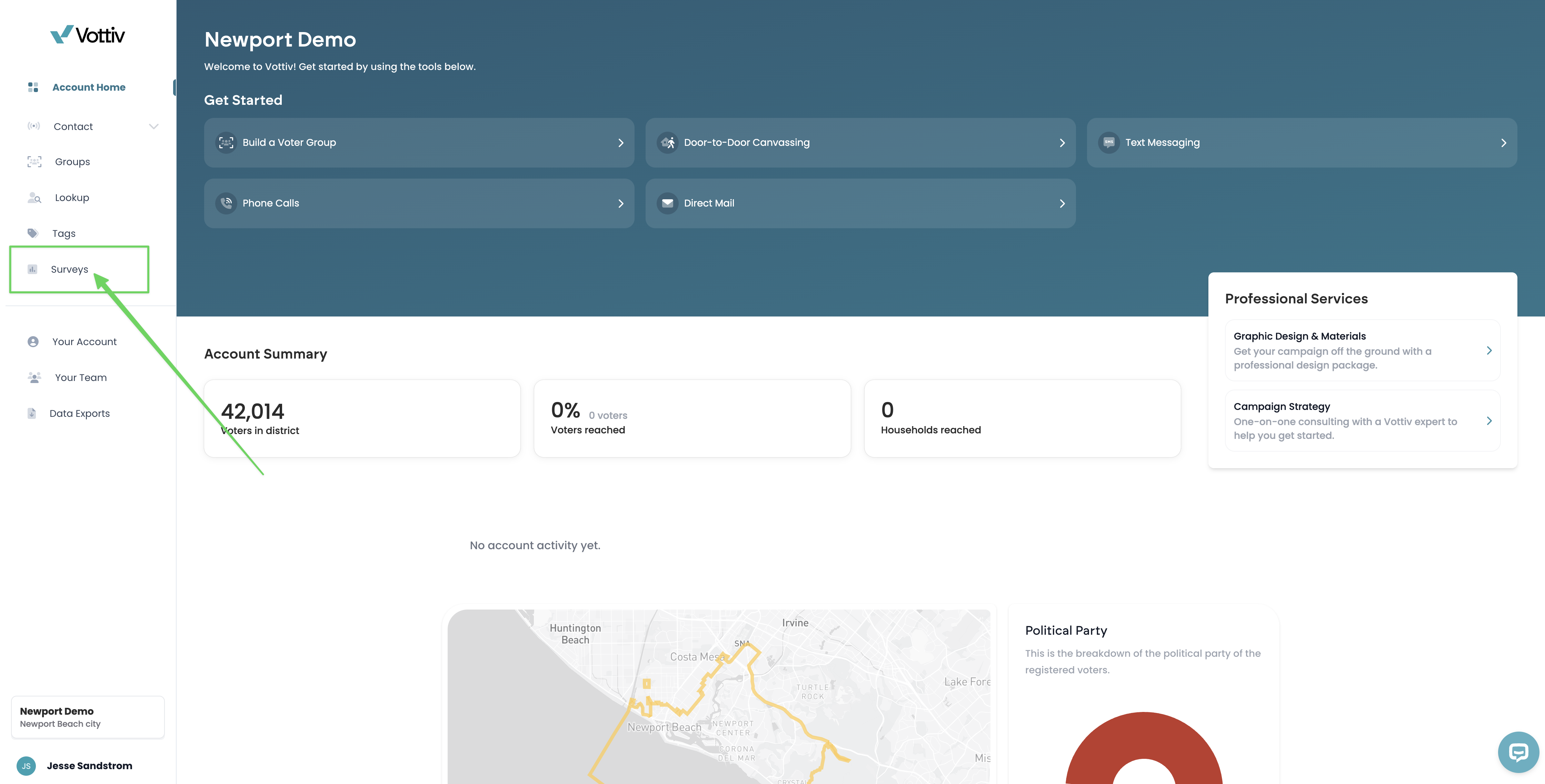
Select 'Surveys' on the left tab
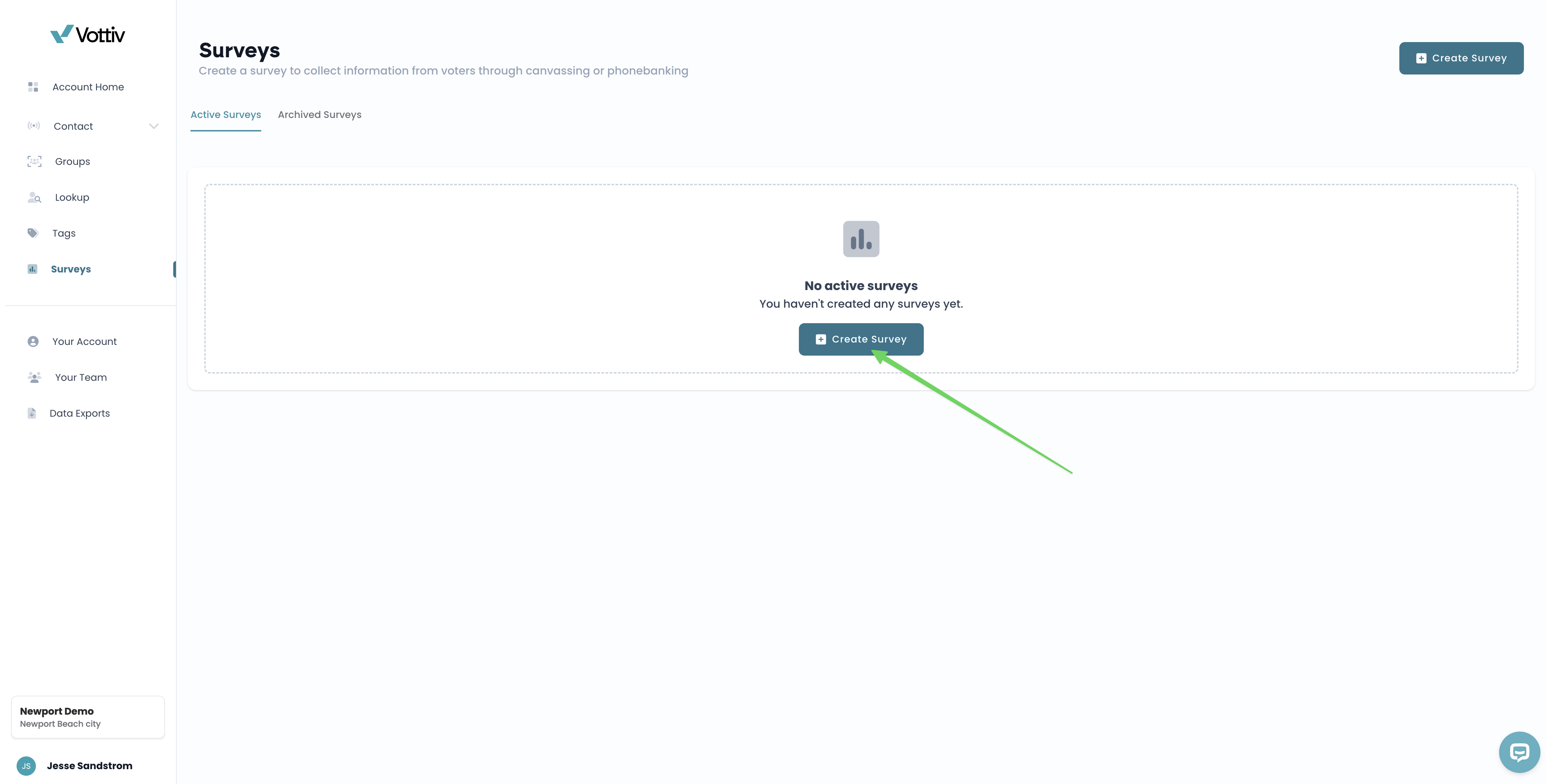
Click '+ Create Survey' to build a new survey
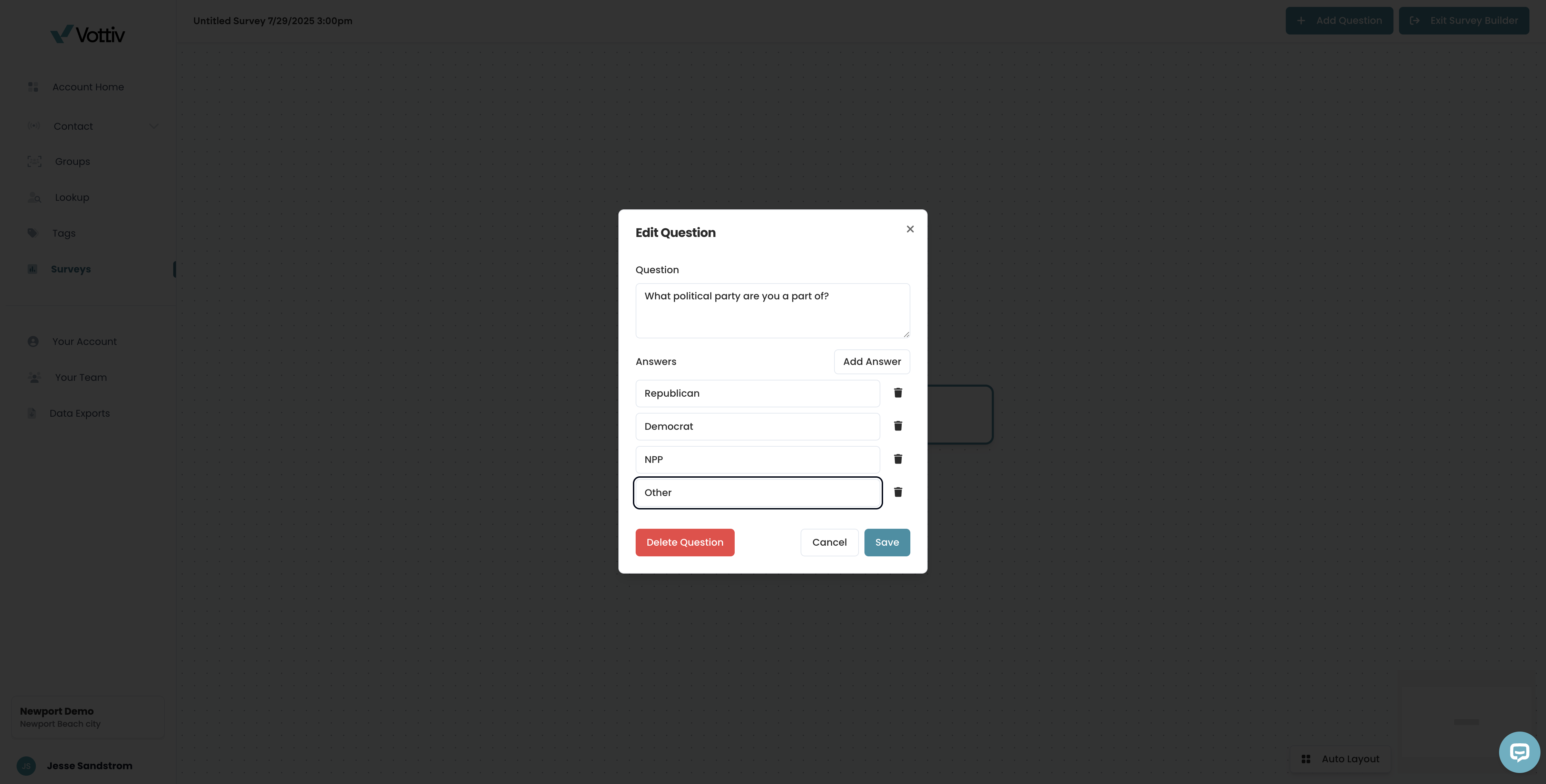
Start off with the first question you want to ask at every door. For example, here we are asking what party they are a part of. (You know this information on the vottiv canvassing app, so you can answer this without asking the voter)
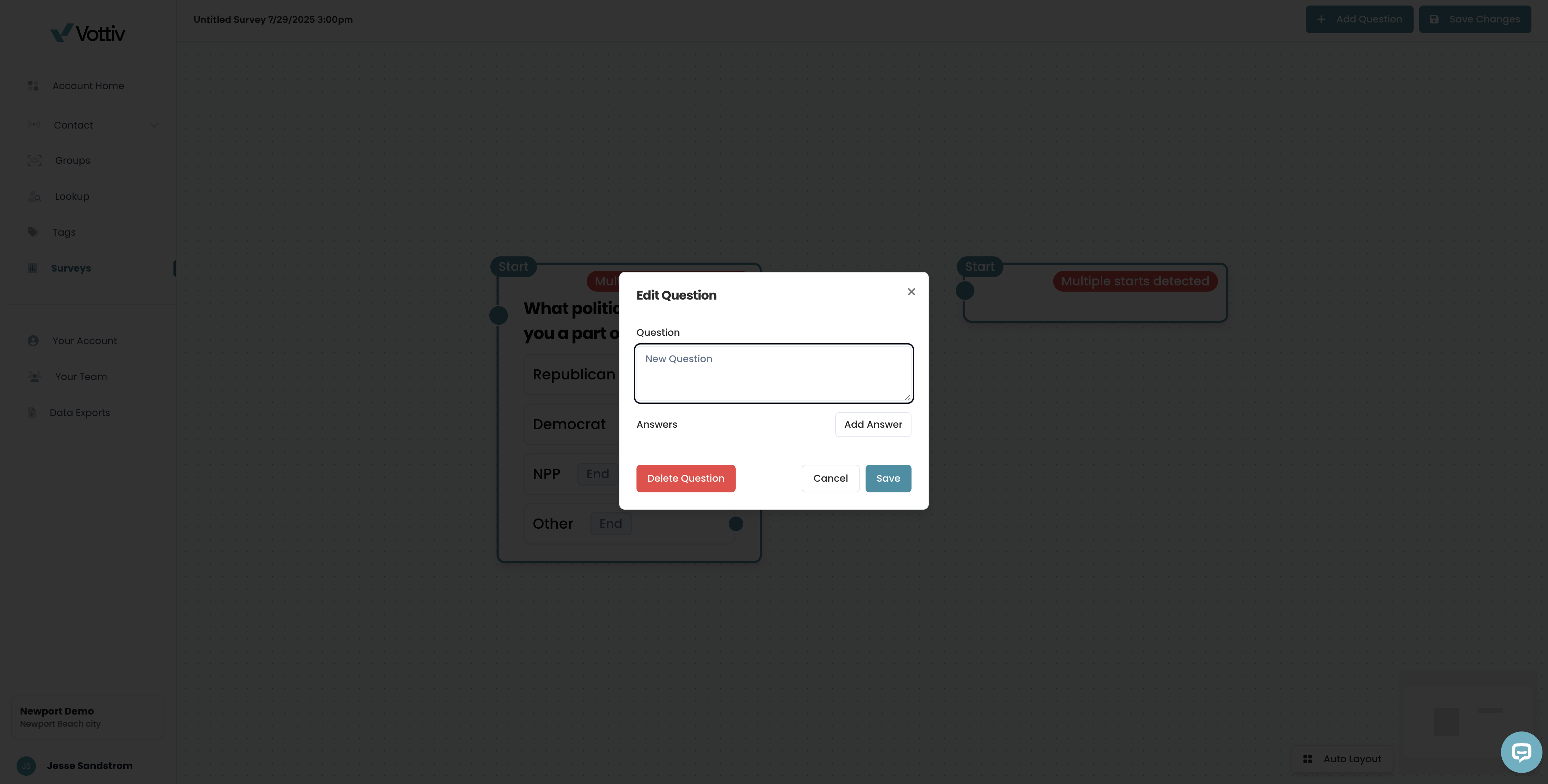
Now, we are going to add the first branched-logic follow up question.
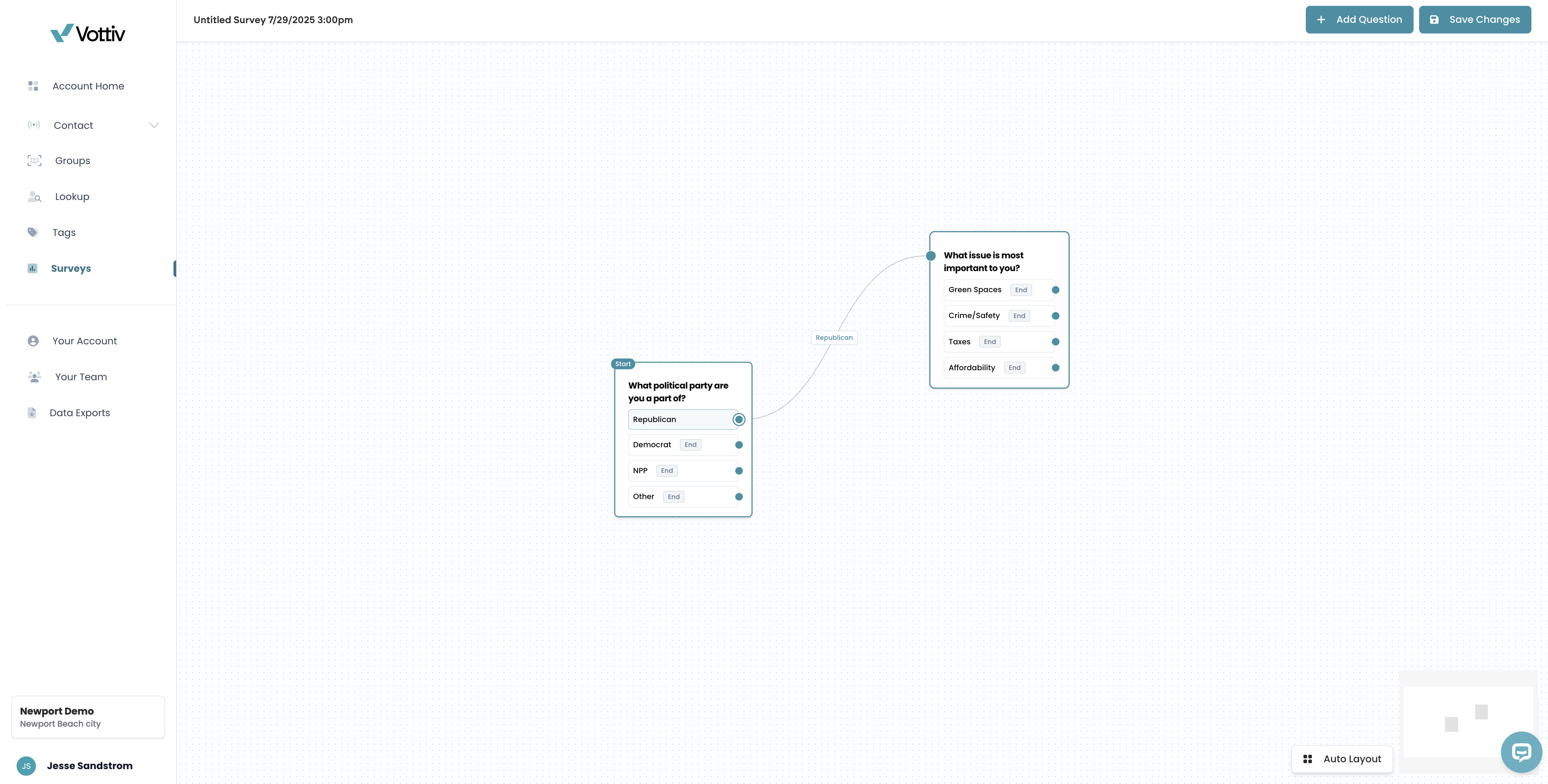
If they are a Republican, then we are going to ask them what issue is most important to them.
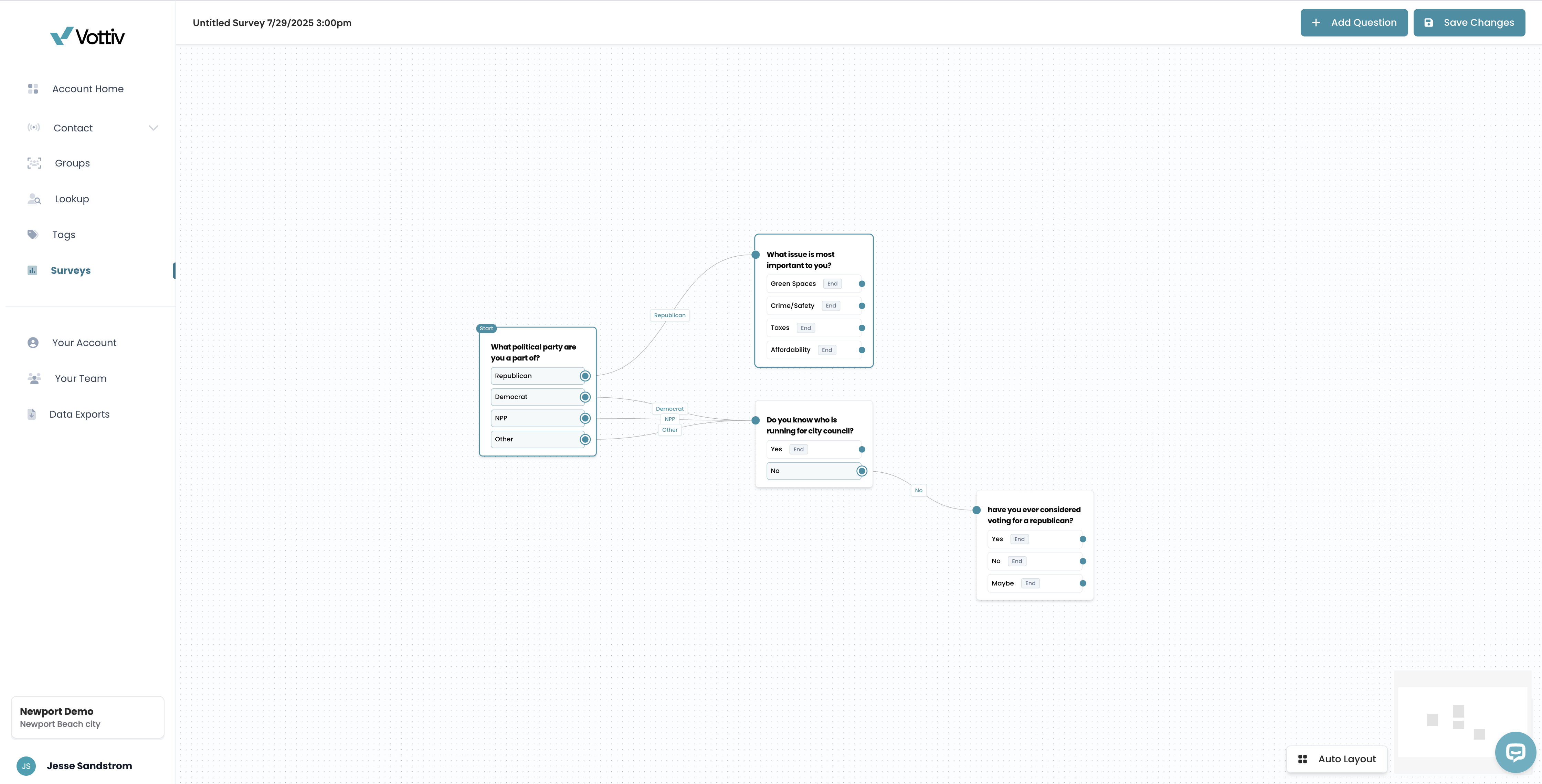
We added a second branch for all others asking them first if they know who is running for city council, and if they answered 'no' we ask them if they ever considered voting for a republican.
As you can see here the possibilities are endless. You can have complex branches or a single line of questioning.
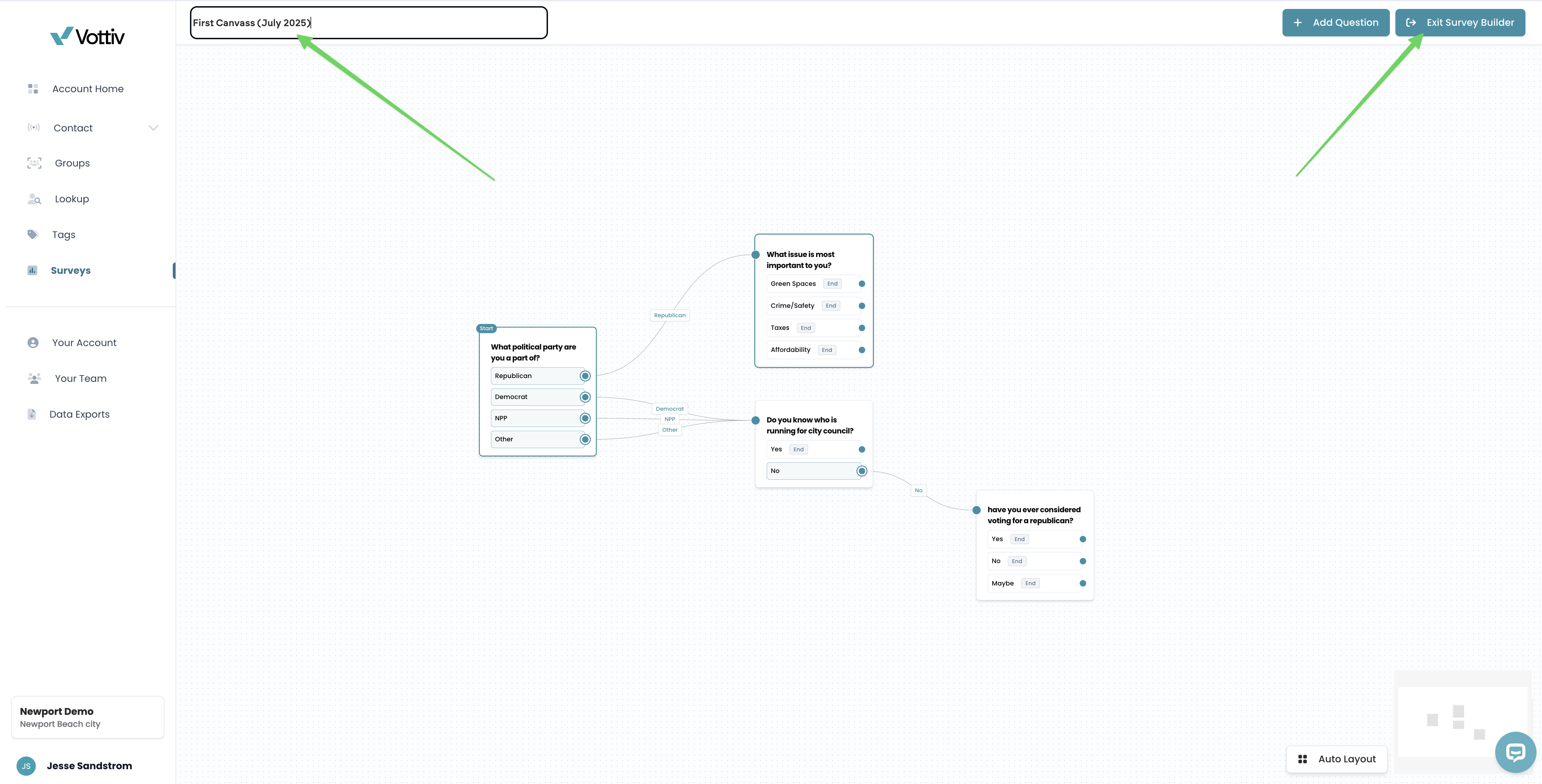
Once you're done you can give the survey a name, and exit the builder.
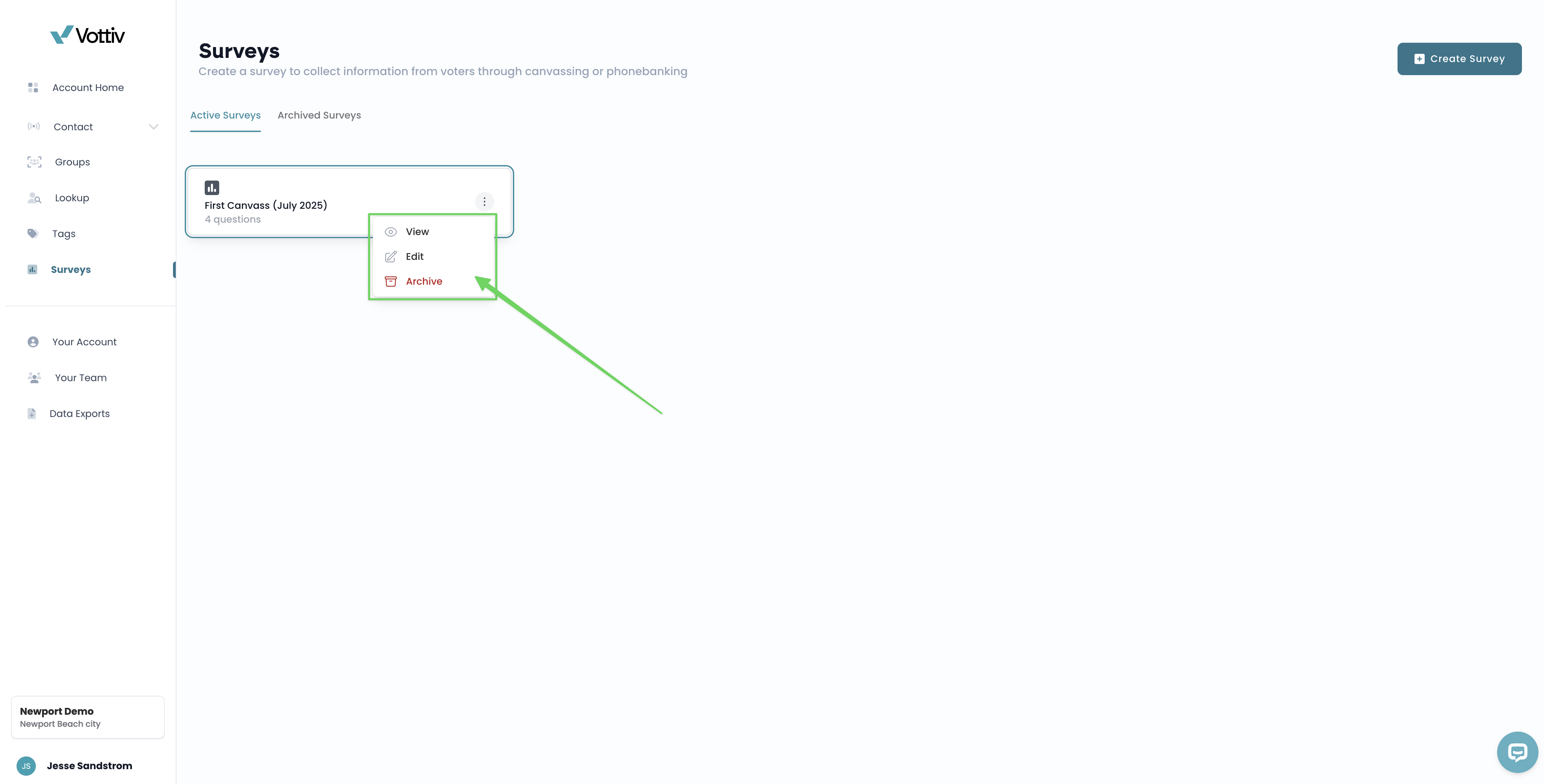
You can now use this survey for phone banking, canvassing and other ways to reach voters. One important note, is you are able to go back and view the survey and/or edit it.
Archiving a survey
Archiving moves a survey out of Active Surveys. It does not stop answers from being saved for outreach that already uses the survey. Answers can still be collected after archival, and offline answers can sync later. You do not need to restore the survey just to save those answers.
Your organization must still own the survey or have access to it through sharing. Restore an archived survey before selecting it for new outreach.
Survey Response Edits & Historical Data
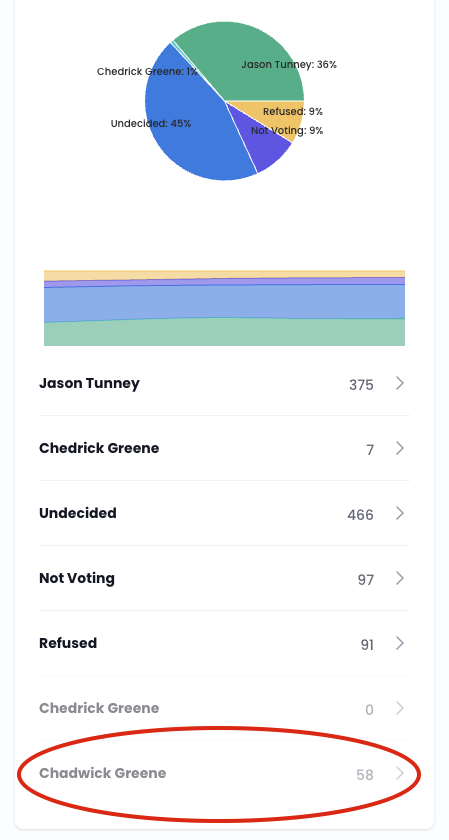
If you wish to change a survey response option, any previously collected data will still be retained.
When viewing the survey results:
The original (edited or removed) response will appear at the bottom of the question
It will be displayed in a grayed-out format
You will still be able to:
See how many voters selected that response
View which voters selected that response
What to expect:
The updated response will be shown to anyone taking the survey moving forward
The previous response will no longer be visible to new respondents
🎥 Need Help Seeing It in Action?
Was this article helpful?