

Data Center
Using Filters in the Group Builder
The Group Builder allows you to create targeted voter groups by applying various filters to your voter data. This guide explains each filter type and how to use them effectively.
Not Sure Where to Start? Use a Recommended Group
You don't have to build your first group from scratch. Every Vottiv account starts with two ready-made groups — All Voters (everyone in your district) and Republican Base (registered and modeled Republicans; named "Republican Voters" in older accounts) — created automatically once your district is set.
The Voter Groups page also shows a Recommended for your campaign section: proven starting audiences, each with the approximate number of matching voters in your district and a short explanation of what the group is for. Click Add on any card and it becomes a real group in your list, ready to use with canvassing, texting, mail, and every other outreach tool.
Persuadable Swing Voters — voters with no firm party loyalty who reliably show up. Your persuasion audience for mail, doors, and ads.
Turnout Targets: Low-Propensity Republicans — Republicans who were registered in time for the last general election but didn't cast a ballot. Your get-out-the-vote list.
Reliable Primary Voters — voters who cast a ballot in at least one of the last two primaries. If you have a primary, these are the voters who decide it.
Absentee & Early Voters — voters who vote by mail or vote early. Their Election Day comes weeks ahead — reach them before ballots drop.
New Registrants — voters registered within the past 12 months. This group updates automatically as new registrations come in.
Super Voters — voters who cast ballots in at least two of the last three general elections. Great for volunteer recruitment and persuasion that sticks.
A few things to know:
Cards only appear for audiences that exist in your district — if your state's election data can't support one, or it matches zero voters, it stays hidden.
Once you add a recommendation, its card disappears. If you archive that group later, the card comes back so you can re-add it.
You can collapse the section with Hide and bring it back with Show recommendations.
Open a recommended group's Filters page to see exactly how it targets voters, shown as a visual flow from your district down to the final audience.
How Filters Work
When you add a filter using the Basic Group Builder, you're narrowing down your audience to only include voters who match your criteria. Multiple filters work together using AND logic (progressively narrowing the group) - voters must match ALL applied filters to be included in your group.
Each filter shows a live count of how many voters match your current selection, helping you understand the size of your target audience as you build.
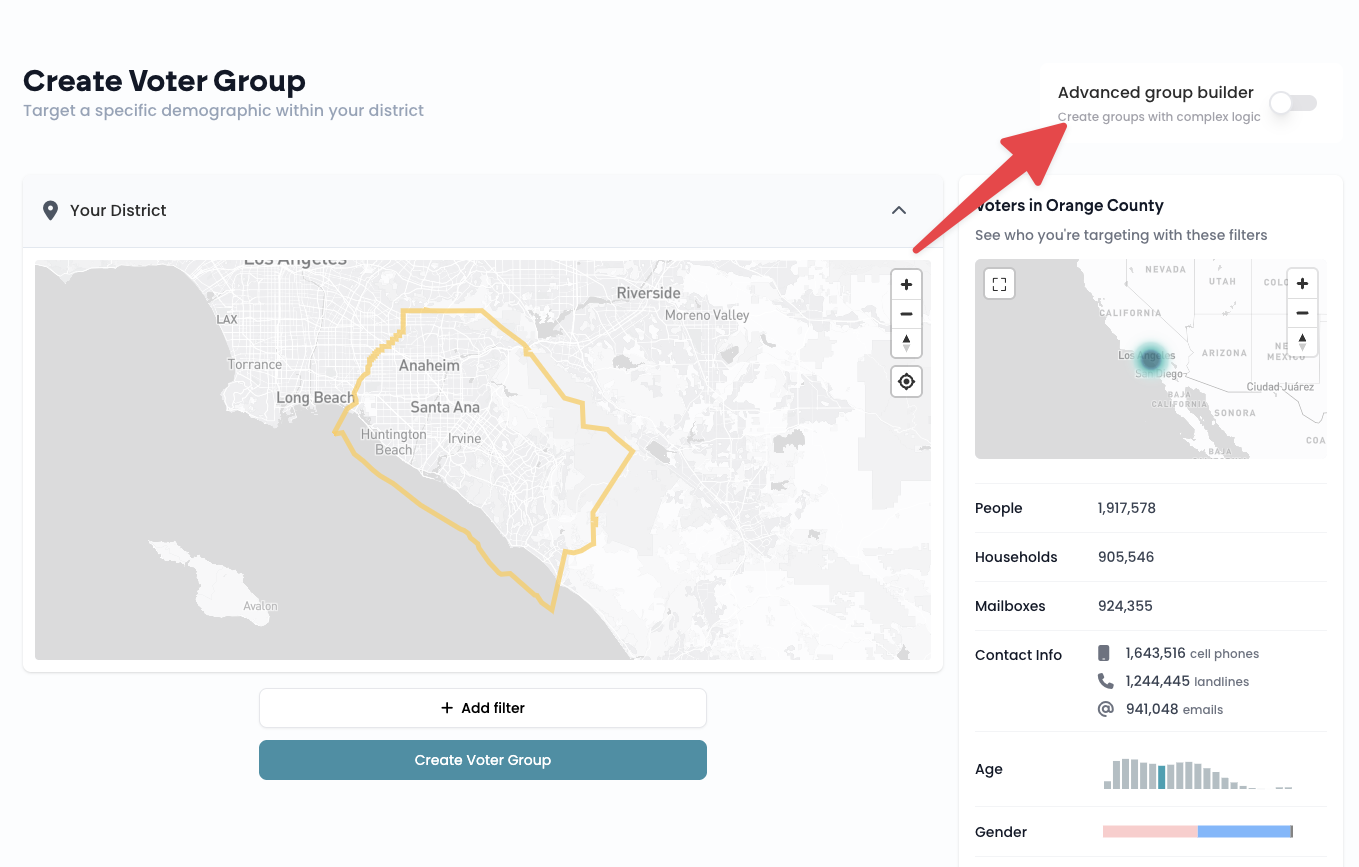
When you're done, click the Create Voter Group button at the bottom and give the new group a name
If you need other logical operators like OR, toggle on the Advanced Group Builder in the top right corner.
Demographic Filters
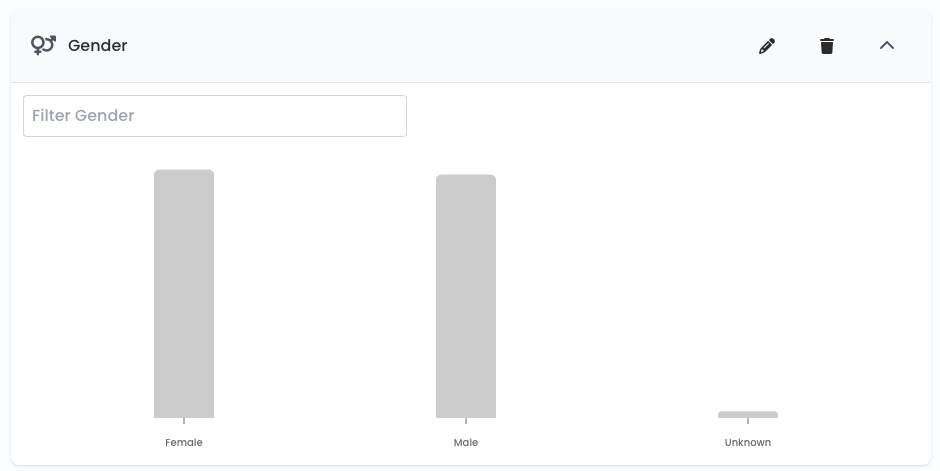
Gender
Filter voters by their gender.
How to use: Click on the bars in the chart to select one or more gender categories. Selected bars turn teal.
Example options you might see:
Male
Female
Unknown
Political Party
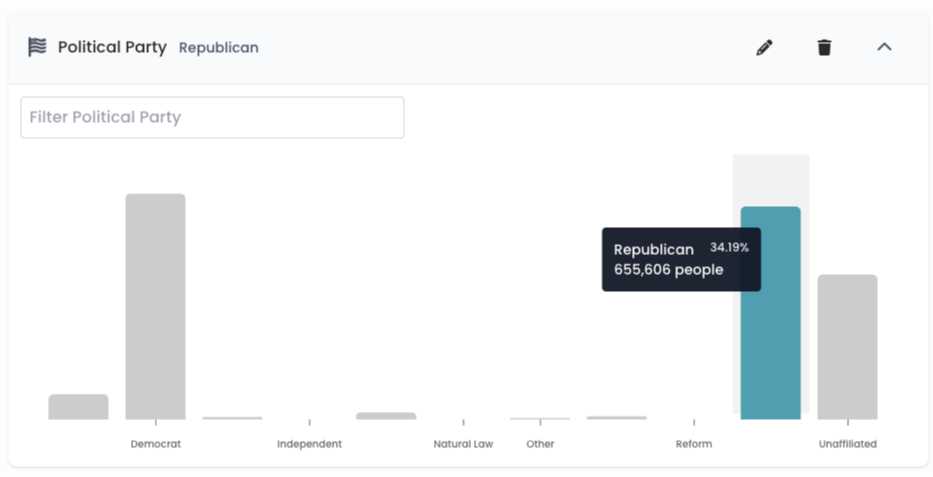
Filter voters by their registered political party affiliation.
How to use: Click on the bars to select party affiliations. You can select multiple parties.
Example options you might see:
Republican
Democrat
Libertarian
Green
Independent
No Party Preference
Other
Calculated Partisan Lean
Filter voters using the RNC's modeled partisan-lean score. This is separate from registered party, so a voter's registration and modeled lean can point in different directions.
How to use: Click one or more bars to select the lean categories you want. Vottiv includes voters whose RNC score matches your selection.
Value | Vottiv label | Meaning |
|---|---|---|
1 | Hard Republican | Strong Republican lean |
2 | Lean Republican | Weaker Republican lean |
3 | Swing | No strong modeled lean |
4 | Lean Democrat | Weaker Democratic lean |
5 | Hard Democrat | Strong Democratic lean |
The RNC specification calls values 2 and 4 “Weak Republican” and “Weak Democrat”; Vottiv displays them as “Lean Republican” and “Lean Democrat.”
How is it calculated? The RNC voter file supplies this modeled value. The RNC flat-file specification defines the five categories but does not publish the model formula. Vottiv stores and filters the supplied value; it does not recalculate the score from registered party or let campaigns edit it.
This is a modeled targeting signal, not a guarantee of how someone will vote. Voting History is a separate filter that records whether a voter participated in an election, not which candidate they supported.
Age
Filter voters by age range using an interactive histogram.
How to use: Click on age range buckets to select them. Each bucket represents a 5-year range (e.g., 18-22, 23-27, etc.). You can select multiple ranges.
Tips:
Hover over bars to see exact counts
The display starts at age 18 (voting age)
Ranges extend up to 105+
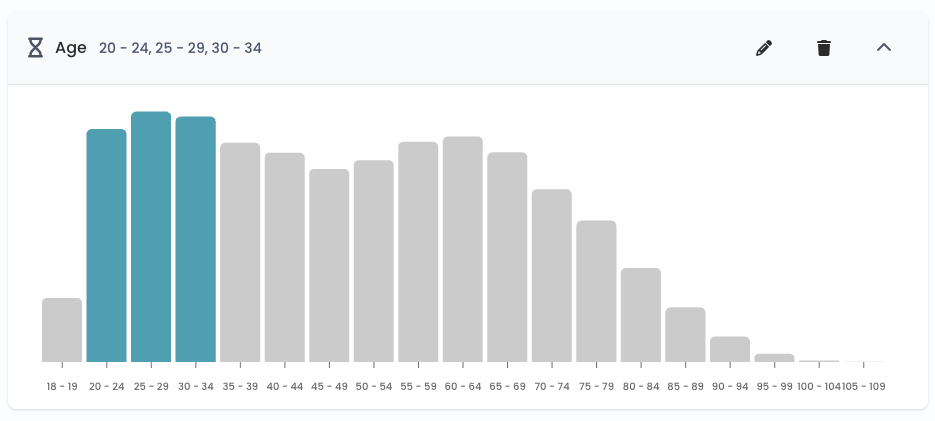
Use the Age filter to target voters by their age
Birth Date
Filter voters by their birth month or exact birthday.
How to use:
Select one or more months to find voters with birthdays during that time
Optionally filter by a specific day or date range (if available)
Example use cases:
Send birthday outreach messages
Identify voters turning 18 soon
Create more precise age-based segments beyond standard age ranges
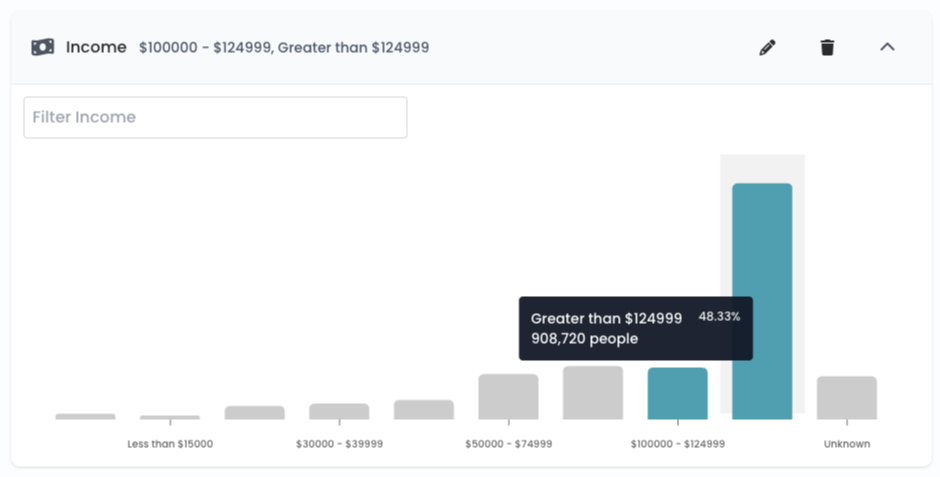
Income
Filter voters by estimated income bracket.
How to use: Click on income bracket bars to select. Based on modeled data.
Example options you might see:
Under $25,000
$25,000 - $50,000
$50,000 - $75,000
$75,000 - $100,000
$100,000 - $150,000
$150,000+
Unknown
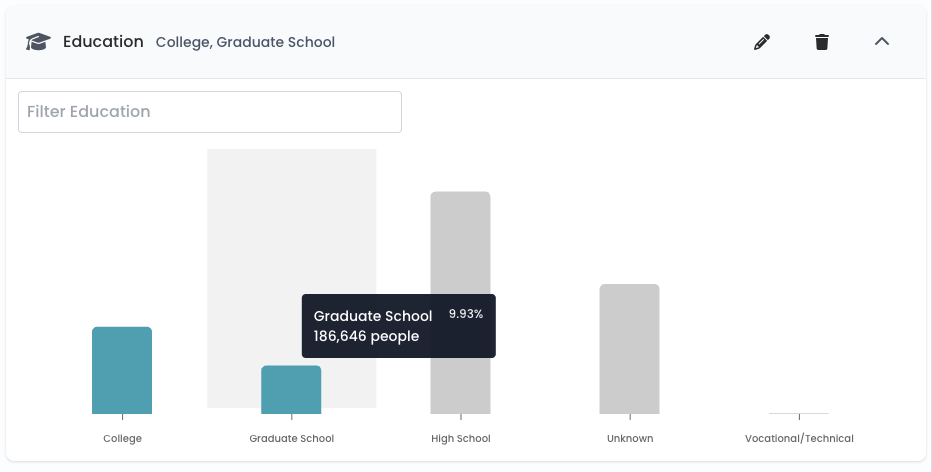
Education
Filter voters by educational attainment level.
How to use: Click on education level bars to select.
Example options you might see:
Less than High School
High School Graduate
Some College
Bachelor's Degree
Graduate Degree
Unknown
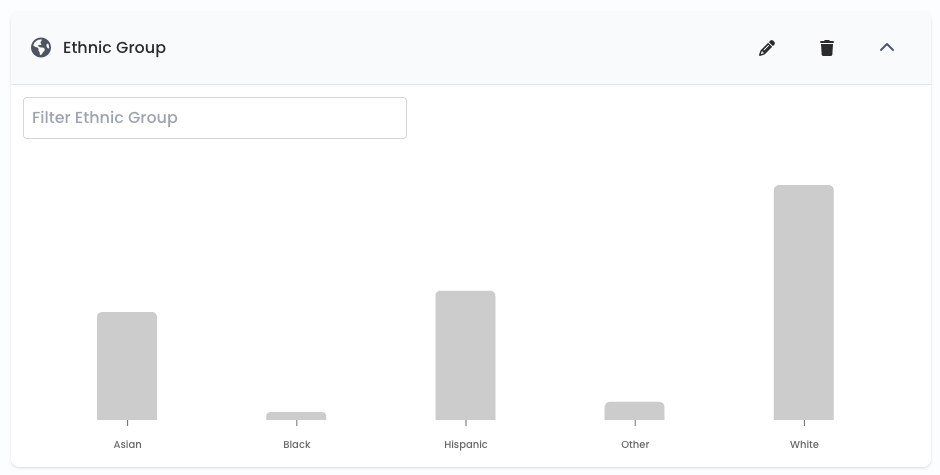
Ethnic Group
Filter voters by broad ethnic group classification.
How to use: Click on ethnic group bars to select one or more groups.
Example options you might see:
Asian
Black
Hispanic
Other
White
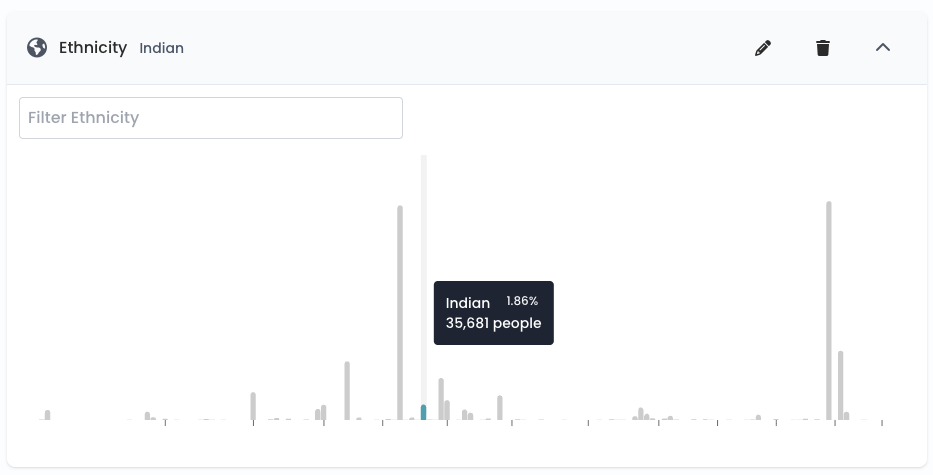
Ethnicity
Filter voters by more specific ethnic background.
How to use: Click on ethnicity bars to select. This provides more granular options than Ethnic Group.
Example options you might see:
Hmong
Vietnamese
Indian
Hispanic
Hungarian
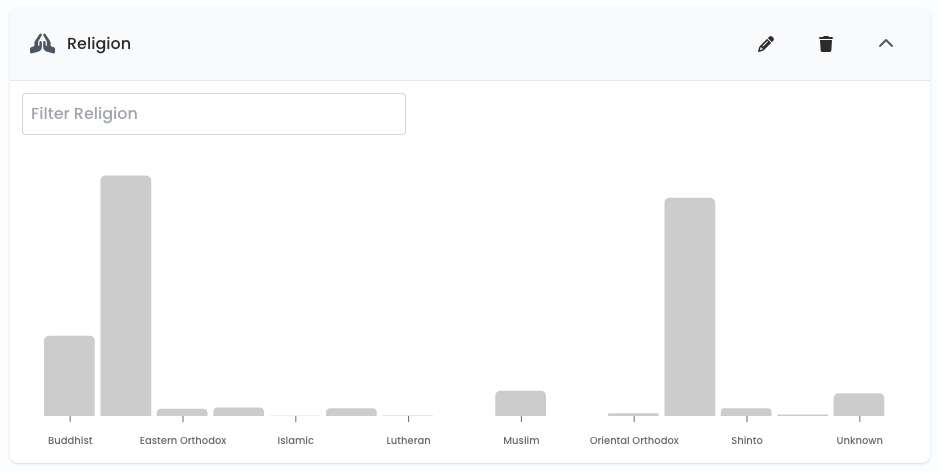
Religion
Filter voters by likely religious affiliation. This is modeled data, meaning we use a best guess based on ethnicity, location, and census data.
How to use: Click on religion bars to select.
Example options you might see:
Catholic
Buddhist
Mormon
Muslim
Protestant
Unknown
Behavioral Filters
Voting History
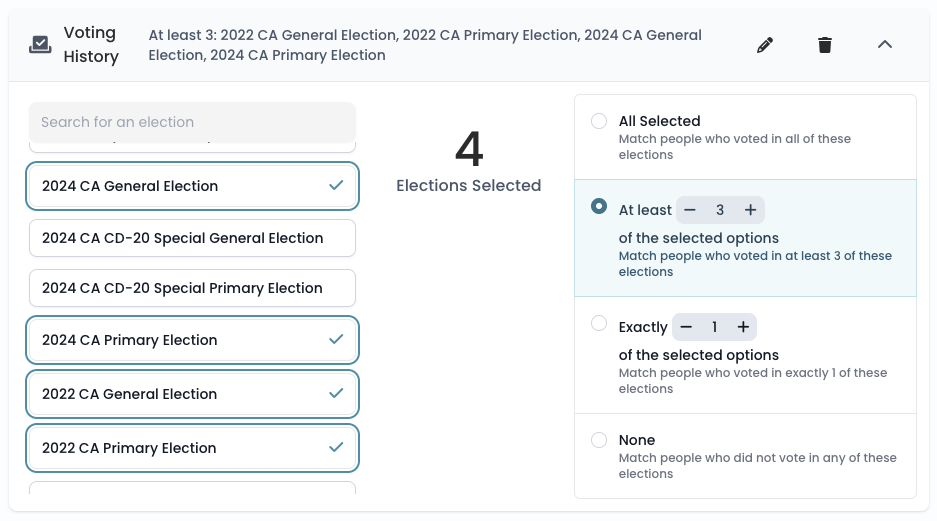
Filter voters based on which elections they participated in. We do not have data on WHO they voted for, only if they voted or not.
How to use:
Select elections from the list (most recent appear first)
Choose a matching criteria:
All Selected - Match voters who voted in ALL selected elections
At least X - Match voters who voted in at least X of the selected elections
Exactly X - Match voters who voted in exactly X of the selected elections
None - Match voters who did NOT vote in any of the selected elections
Example: Select the last 4 general elections and choose "At least 3" to find consistent voters who may have missed one election. You can use this as a voting propensity filter. In this case, 3/4 would be a 75% voting propensity in the elections you selected.
Precincts
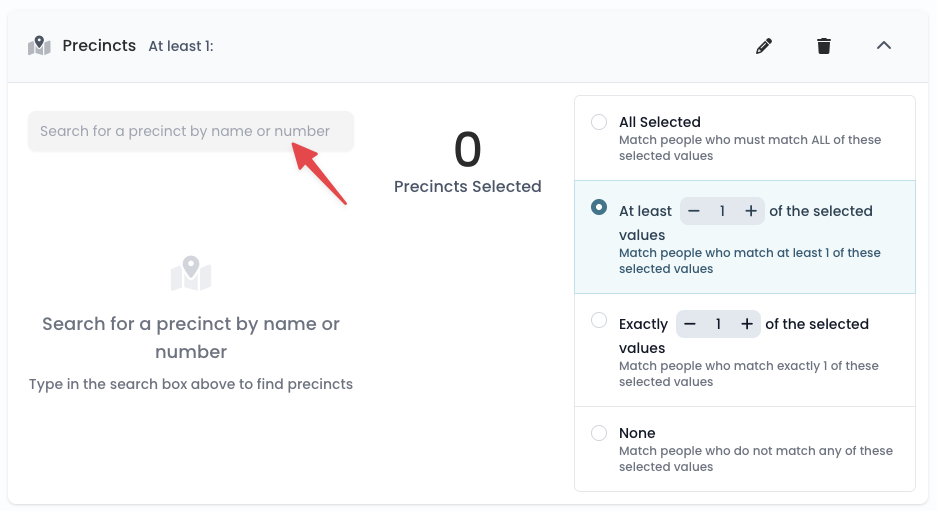
Filter voters by their assigned voting precinct.
How to use:
Search for precincts by name or precinct number
Click to select one or more precincts
Choose matching criteria (All/At least/Exactly/None). To find voters in multiple precincts, change the condition to "At Least 1" instead of "All Selected"
Note: When a precinct's official name doesn't include its number, search results show the number in parentheses after the name — for example, COSTA MESA (52828). You can search by either the name or the number.
Map preview: When you select one or more precincts, the panel now shows their approximate boundaries on a map so you can see roughly where each precinct is. These boundaries are estimates generated from the addresses of voters in that precinct, meant for orientation only — they do not change which voters are included in your group. Voter membership in a precinct always comes from each voter's official precinct assignment in the voter file, not from the map. Some precincts may not have enough address data to draw a boundary yet; the precinct filter still works normally for those, it simply won't show a shape on the map.
Tags
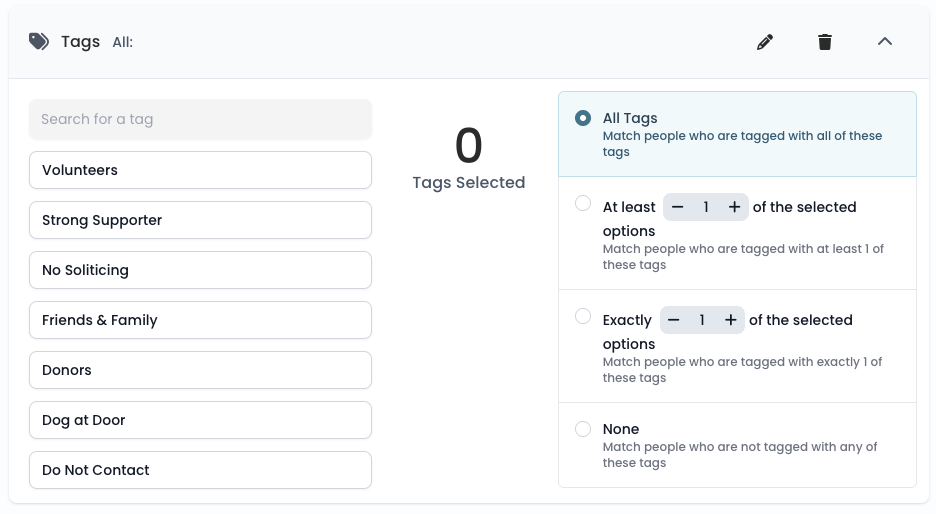
Filter voters based on tags your account has assigned to them.
How to use:
Select from tags your team has created
Choose matching criteria:
All Selected - Voters must have ALL selected tags
At least X - Voters must have at least X of the selected tags
Exactly X - Voters must have exactly X of the selected tags
None - Voters must NOT have any of the selected tags
Registration Filters
Voter Registration Date
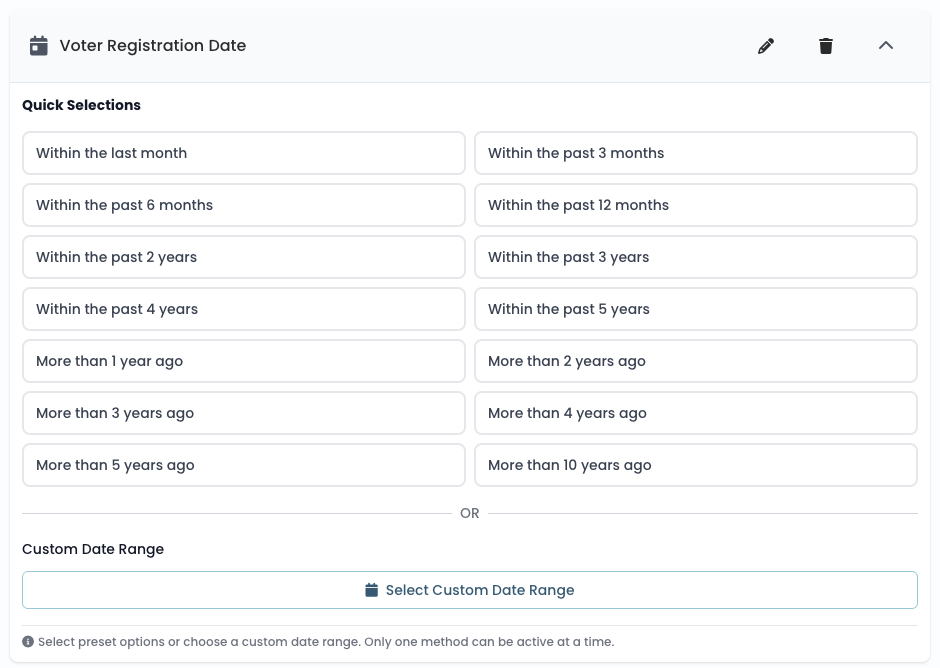
Filter voters by when they registered to vote.
How to use: Choose from preset options OR set a custom date range.
Preset options:
Within the last month
Within the past 3 months
Within the past 6 months
Within the past 12 months
Within the past 2 years
Within the past 3 years
Within the past 4 years
Within the past 5 years
More than 1 year ago
More than 2 years ago
More than 3 years ago
More than 4 years ago
More than 5 years ago
More than 10 years ago
Custom date range: Click "Select Custom Date Range" to pick specific start and end dates using the calendar.
Registration Method (California only)
Filter voters by how they registered to vote.
Options:
DMV - Registered through the Department of Motor Vehicles
Mail - Registered via mail-in registration
NCOA - Registered through National Change of Address update
Online - Registered online
Registrar - Registered directly with county registrar
Other - Other registration methods
Permanent Absentee (California only)
Filter by permanent vote-by-mail status.
Options:
Is registered as permanent absentee
Is not registered as permanent absentee
Housing & Location Filters
Multifamily Housing
Filter voters by whether they live in a multi-unit building.
Options:
Lives in multifamily housing - Voters with a unit number (apartments, condos, etc.)
Does not live in multifamily housing - Voters without a unit number (single-family homes)
Custom Areas
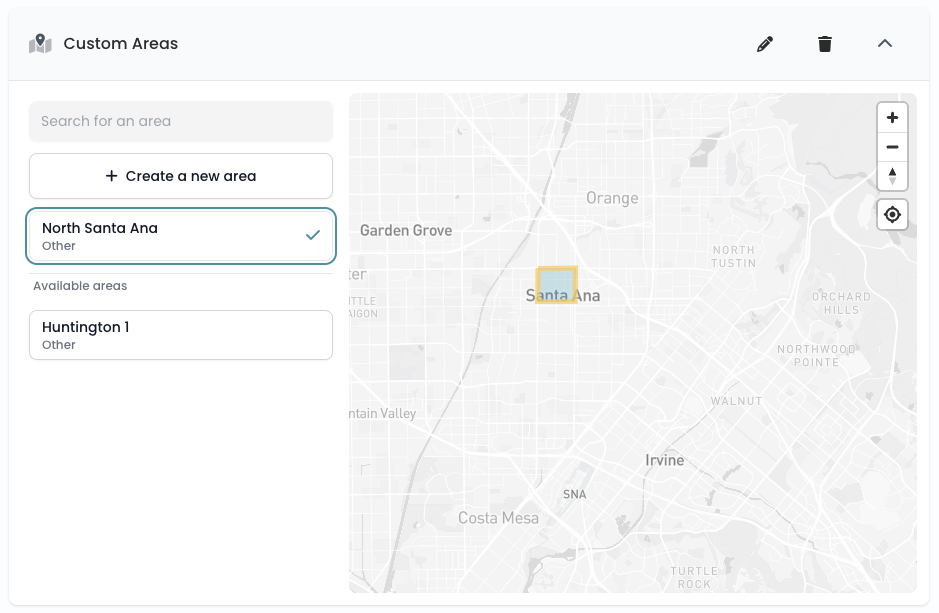
Filter voters by custom geographic areas you've drawn. If you want to target by city, county, zip code, or legislative area, use the Locations filter instead.
How to use:
Click "Create a new area" to draw a custom boundary on the map
Or select from previously created areas
Selected areas highlight on the map
Tips:
Draw areas to target specific neighborhoods, developments, or regions
Edit or delete existing areas using the pencil/trash icons
Areas persist across sessions for reuse
Locations
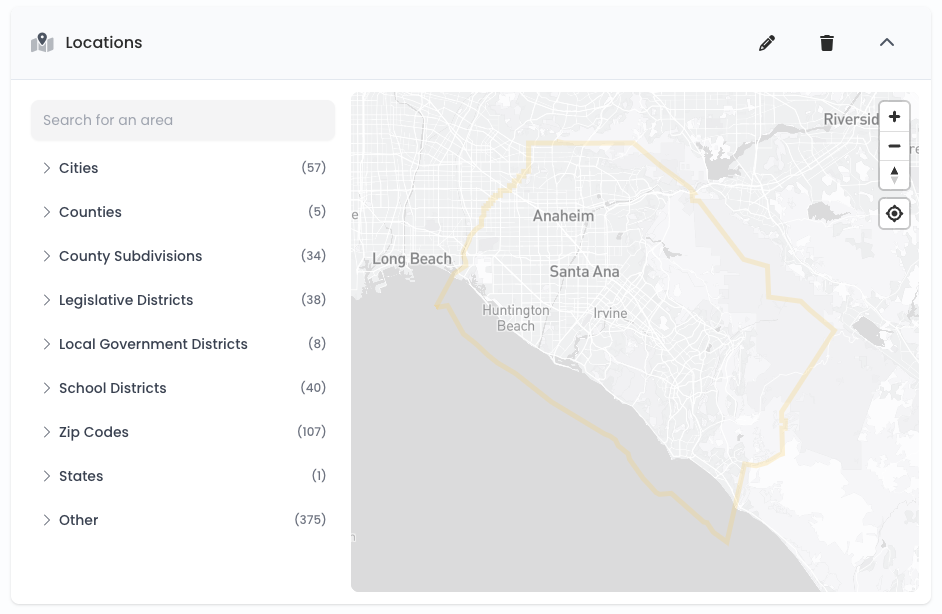
Filter voters by pre-defined geographic locations within your district.
How to use:
Browse or search for locations
Locations are organized by type (cities, counties, districts, etc.)
Click to select one or more locations
View selected areas on the map
How locations match voters — and why two locations that look like they cover the “same” place can return very different counts:
Vottiv locations come from several different data sources, and each one matches voters in one of three ways. In most cases the boundary you see on the map is exactly what filters voters — but for some location types the map boundary is shown for reference only, and voters are actually matched by a value on their voter registration. This is the most common reason two locations covering roughly the same area return different counts.
Matched by geographic boundary — for example county subdivisions, zip codes, and Custom Areas you draw. A voter is included when their home’s mapped location falls inside the boundary, so the count reflects everyone physically located within the shape.
Matched by a value on the voter registration — for example cities, counties, and legislative or school districts. A voter is included when the matching value on their registration (such as their registration city) equals that location, regardless of where their home plots on the map. A boundary may still be drawn for reference, but it is not what filters voters. Because registration values often differ from census or geographic boundaries, these counts can be higher or lower than the mapped area.
Other Custom Districts — special and local districts (such as city council seats and special districts) that the RNC or state party provides to us as a list of the voters in each district. There is no map boundary for these. To see roughly where these voters live, open the minimap and zoom in to view a heatmap of their households.
Example: why a city can show far fewer voters than a school district or county subdivision that overlaps it. The “City of Thousand Oaks” location matches voters whose registration city is literally “Thousand Oaks.” Many residents who live inside the city’s census-drawn boundary have their registration city listed as a nearby community name (for example Newbury Park or Westlake Village), so they are not counted under the city even though they live within its geographic footprint. A school district or county subdivision covering the same area is matched by a different definition — a district value, or the actual geographic boundary — so it can include tens of thousands more voters. This is not a data error: the census-designated boundary for a place is often different from the community or postal name that appears on a voter’s registration, and different location types use different definitions.
Tip: If a location’s count looks surprising, check the note shown above the map preview. Vottiv flags when a location is matched by a voter-registration value (labeled “Boundary shown for reference only”) and when no map boundary is available to display.
Household Composition Filters
Household Party Composition (California only)
Filter voters based on the political party makeup of their family household.
Example options:
PURE REP - All household members are Republican
PURE DEM - All household members are Democrat
REP/DEM - Mixed Republican and Democrat household
PURE NPP - All household members have No Party Preference
MIXED HH - Mixed household with various affiliations
How to use: Select compositions and choose matching criteria (All/At least/Exactly/None).
Address Party Composition
Filter voters by the party composition at their physical address.
Similar options to Household Party Composition, but based on all voters at the same address (may include non-family members).
Example options:
PURE REP - All physical address members are Republican
PURE DEM - All physical address members are Democrat
REP/DEM - Mixed Republican and Democrat physical address
PURE NPP - All physical address members have No Party Preference
MIXED HH - Mixed physical address with various affiliations
Mail Party Composition
Filter voters by the party composition at their mailing address.
Useful when mailing addresses differ from residential addresses.
Example options:
PURE REP - All mailing address members are Republican
PURE DEM - All mailing address members are Democrat
REP/DEM - Mixed Republican and Democrat mailing address
PURE NPP - All mailing address members have No Party Preference
MIXED HH - Mixed mailing address with various affiliations
Party Composition Filter Acronyms
REP - Republican
DEM - Democrat
MPC - Minor Party Conservative - (Conservative, Right to Life, Libertarian, Reform)
MPL - Minor Party Liberal - (Liberal, Peace and Freedom, Socialist, Green, Natural Law)
NPP - No Party Preference - (Independent, American Independence, Unaffiliated, US Taxpayers, Other, State Specific Party, None)
Ballot Language (California only)
Filter voters by their preferred ballot language.
Options:
Chinese
English
Spanish
Tagalog
Hindi
Japanese
Korean
Khmer
Thai
Vietnamese
Other
Contact & Outreach Filters
Contact Methods
Filter voters based on available contact information.
Options:
Has Cell Phone - Voters with a cell phone number on file
Has Landline Phone - Voters with a landline number on file
Has Email Address - Voters with an email address on file
Has Organization-Entered Cell Phone - Voters with a cell phone number added or updated by your organization
Has Organization-Entered Landline Phone - Voters with a landline number added or updated by your organization
Has Organization-Entered Phone - Voters with any phone number added by your organization
Has Organization-Entered Email Address - Voters with an email address added or updated by your organization
Important clarification: While you can filter for and export voters who have email addresses on file, Vottiv does not offer email services. The Vottiv system does not provide the ability to send emails to voters. Email addresses can be downloaded for use with a separate email service provider.
Support Status
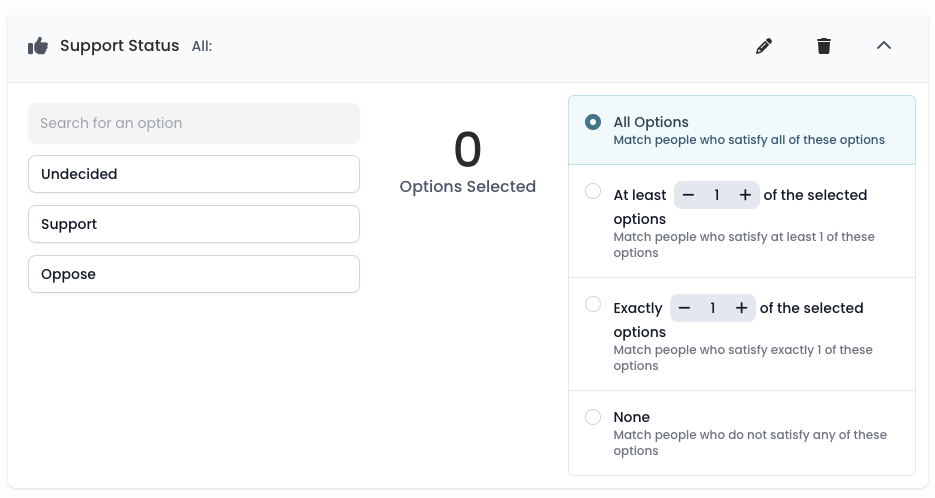
Filter voters by their recorded support status for your campaign as collected by the Community Support purpose while the canvassing.
Options:
Support - Voters marked as supporters
Undecided - Voters marked as undecided
Oppose - Voters marked as opposed
Organization Opt-Out Status
Filter voters based on whether they have opted out of communications from your organization. This lets you build outreach groups that automatically exclude people who have asked not to be contacted.
Options:
Has not opted out (any reason) - Excludes everyone who has opted out, been marked deceased, or moved. Use this option when you want a clean outreach list.
Has opted out (any reason) - Only includes voters who have opted out for any reason.
Opted out — Unsubscribed - Voters who opted out of your communications (for example, by replying STOP to a text or asking to be removed).
Opted out — Deceased - Voters marked as deceased.
Opted out — Moved - Voters marked as having moved.
Tip: Add the Has not opted out (any reason) option to any outreach group to avoid contacting people who have unsubscribed. Unsubscribes are specific to your organization — someone who opted out of a different organization is not affected.
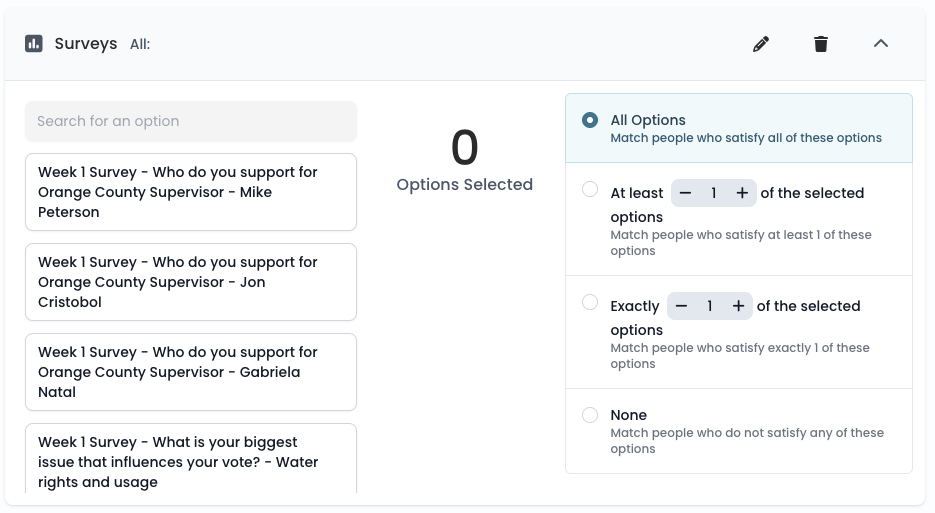
Surveys
Filter voters based on their responses to your campaign surveys.
How to use:
Survey options appear as:
Survey Name - Question - AnswerSelect specific survey responses to target
Use matching criteria for multiple selections
Example: Select "Volunteer Survey - Would you volunteer? - Yes" to find potential volunteers.
Canvassing Results
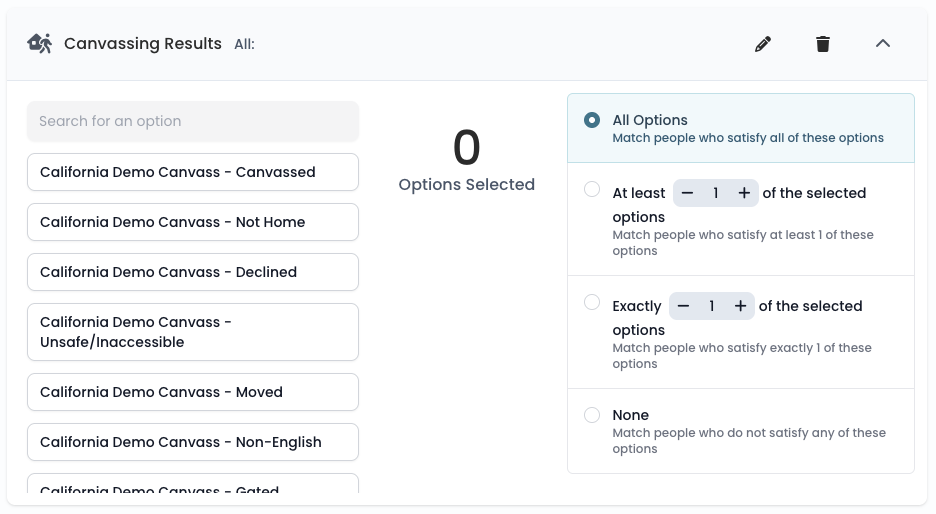
Filter voters based on previous canvassing interaction outcomes. This is useful when retargeting
Statuses available for each canvass:
Canvassed - Successfully spoke with the voter
Not Home - No one answered
Declined - Voter declined to participate
Unsafe/Inaccessible - Location was unsafe or inaccessible
Moved - Voter no longer lives at address
Non-English - Language barrier encountered
Gated - Unable to access due to gate/security
How to use: Options appear as Canvass Name - Status. Active canvasses appear first, archived canvasses appear below a separator.
SMS Sends
Filter voters who received specific SMS messages.
How to use: Select from your sent SMS campaigns. Options show a preview of the message content.
Excluding people you already texted: Use the "None" matching criteria (or a NOT condition in the Advanced Group Builder) to build a follow-up audience that excludes recipients of earlier text blasts.
Shared phone numbers are covered automatically: When household members share a cell phone, a text blast only sends one message to that number, and it is recorded against one of the voters. When you later send to a group that excludes recipients of that earlier blast, Vottiv also skips any phone number that already received a message from the excluded sends — even if the number is listed on a different voter's record. This prevents a household from getting the same message twice just because two people share a phone. Because this extra protection is applied when the new send is prepared, the live voter count in the Group Builder may be slightly higher than the final number of texts actually queued; the prepared send always shows the true recipient count.
Phone Calls
Filter voters based on phone banking call outcomes.
Statuses available for each call set:
Answered - Call was answered
No Answer - No answer
Voicemail - Left voicemail
Failed - Call failed to connect
Dropped - Call was dropped
Groups
Filter voters based on membership in other groups you've created.
How to use: Select existing groups to include voters who match those group criteria. Useful for building on previous targeting work.
Predictive Model Filters
Vendor Models
Third-party modeling vendors provide predictive scores and classifications for voters.
How to use:
Select a vendor from the filter list
Browse their available model projects
Select a specific model to filter by
Model types:
Score-based models - Filter by numeric score ranges (e.g., 0-100 turnout likelihood)
Categorical models - Filter by category classifications (e.g., "Likely Supporter", "Unlikely Voter")
Combining Filters
AND Logic (Default)
When you add multiple filters, they combine with AND logic. A voter must match ALL filters to be included.
Example:
Age: 25-34 AND
Party: Democrat AND
Has Cell Phone
This finds Democratic voters aged 25-34 who have a cell phone on file.
Using Selection Criteria
For mapped filters (Voting History, Tags, Precincts, etc.), the selection criteria let you fine-tune matching:
Criteria | Description |
|---|---|
All Selected | Voter must match ALL selected values |
At least X | Voter must match at least X of the selected values |
Exactly X | Voter must match exactly X of the selected values |
None | Voter must NOT match any of the selected values |
Tips for Effective Targeting
Start broad, then narrow - Begin with one or two filters and add more to refine your audience
Watch your counts - The live voter count helps you avoid over-filtering to an audience too small to be useful
Use "None" strategically - Exclude voters you've already contacted or who declined outreach
Combine behavioral and demographic filters - Demographics tell you who voters are; behavioral filters tell you what they've done
Save groups for reuse - Once you've built a good target audience, save it as a group to use in outreach campaigns
Consider contact methods - If you're planning SMS outreach, make sure to include "Has Cell Phone" filter. For email outreach, note that while you can filter for "Has Email Address", Vottiv does not support sending emails.
State-Specific Filters
Some filters are only available in certain states based on the voter data available:
California-specific filters:
Ballot Language
Household Party Composition
Registration Method
Permanent Absentee
Need Help?
If you're unsure which filters to use for your campaign goals, consider these common use cases:
GOTV (Get Out The Vote): Filter by voting history to find sporadic voters who need encouragement
Persuasion: Filter by party (independents/undecided) and support status (undecided)
Volunteer Recruitment: Filter by support status (supporters) and previous survey responses
New Voter Outreach: Filter by registration date (within past year) combined with age (18-25)
Was this article helpful?