

Tags
Importing Data as a Custom Tag
If you have a list of voters from an outside data source and want to quickly mark them inside Vottiv, you can import that list and apply a custom tag. This allows you to easily organize those voters and build voter groups around them for outreach.
For example, you might import a list of supporters from an event or participants in a previous election.
Step 1: Create a Tag
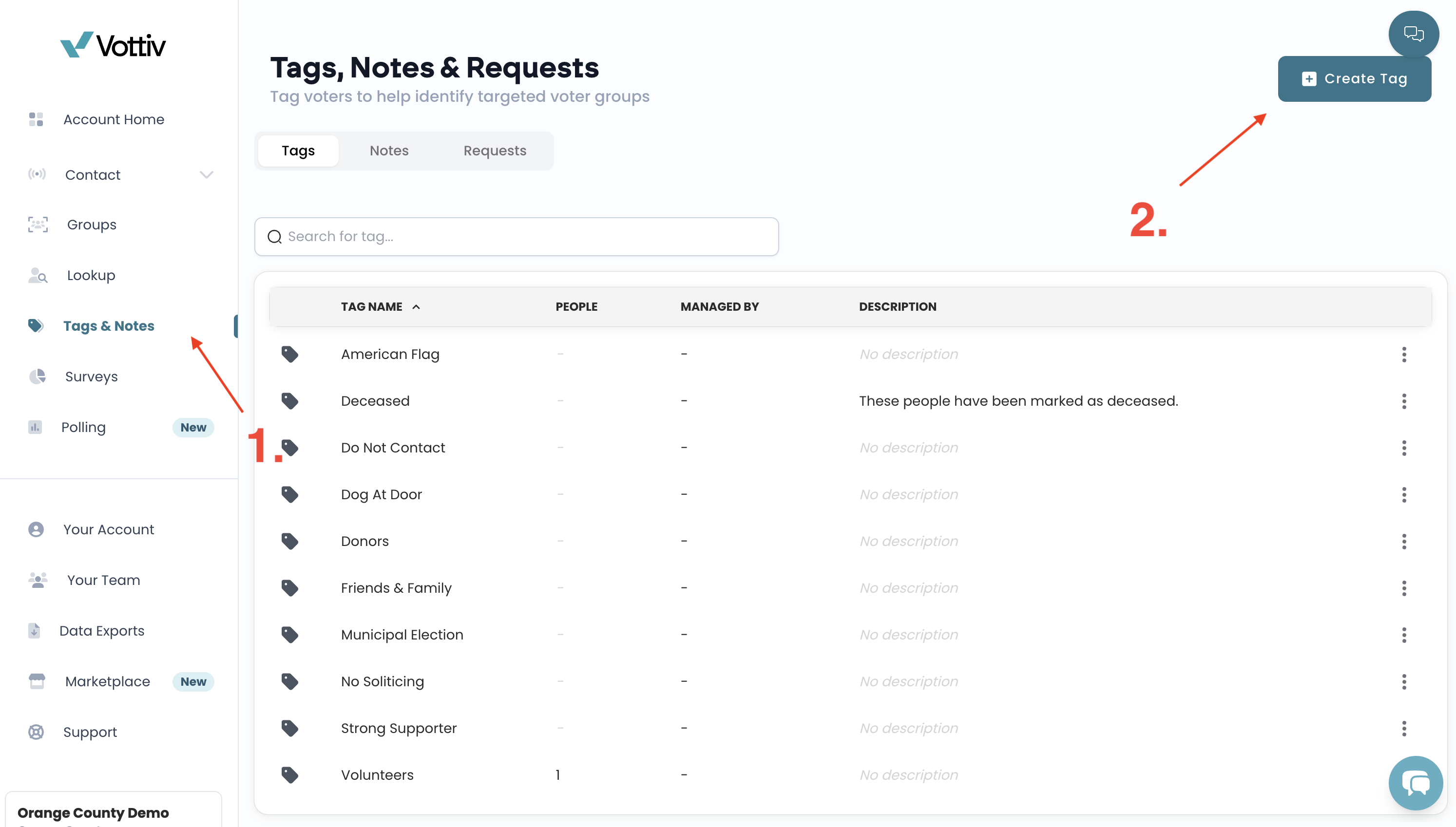
Navigate to Tags & Notes.
Click Create Tag.
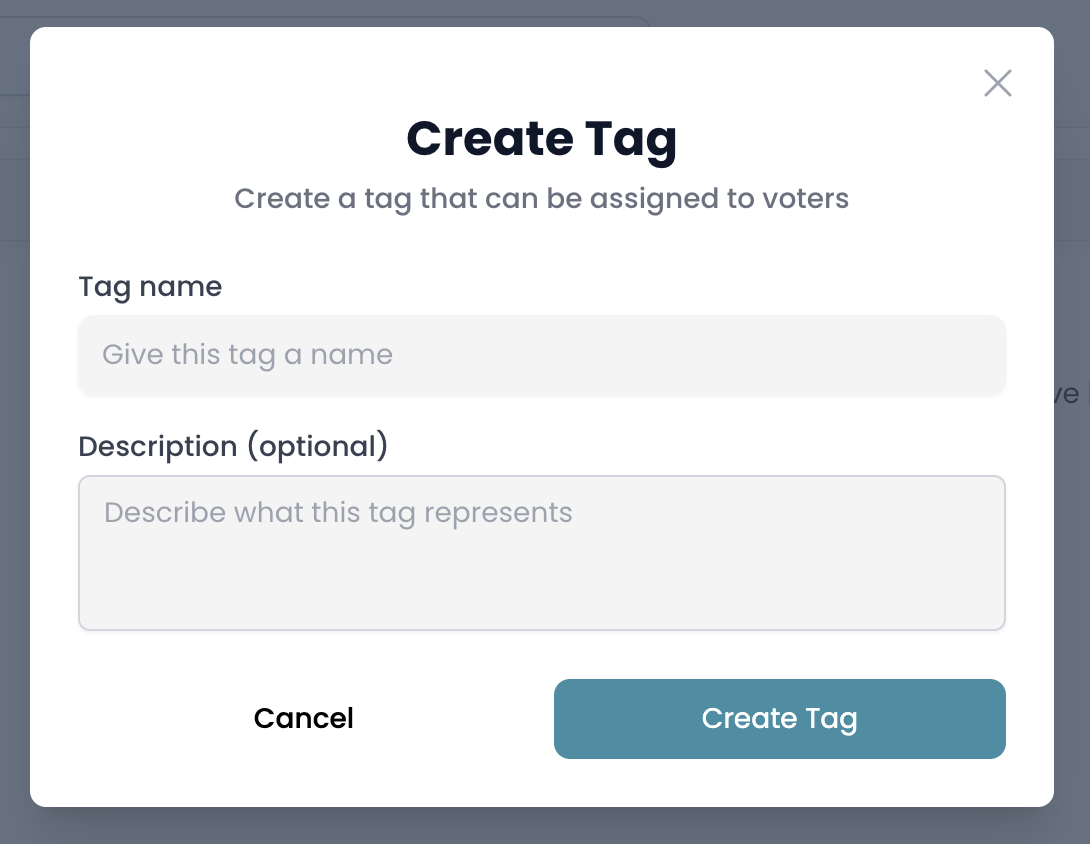
Enter a name for your tag (for example: Event Supporters, Donor List, or Past Volunteers).
Click Create Tag again to save.
Your new tag will now appear in your list of tags.
Step 2: Import Your CSV File
Click on the tag you just created.
In the top right corner, click Import.
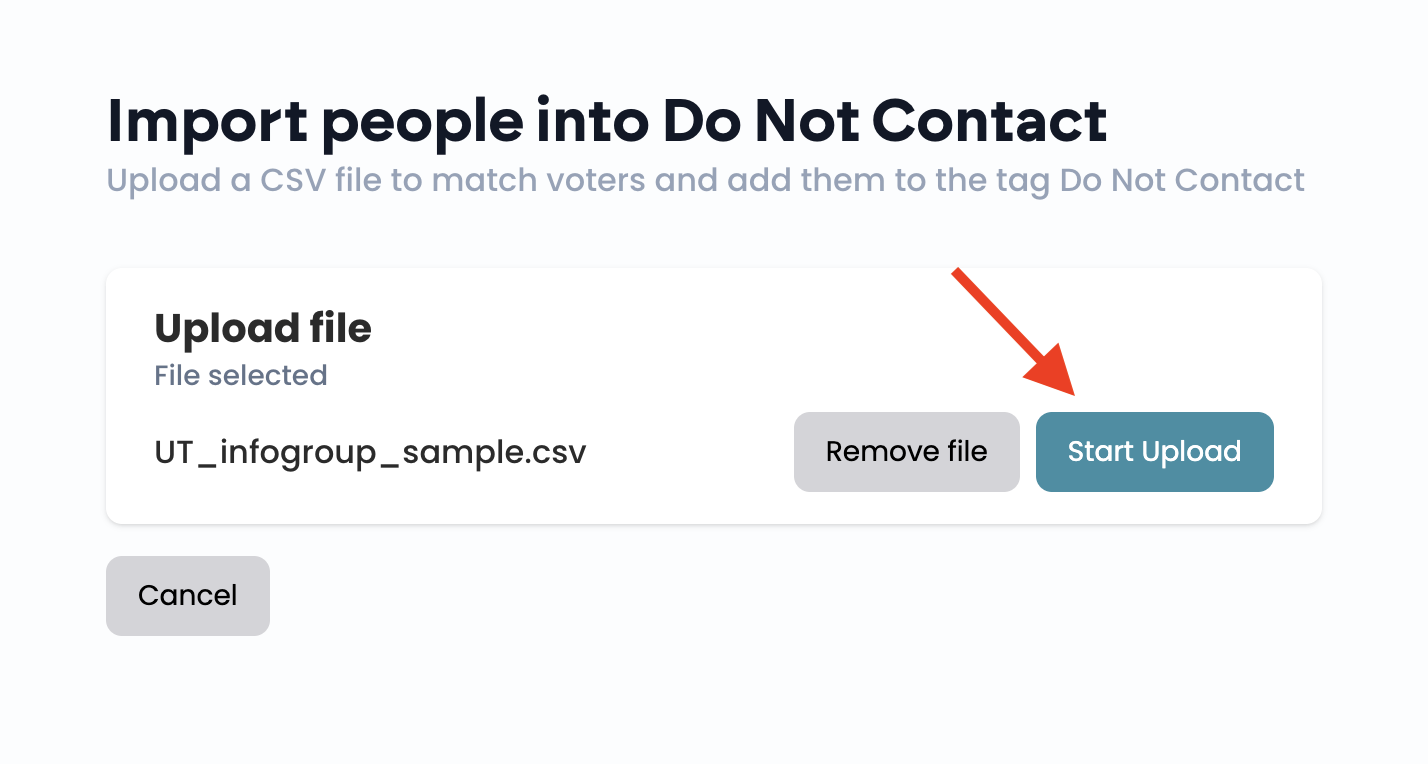
Select the CSV file containing your voter data.
Click Start Upload.
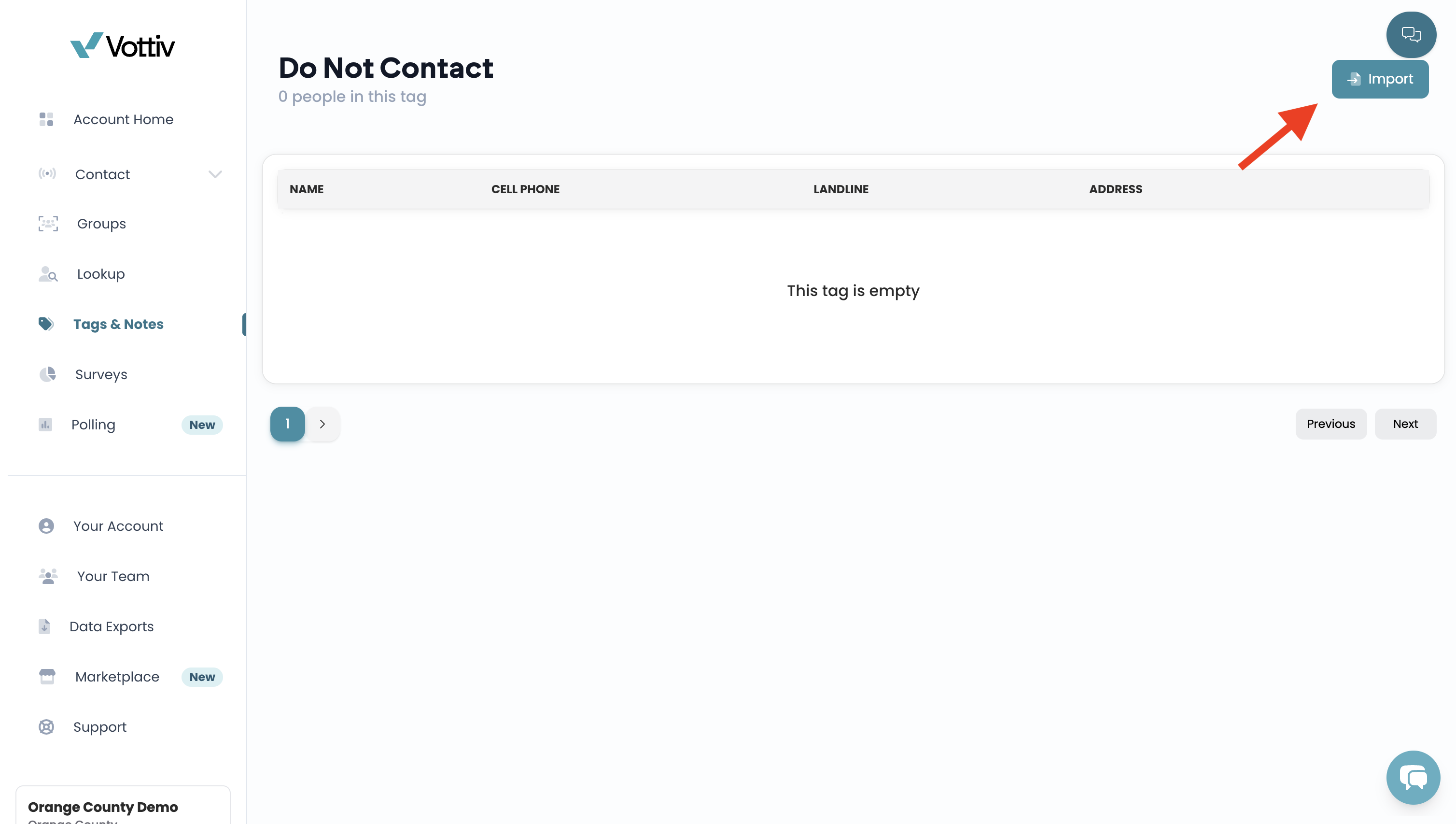
Click on the tag and click import
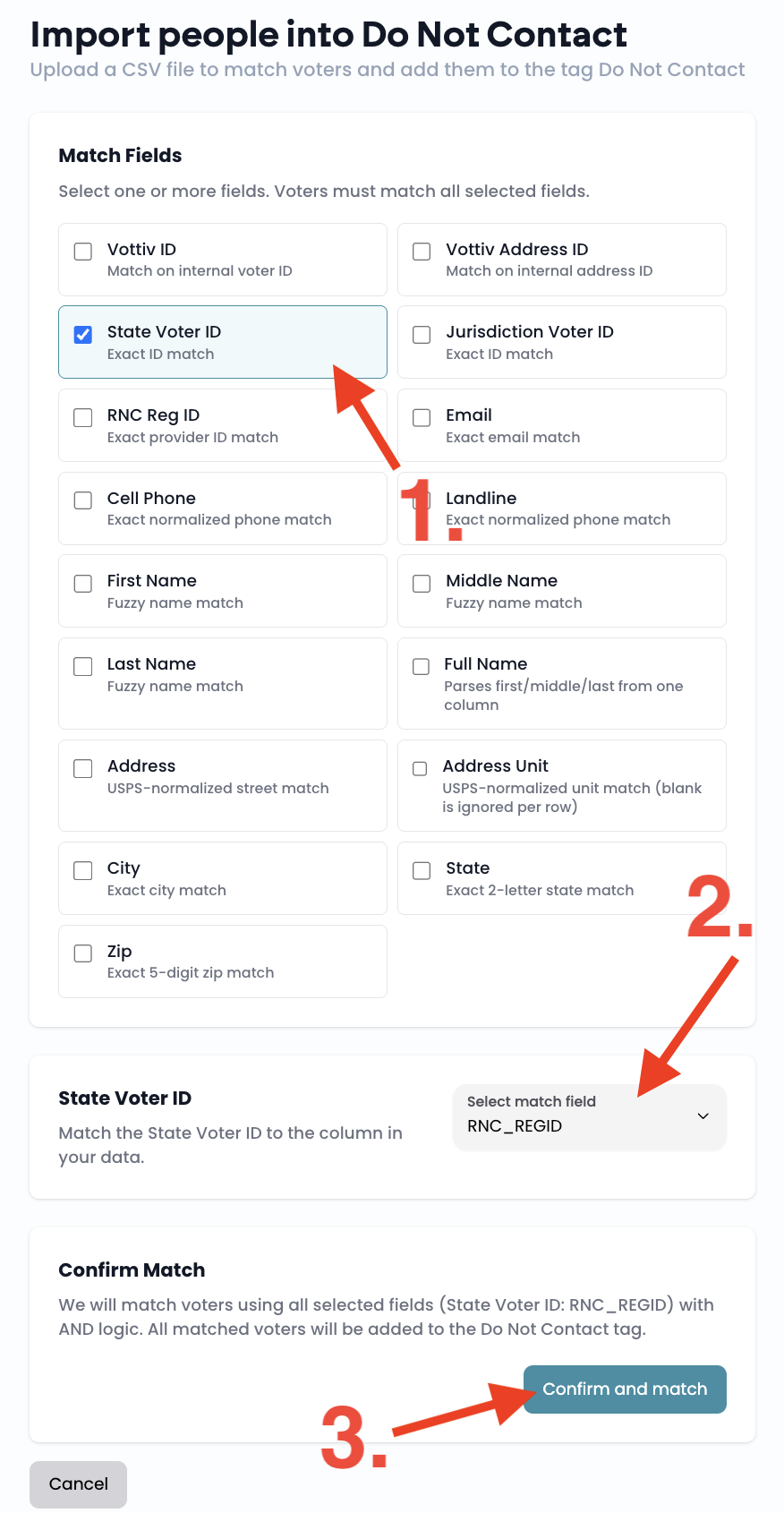
Step 3: Match Fields
After uploading your file, you will match columns from your CSV to voter fields in Vottiv.
Select the Vottiv field you want to match.
Choose the column from your CSV that contains that information.
Once the fields are matched, click Confirm and Match.
Vottiv will then attempt to match each voter in your CSV to an existing voter profile.
Large files are supported. After you upload, Vottiv reads your file to detect its columns for the matching step above. Very large files (hundreds of megabytes) are read from a sample so this stays fast. Once you click Confirm and Match, the voter matching runs in the background, so you can leave the page while it finishes.
Best Practice for Matching
Using exact voter identifiers will produce the most accurate results. The best fields to use include:
State Voter ID
Voter ID
Jurisdiction Voter ID
These identifiers help Vottiv match individuals in your CSV to the correct voter profiles in the database.
What Happens After Importing?
Once the import is complete:
All matched voters will be added to the tag.
You can create a voter group using the tag.
You can use the tag to send messages, mail, or outreach to those voters.
Was this article helpful?