

Phone Calls
Start Calling & Manage a Phone Call (Admin)
This article walks campaign admins through how to start calling, invite volunteers, and manage phone calls in Vottiv.
Phone calls are active as soon as they are created. Starting a call simply opens the calling interface so admins or volunteers can begin making calls.
1. Phone Calls Page Overview
From your account home, access Phone Calls by:
Clicking Phone Calls, or
Clicking Contact → Phone Calls
This page is the central hub for managing all phone call activity in your organization.
2. Organization Phone Settings & Credits
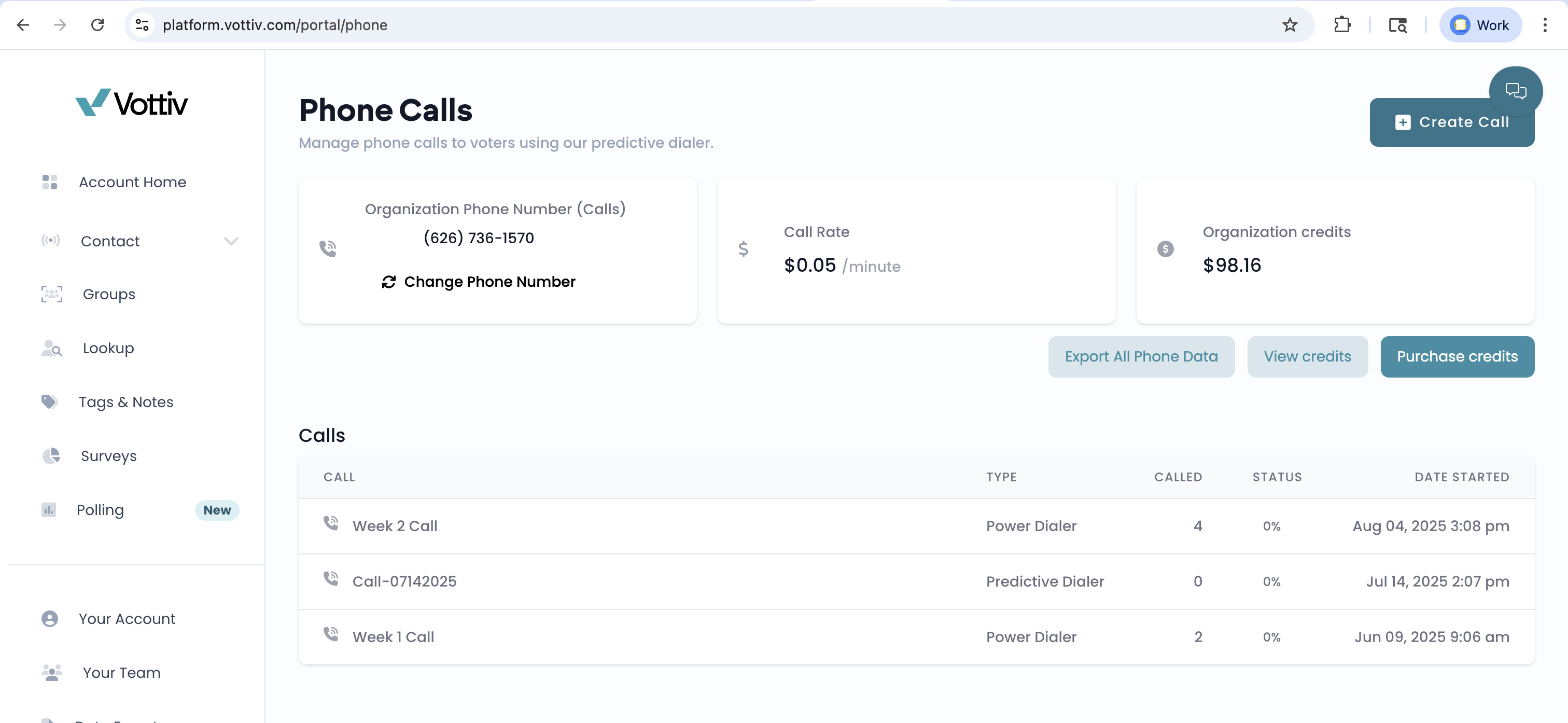
At the top of the Phone Calls page, you’ll see organization-level phone settings.
From here, admins can:
Change the organization phone number
Click Change Number
Select from any provisioned numbers
View the call rate
View available organization credits
Purchase additional credits
Export phone data
These settings apply across all phone calls in your organization.
3. View Created Phone Calls
Scroll down to see all phone calls that have been created.
For each call, you can see:
Dialer type (Power or Predictive)
Number of calls made
Completion percentage
Start date
Click on a phone call to open its management options.
4. Phone Call Actions
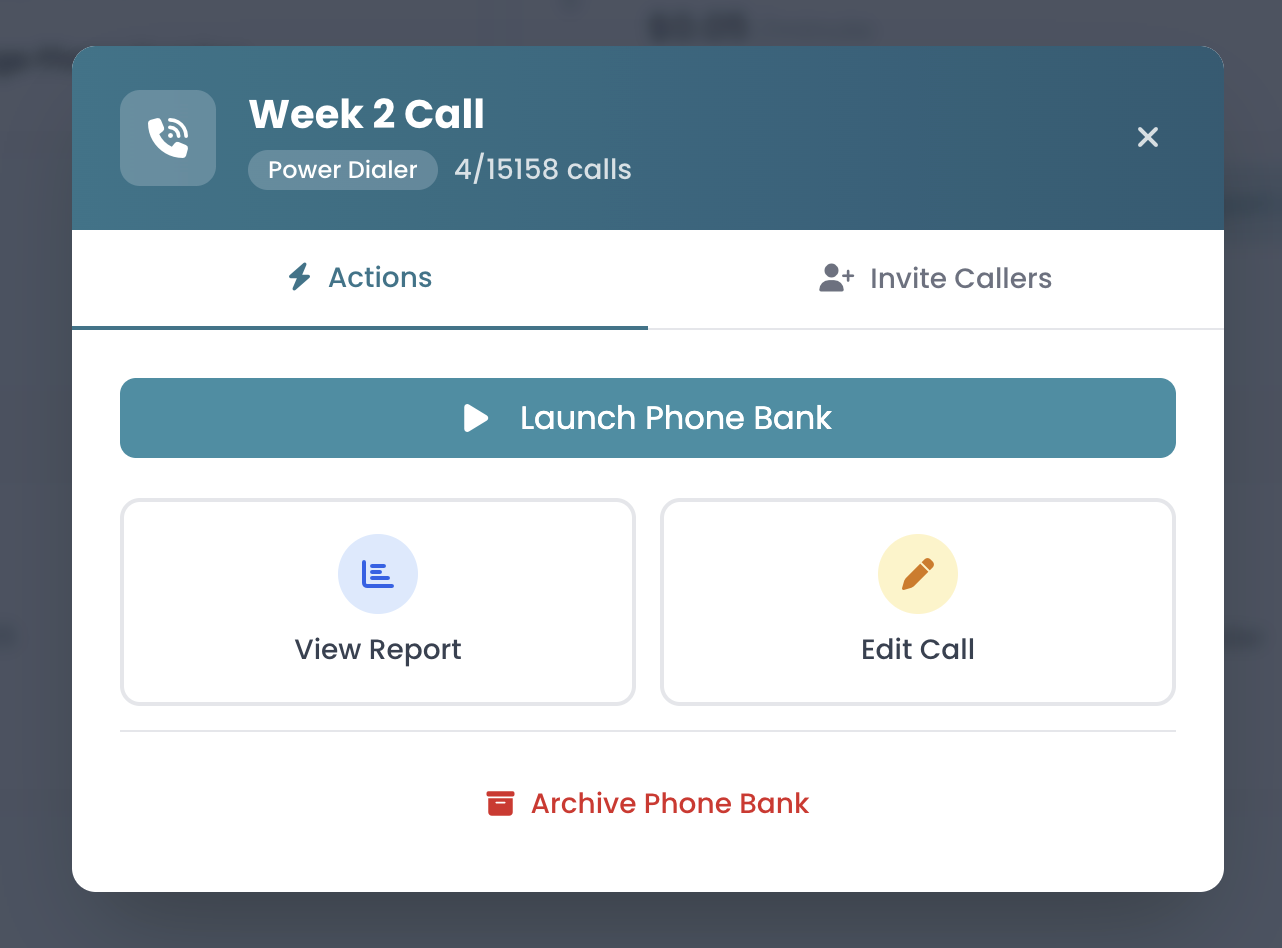
When viewing an individual phone call, you’ll see several available actions.
From this page, admins can:
Start calling
Invite callers
View reports
Edit the call
Archive the call
Each action affects how the call is managed, not whether it is active.
5. Invite Volunteers to Call
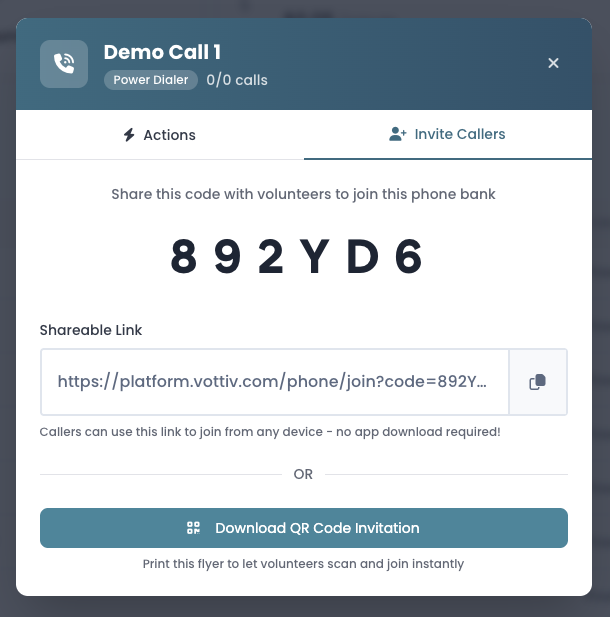
Click Invite Callers to invite volunteers to join the phone bank.
You’ll be provided with:
A 6-digit join code
A shareable link
A downloadable QR code invitation
Volunteers can:
Join using a link or QR code
Enter the same 6-digit join code either way
Call from any device
Begin calling without downloading an app
Invitations can be shared at any time.
Embed the Invite Link on Your Campaign Website
The shareable invite link is a standard URL, so you can place it anywhere you would place any other link — including directly on your campaign website. Volunteers who click the link from your site can join the phone bank in their browser, on any device, without the campaign needing to pre-create accounts for them in advance.
Common ways to embed the link:
As a “Volunteer to Make Calls” button on your homepage
From a “Get Involved” or “Volunteer” page
In volunteer recruitment emails, text messages, or social posts
When a volunteer arrives via the link, they enter the 6-digit join code, then provide their name, email, and phone before being placed into the call. No admin pre-provisioning or per-volunteer account setup by the campaign is required.
6. Start Calling
Phone calls are active as soon as they are created. To begin calling:
Click Start Calling
You'll need to grant access to your microphone
The calling interface opens
You can begin making calls immediately
What You’ll See When Calling
The calling interface looks similar for both dialer types, but a few elements differ depending on whether the call uses a Power Dialer or a Predictive Dialer.
Power Dialer
The next voter appears immediately
Callers manually place calls one at a time
Voter information and the call script are displayed on screen
Callers select which phone number to dial
Tags, notes, and call outcomes are entered after each call
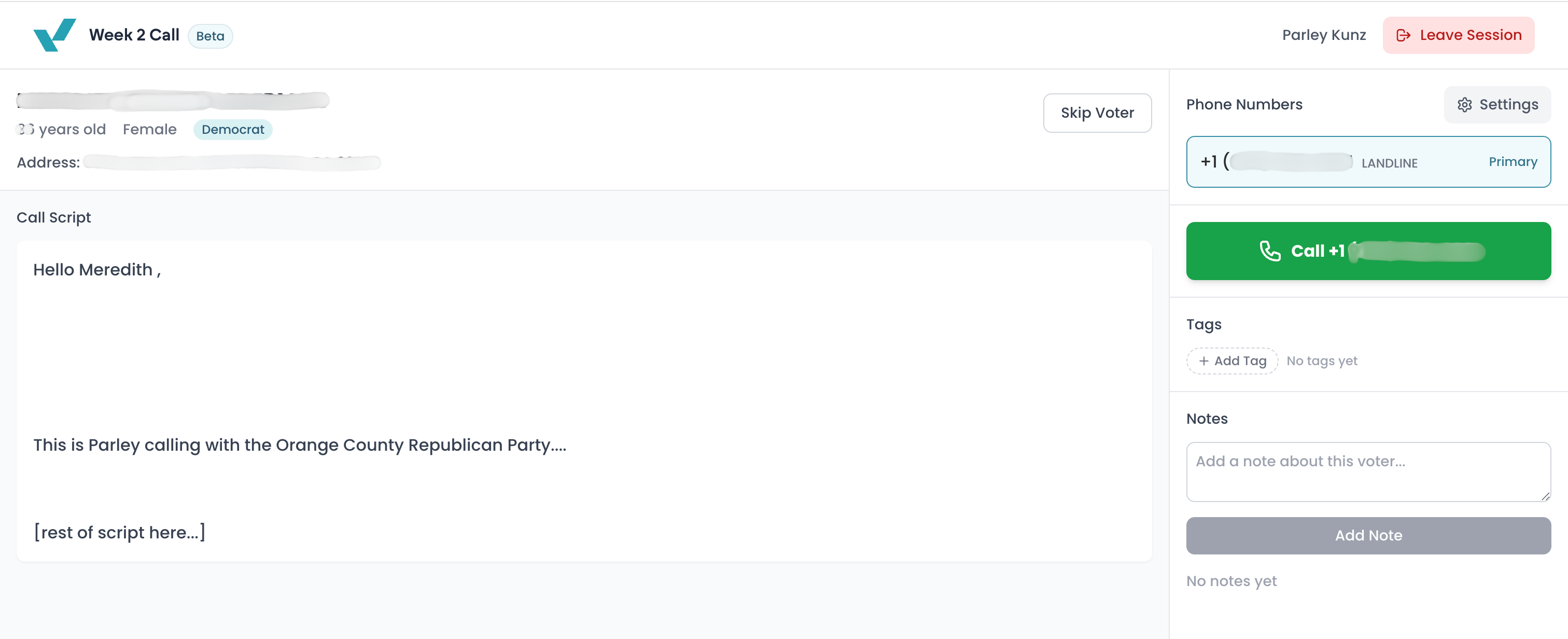
Calling screen for both the power dialer.
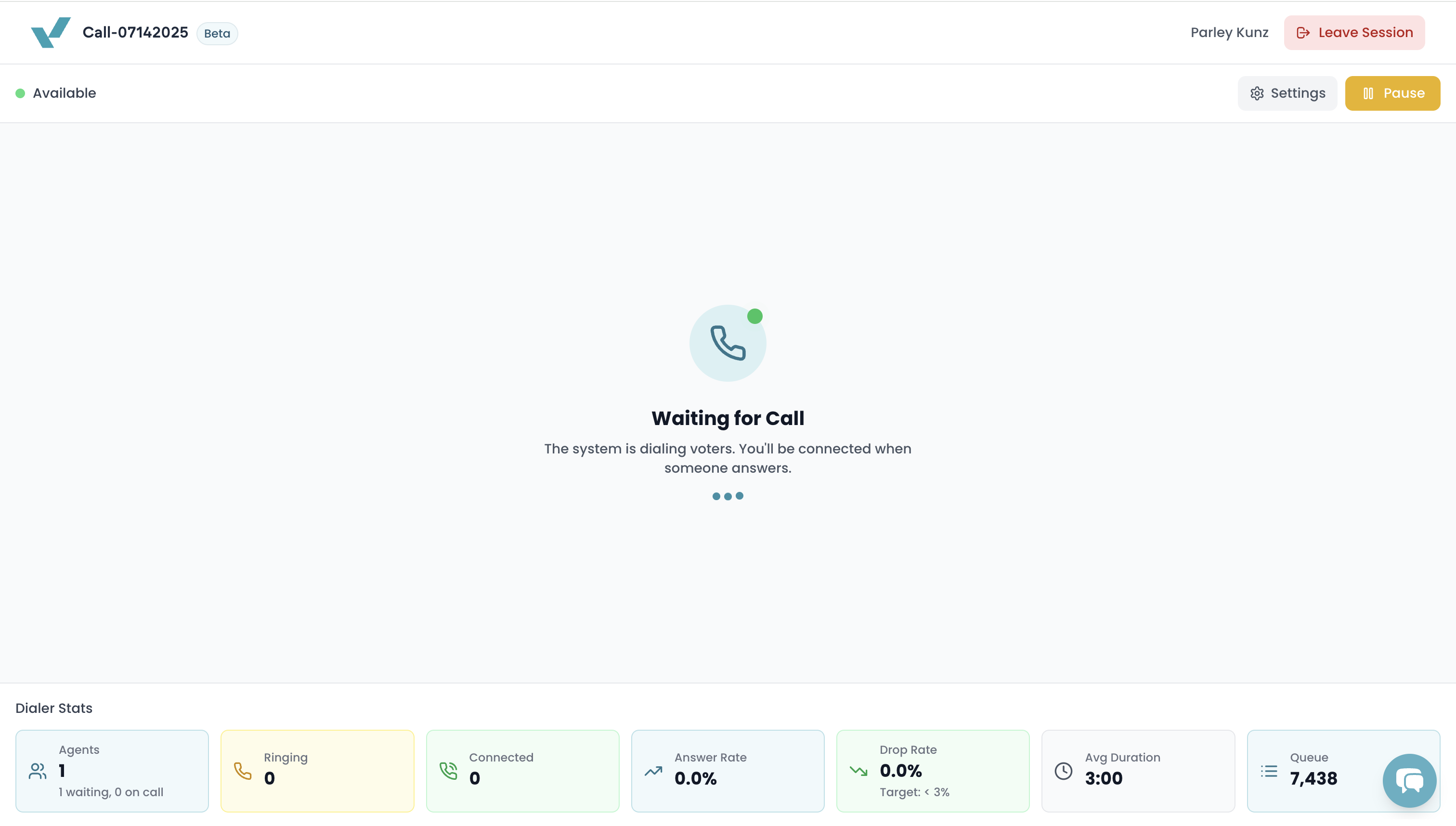
Predictive Dialer
Calls are placed automatically
Callers wait to be connected when a voter answers
A live status view shows:
Active callers
Ringing and connected calls
Queue size
Answer and drop rates
Callers can pause and resume calling at any time
Once connected to a voter, the calling experience is the same for both dialer types.
7. View Reports & Monitor Progress
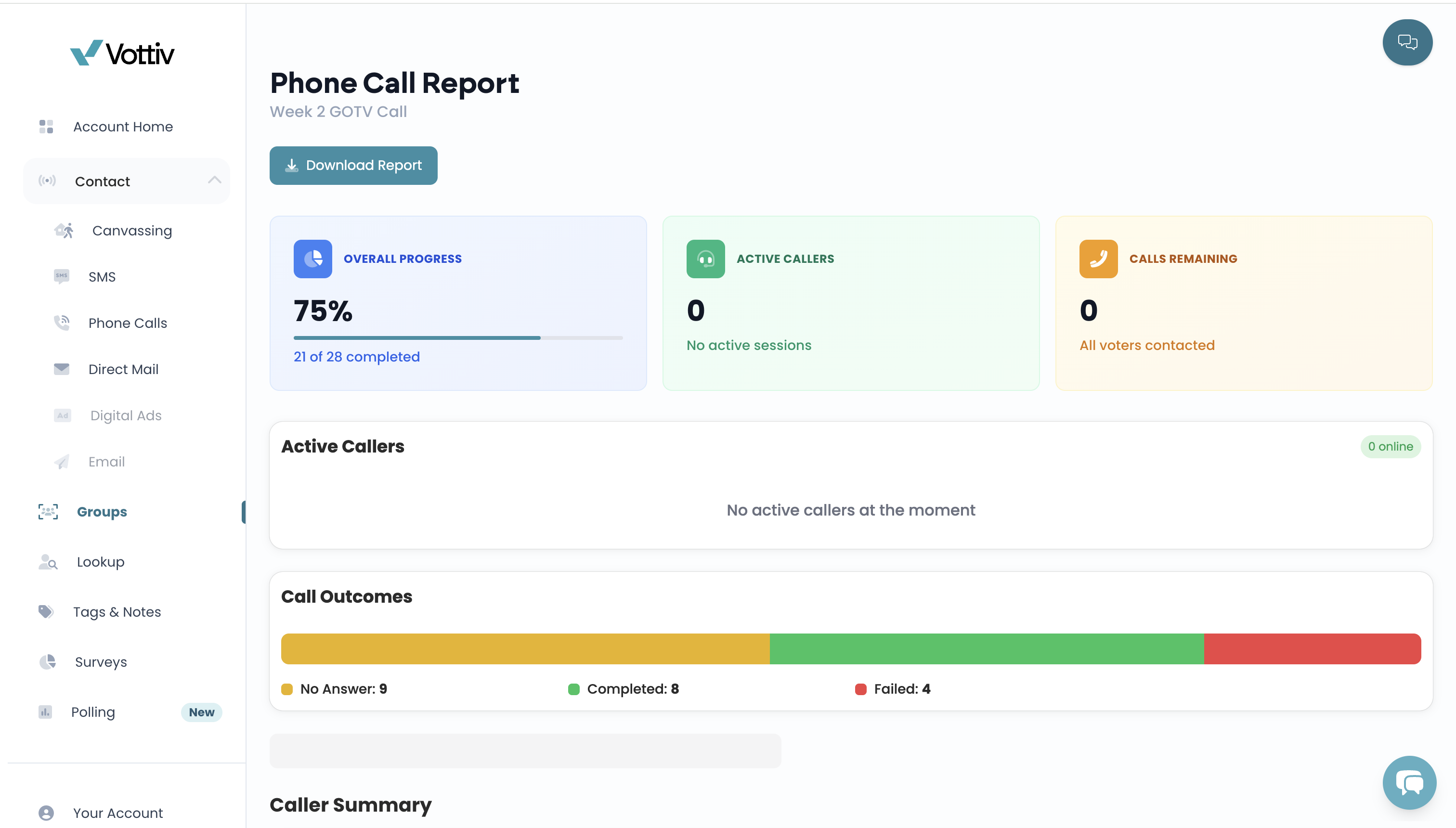
Click View Report to monitor calling activity and performance.
Reports include:
Active callers
Calls remaining
Overall progress
Call outcomes
Call summaries
Session summaries
Call logs
Reports can also be downloaded for sharing or record-keeping.
8. Edit or Archive a Phone Call
Edit a Call
Click Edit Call to update:
Call title
Call script
Voicemail recording
Attached survey
Dialer type
Caller verification rules
Archive a Call
Click Archive Call to remove the call from active use while preserving historical data.
Next Steps
Share the join link, QR code, or join code with volunteers
Begin calling as an admin, or allow volunteers to start calling
Direct callers to How to Make Calls as a Volunteer for calling instructions
Was this article helpful?