

SMS & MMS Text Messages
Getting Started with Texting in Vottiv (SMS, MMS & 4K Video)
Texting is one of the fastest and most effective ways to reach voters. Vottiv makes it easy to send compliant, personalized SMS (text-only), MMS (text with images), and 4K Video Texting messages while meeting current texting regulations, including 10DLC requirements.
Before you can send any text messages, your account must be registered and approved through 10DLC. A one-time $200 registration fee is required as part of this process.
Vottiv provides a separate, complete guide that walks through the entire registration process step by step.
➡️ See: Getting Registered for 10DLC Texting (required before sending messages)
Texting Basics: SMS, MMS, and 4K Video
Once your account is approved for texting, you can send:
SMS – text-only messages
MMS – text messages that include images (JPEG, PNG, and other supported formats)
4K Video Texting – a full HD or 4K video delivered by text: the complete video plays in the message, and every recipient gets a personal link that streams at up to 4K when their device and connection support it (see Sending Video: 4K Video Texting below)
Messages can include dynamic fields (such as a voter’s first name) and optional images to increase engagement.
Voter Contact Package — Messaging Rates
When you subscribe to the Voter Contact Package, you receive our lowest usage-based messaging rates. You only pay for what you send — there are no minimums or long-term commitments. Credits are purchased through your dashboard and deducted as you use them.
Credits are reserved while a message is being sent. Sent and Delivered messages count toward your credit spend. If a message is marked Failed, Error, or Undelivered, its full cost is released back to your available credits. This includes SMS, MMS, video, translation, and managed-send fees. You do not need to request a refund for a failed message.
Sent means the message was accepted for sending, but delivery is not yet confirmed. A Sent message remains charged while confirmation is pending or unavailable. If a previously failed message is later confirmed Delivered, its original charge applies once. Automatic video fallback attempts never add a second charge.
Subscriber Rates (with Voter Contact Package)
SMS (text messages): 3.5¢ per message
MMS (picture messages): 6¢ per message
4K Video Texting: the MMS rate plus a small per-message video surcharge (the exact surcharge is shown in the composer before you send)
Phone calls: 5¢ per minute
Managed Service Fee
If you use our managed messaging service (scheduled sends, automated campaigns), there is an additional 1¢ per message fee on top of the base rate.
Compliance Overview
Current texting regulations require that:
Each message is sent with human interaction (not fully automated)
Campaigns are registered and approved through 10DLC
Messages avoid misleading or spam-like language
Opt-out language is included when required (for example, “Reply STOP to opt out”)
Vottiv is built to support these requirements while keeping the process fast and intuitive.
Which cell phone number does Vottiv use?
A voter can have cell numbers from several sources, including DataAxle, Neustar, ABEV, and RAWVF. Vottiv does not use a fixed priority order among these sources.
For a group text, Vottiv selects one valid, eligible cell number for each voter:
It first selects an eligible cell number marked as primary. For RNC voter data, this is a source number that matches the voter file's main cell number.
If no eligible primary cell number exists, it selects the first eligible cell number in the voter's record. This fallback does not rank the sources or choose the highest match level.
If no eligible cell number exists, the voter is excluded from the text send.
Vottiv does not send the same group message to every phone number on a voter's record. Landline numbers are not used for group texts. Opt-outs still apply.
Do match levels affect which number is used?
Match level does not determine which number Vottiv selects. The separate High-Reliability Phone Numbers setting can change which numbers are eligible. You can find this setting on the Phone Numbers page in your account settings.
Setting off: valid cell numbers can be used without a high vendor reliability grade.
Setting on: vendor cell numbers must have Vottiv's high reliability grade, H. ABEV and RAWVF numbers are imported without a reliability grade, so they do not qualify under this setting.
Campaign-entered or CSV-imported numbers: these can qualify without a vendor reliability grade. They must still be valid cell numbers.
This setting limits eligible vendor numbers; it does not create a source priority order or guarantee delivery.
Do I need to provide phone numbers in a spreadsheet?
You do not need to provide phone numbers if your list can be matched to existing voters who already have eligible cell numbers in Vottiv. Use Update Voter Data to match the list to existing voters and apply a tag. Then create a voter group from that tag and select the group for your text send.
Include a voter ID where possible. If you do not have voter IDs, include names and address details to help match the correct people. Names alone can produce incorrect matches. Check the import results before sending.
If you use Add Voter Data to create new contacts, include their cell numbers to text them. Adding new records does not automatically find phone numbers for them.
Save an Excel spreadsheet as a CSV file before uploading it. A matched voter without an eligible cell number will not receive a group text.
Before You Start
Before sending messages, make sure:
✅ Your account is approved for texting through 10DLC
✅ You are subscribed to the texting service
✅ You have a voter group ready to message
✅ Your message is clear, friendly, and compliant
If you have not completed 10DLC registration yet, you must do so first.
➡️ Read: Getting Registered for 10DLC Texting for the complete setup guide and FAQs.
Sending Your First Text Message
Once your account is fully registered and approved, you’re ready to send messages. Creating a message is a guided, step-by-step flow: Message → Media & Video → Translations → Review & Test → Schedule / Send. A progress bar across the top shows where you are, and any step with an issue that needs your attention is marked so you always know what’s left before you can send.
Your work saves automatically. As soon as you start typing, Vottiv saves your message as a draft (you’ll see a “Saved” indicator near the top). You can leave at any time and pick up where you left off — when you come back to the composer, a Resume your draft banner offers to reload your unfinished message, and drafts also appear in your SMS dashboard list, where clicking one reopens it in the composer. Abandoned drafts are cleaned up automatically after 30 days.
Step 1: Open the Texting Section
From the left-hand navigation in Vottiv:
Click SMS
You’ll be taken to the texting dashboard, where you can:
View previously sent messages and drafts
See current messaging rates
Check available organizational credits
Step 2: Start a New Message and Write It
Click Send New Message, select a voter group, and click Create SMS
On the Message step, type your message content
Insert dynamic fields (for example, the voter’s first name)
Include required opt-out language (such as “Reply STOP to opt out”) — the composer will not let you send without it
To include a weblink, paste the URL directly into the message body. While not strictly required, we recommend placing the link as the last item in your message for the best display and click-through experience. Keep in mind that messages containing a website link can see lower delivery rates, because mobile carriers filter texts with links more aggressively — when the editor detects a link, it shows a “Heads up” reminder about this. Links are still allowed; if you include one, use a clear, recognizable web address so recipients trust it. Note that adding a link alone will not convert your message to MMS — that only happens if your total character count exceeds the SMS limit.
Step 3: Choose Media (Optional)
On the Media & Video step, pick one of three options:
No media — a text-only SMS.
Image or video — attach an image (or small video) to send as MMS. Click Select a design or upload a file to open your media library, where you can reuse a file you’ve added before or upload a new one. Vottiv automatically sizes images so they send reliably — you don’t need to resize anything yourself. If your organization uses Vottiv’s Design Studio, your saved designs are also available here.
4K Video — send a full HD or 4K video with a personal streaming link for every recipient (see Sending Video: 4K Video Texting below).
Step 4: Translations (Optional)
On the Translations step, you can automatically translate your message for voters whose preferred language isn’t English:
Turn on Auto-translate — Vottiv detects which languages are represented in your group and shows how many voters speak each
Select the languages you want and click Generate translations
Review and edit each translation in its own tab — you can also attach a different image per language
Each translated message is priced with a small per-message translation fee, shown in your cost preview. This step is optional — skip it to send in English only.
Step 5: Review & Test
On the Review & Test step:
Preview exactly what recipients will see, in every language you selected
Review the full cost breakdown — recipients, per-message rate, any translation or video charges, and the total
Send a test message to your own phone before sending to voters — you can choose which language version to test
If anything still needs attention, a checklist links you straight to the step that needs fixing
Note that messages over 160 characters are split into multiple segments. Messages can contain up to 5 segments total, with a maximum cost of $0.06 per message.
Step 6: Prepare, then Send or Schedule
On the final Schedule / Send step, click Prepare send. Vottiv builds your recipient list (this usually takes a moment). Once it’s ready, choose how to send:
Schedule managed send — pick a date and time and Vottiv sends the messages for you (organization admins only; the managed service fee applies). You can schedule right here without leaving the composer, and also review compliance and timing guidelines before confirming.
Go to send queue — send each message yourself with a click. The next recipient automatically appears after each send; continue clicking Send until complete. This fast, human-interaction sending keeps you compliant with current regulations.
Not ready to send? Your prepared message stays in your SMS dashboard list — you can come back and schedule it or work through the send queue later.
Sending Video: 4K Video Texting
4K Video Texting lets you send a full video ad by text without worrying about carrier size limits. You upload one HD or 4K video, and Vottiv prepares everything automatically: a carrier-safe version of the complete video that plays right in the message thread, plus a personal watch link for every recipient that streams at up to 4K when their device and connection support it.
How to send a video message
On the composer’s Media & Video step, choose 4K Video.
Upload a video — MP4 or MOV, up to 60 seconds and 2 GB, portrait or landscape — or reuse a video you’ve already processed.
Vottiv processes the video for delivery, which usually takes a few minutes. You can leave the composer and check back later; Vottiv also shows an in-app notification when it’s ready.
Pick a poster frame (the preview image shown before the video plays) and, if you like, add one call-to-action button with a label and link.
Preview both versions side by side — what arrives in the message and what the watch link opens — and send a test to your own phone from the Review & Test step before sending to voters.
Shorter videos look sharper in the message itself: under about 15 seconds delivers a crisp in-message video, while a 60-second video is heavily compressed to fit carrier limits. Every recipient always gets the full-quality link regardless of length — the composer shows you a quality meter before you upload. If you use auto-translate, the same video applies to every language, and the “Watch in full quality” link text is localized automatically.
What recipients see
The complete video plays right in their messaging app as a normal video attachment.
The message ends with a short “Watch in full quality” link that opens a mobile player streaming at up to 4K. The link is unique to each recipient and expires 90 days after sending.
If a carrier can’t accept the video attachment, Vottiv automatically retries with a preview-image message, and then a text-plus-link message — you are never charged twice for the same recipient.
See who watched — and retarget them
After a video send begins, its send report includes a Video engagement section:
A funnel from delivered to viewed, play started, 25% / 50% / 75%, completed, and call-to-action clicks — plus rates and an engagement-over-time chart.
A per-recipient table showing which voters’ links recorded each milestone, with timestamps. Clicking a funnel stage filters the table to that audience.
Create group from engagement: turn any audience — watched to the end, tapped the call-to-action, or delivered but never viewed — into a voter group for follow-up texts, calls, or mail. Video engagement is also available as a criterion in the group filter builder.
Video pricing
A video message costs your normal MMS rate plus a small per-message video surcharge. The exact surcharge appears in the composer and in your cost preview before you send. Automatic delivery fallbacks never add a second charge, and test sends are billed like normal video messages.
Viewing Responses and Managing Opt-Outs
After sending messages, you can monitor replies and opt-outs directly from the SMS inbox in the top right of your dashboard.
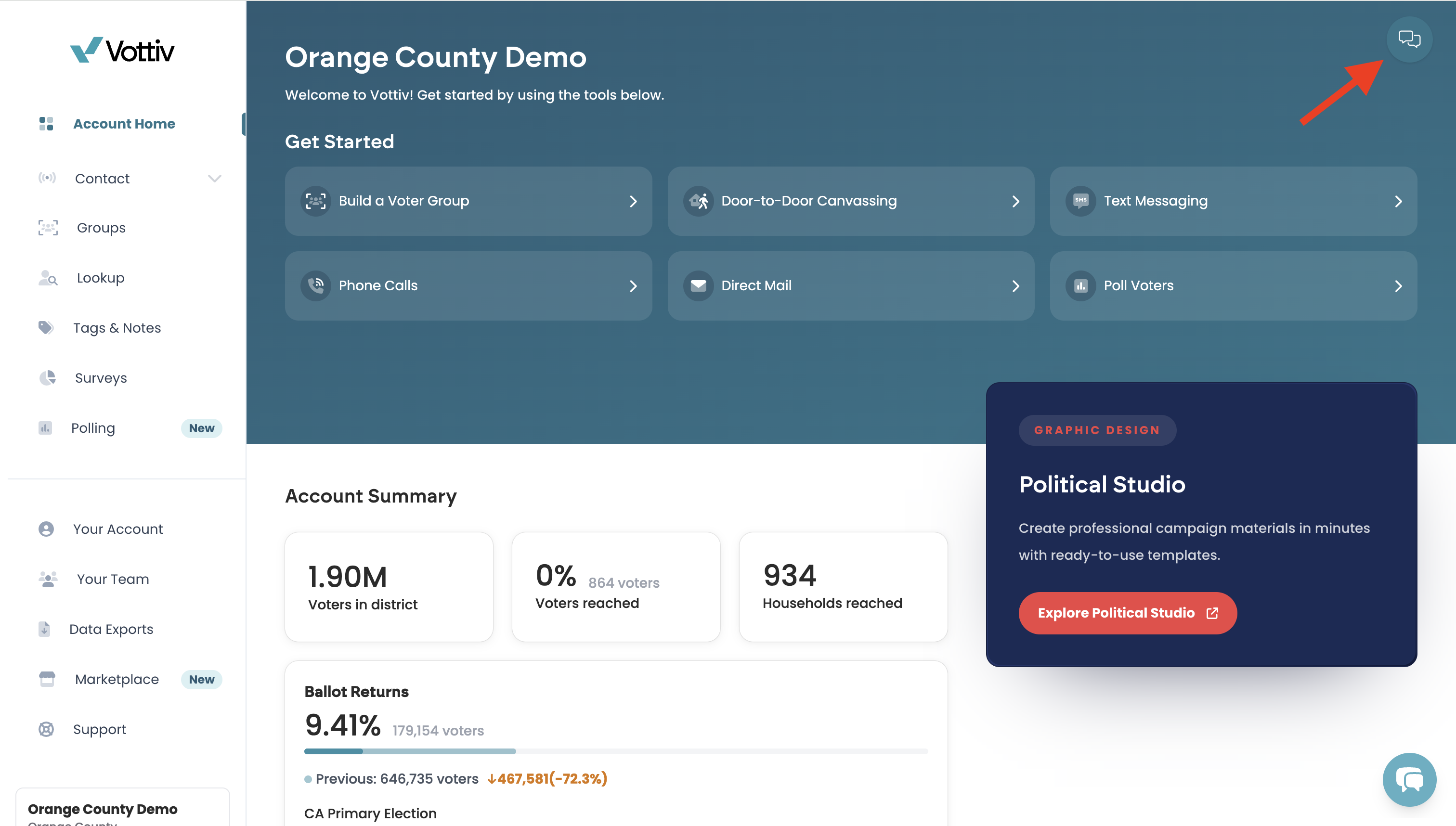
Opening your inbox
From the left-hand navigation, click SMS, then select Your Messages. You'll see a list of conversations organized by voter.
What the blue dot means
A blue dot to the left of a voter's name indicates an unread reply — that voter has responded and their message hasn't been viewed yet. Once you open the conversation, the dot will clear.
Choose an inbox tab
- Needs Response shows unread replies that Vottiv has identified as needing a response.
- Unread shows conversations with unread incoming messages.
- All lets you return to conversations you have already read.
- Opt-Outs shows conversations from people who have unsubscribed.
Opening a conversation marks its incoming messages as read, so it can leave the Unread and Needs Response lists even if you have not sent a reply. Use All to find it again. Reading a message does not mean your campaign has answered it.
Find a conversation or mark it unread
Use Search by name or phone to filter the conversations loaded in the selected tab. If you do not find a match, use Load more when available to bring in more conversations.
Open the conversation’s three-dot menu and choose Mark as unread if you need to return to it. The same menu offers Mark as read for unread conversations. Use Mark all as read only after reviewing the messages you want to clear.
Reading and responding to a reply
Click any conversation to open it. You'll see the full message thread with that voter. You can reply directly from this view.
Message delivery status
When you send a reply, it appears in the thread right away with a delivery status shown beneath it: Sending… while Vottiv hands the message to the carrier, then Sent and Delivered as the carrier confirms it. If you reply outside the recipient's allowed texting window (8 AM–8 PM in their local time zone), the message shows Scheduled with the time it will go out, and sends automatically at that time. If a message can't be delivered, it stays in the thread marked Failed so you know it didn't reach the voter.
Check SMS opt-out totals
Open SMS > View Opt-Outs. The SMS Opt-Outs card shows the number of phone numbers currently opted out of texting your campaign. Multiple replies from the same number count once. This is a count of phone numbers, not incoming messages or unique people.
The Deceased and Moved cards show full campaign totals for those voter statuses. Card totals do not change when you filter the voter list or move between pages.
The Voter Opt-Out List shows voter records marked opted out, deceased, or moved. An SMS opt-out can be absent from that list, so the SMS total can be higher than the number of voter records shown. Use the Opt-Outs tab in your SMS inbox to review opt-out conversations.
Viewing and understanding opt-outs
When a voter clearly asks to stop receiving campaign messages, Vottiv automatically marks them as unsubscribed. Standard opt-out keywords—including STOP, STOP ALL, UNSUBSCRIBE, CANCEL, END, QUIT, REVOKE, OPT OUT, and REMOVE—are recognized even with surrounding punctuation or PLEASE before the keyword.
Vottiv also recognizes clear requests written in everyday language, such as “stop texting me,” “take me off your list,” or “do not contact me again.” These replies follow the same opt-out process as a standard keyword.
Ambiguous phrases that are not clearly asking to end future campaign contact remain ordinary replies for campaign staff to review.
A few things to know:
Opted-out voters are automatically excluded from future sends — you don't need to remove them manually.
You can view opt-outs in the SMS inbox window under the Opt-Outs tab.
A Few Things to Keep in Mind
Messages with emojis or special characters use Unicode encoding, which reduces characters per segment (70 vs. 160 for standard text). Longer messages may be split into multiple segments, each billed separately.
If a text message exceeds 5 segments, our system automatically sends it as MMS since it becomes more cost-effective at that length.
Best Practices for Texting
Use:
Personalized messages
A friendly, campaign-identified tone
Clear calls to action
Avoid:
Over-messaging
Aggressive or spam-like language
Unverified links
Troubleshooting & Help
Contact support if:
Your 10DLC registration is still pending
Messages are not sending correctly
MMS images fail to upload
A 4K Video upload is stuck processing or fails repeatedly
You have questions about compliance
Watch the Video Walkthrough
Want to see this process in action?
Watch the video walkthrough for a full demonstration of creating and sending text messages in Vottiv.
Was this article helpful?